You need Stock permission to edit a completed stocktake. If you don't have access to this module, ask someone with Manager permissions to update your user permissions.
You'll need to be familiar with the process of creating a stocktake before you can edit completed stocktakes.
You need to have entered your stock items and component recipes before you can complete stocktakes.
Before you can generate an accurate stocktake report you'll need to have received all purchase orders/credit requests for the stocktake period and completed all POS links.
In order to avoid confusion and get the most out of the stocktake report, follow our best practice stock set up.
To access, head to Stock and then Stocktake, Completed Stocktakes.
Use the date navigation to select the time period of the stocktake you're wanting to edit.
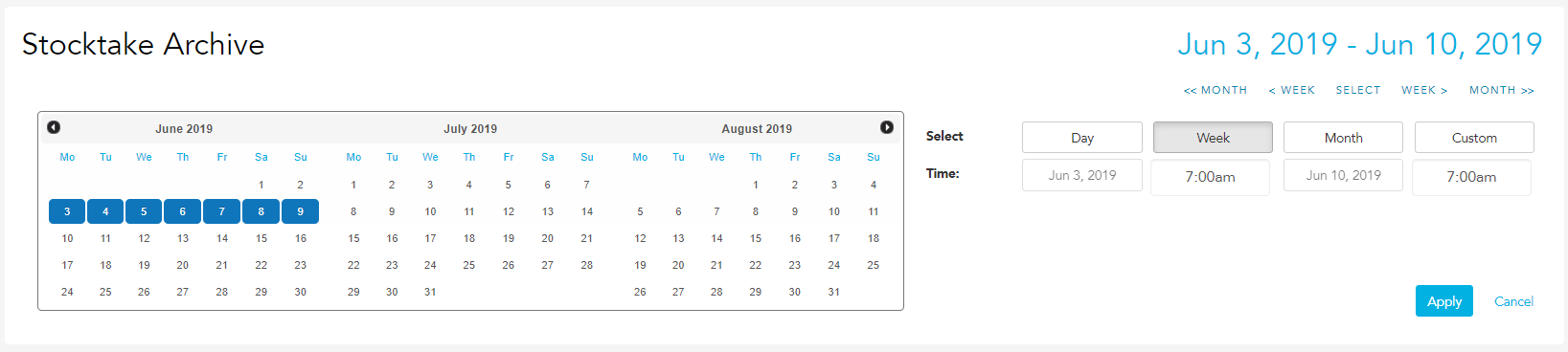
It can often be a good idea to run this report across a month if you don't know the exact date the stocktake was completed on. Do this by clicking Select, Month, Apply. Once you have found the correct completed stocktake, click on it to open.

Click Edit Stocktake.
This will reopen the stocktake template — scroll to find the item you are wanting to edit and make the update.
Click Complete Stocktake.
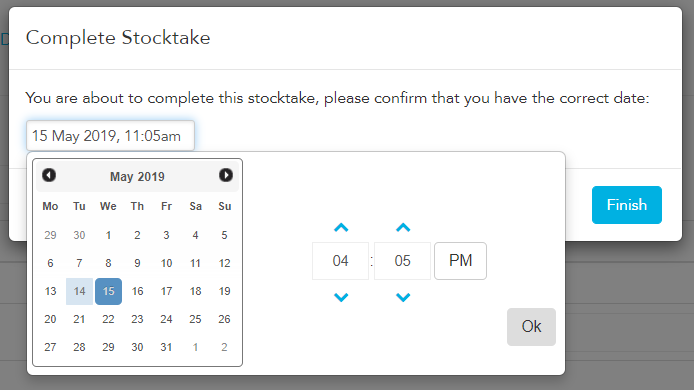
A date selector box will pop up — select the appropriate date and time, then click Finish.