
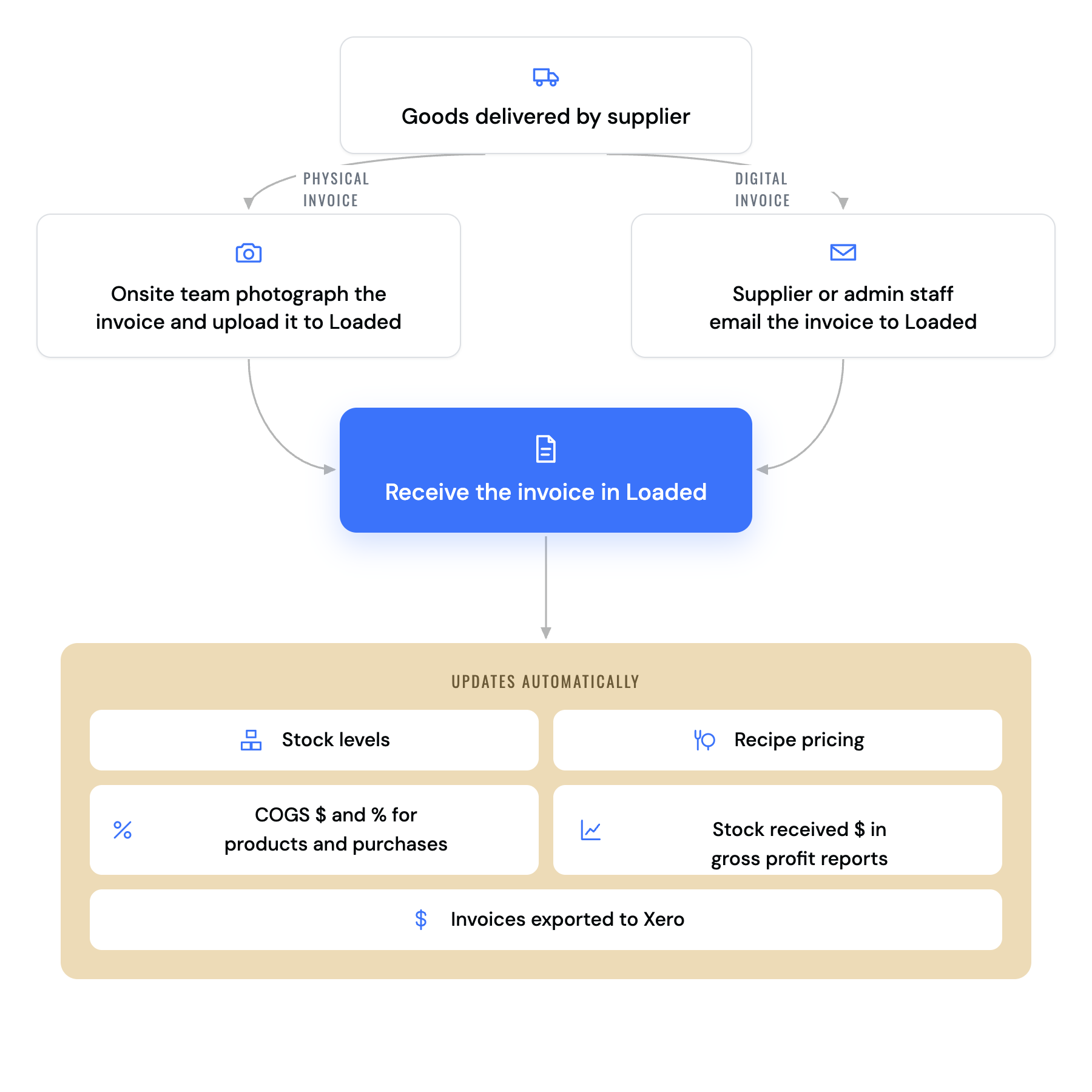
Invoice processing is one of the most important parts of your inwards goods workflow. In Loaded, AI Invoice Processing is used to automatically update your stock on hand, pricing, and cost of goods sold (COGS).
As you receive invoices, Loaded matches them to your stock items, flags price changes, and tracks stock item variants. Once processed, invoices can be reconciled to a statement and exported to Xero, keeping your stock and accounting systems perfectly aligned.
🔐 What You'll Need
🔑 Stock Permission
If you cannot access the Stock module, ask someone with Manager permissions to update your access.
Understanding Your Receiving Workflow
Receiving invoices may look different depending on your venue and workflow. The key is choosing a process that works consistently for your team. There are four separate scenarios showing how Loaded can work in multiple ways:
Do you order through Loaded? | How do you want to receive order invoices? |
Yes | 🚀 Via the Outstanding Orders Page |
Yes | 🔗 Via the Incoming Invoices Page |
Yes | 🏆 Manually, without AI Invoice Processing |
No | 🍎 Via the Incoming Invoices Page |
You can get invoices into Loaded via email or upload: Email — invoices land in Incoming Invoices when suppliers (or you) send invoices to your unique Loaded email address; Upload — upload a PDF or photo of the invoice when goods arrive. You can use a mix of both depending on how your team operates and how suppliers send their invoices.
🚀 I Order via Loaded and Receive from the Outstanding Orders Page
Go to Stock → Ordering → Outstanding Orders
Click Receive on the relevant purchase order to match the PO and Invoice. If invoices are emailed, select from the Invoice Number dropdown. If uploading manually, click the file icon and upload the invoice.
🔗 I Order via Loaded and Receive from the Incoming Invoices Page
Go to Stock → Invoices → Incoming Invoices
Click Receive on the relevant invoice
If the original Purchase Order number (generated by Loaded at the time of ordering) has been quoted on the invoice, this should be read and pre-populated by AI in the Purchase Order Number field. If it was missed off the supplier invoice, you can search for an outstanding purchase order from here.
🍎 I Don't Order Through Loaded but Want to Receive My Invoices with AI Invoice Processing
No worries, this is easy. Go to Stock → Invoices → Incoming Invoices and click Receive on the relevant invoice, then follow the steps below.
Note: if you order through Loaded but don't want to use AI Invoice Processing, see our separate guide on receiving invoices without AI.
Review Invoice Details
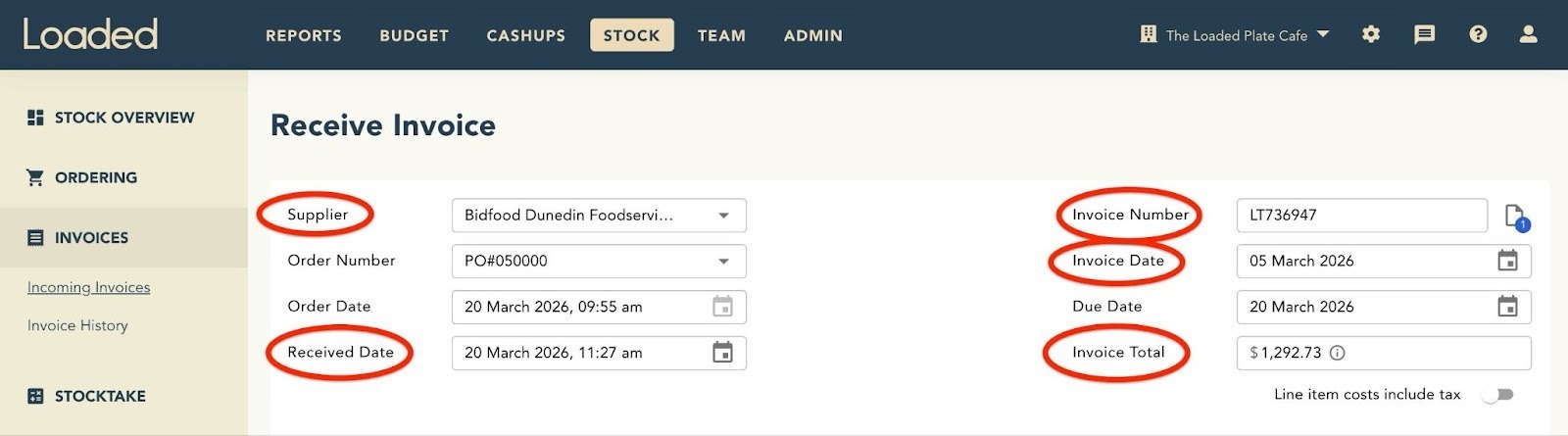
Confirm you're happy with the following fields, and update them if needed. Any blue fields mean the supplier or stock item has not automatically matched with an already existing supplier or stock item in Loaded, so we either need to create a mapping to your existing details (which will be remembered for next time) or create a new supplier or stock item.
Supplier: If it's marked blue, select a supplier from the dropdown or create a new supplier by clicking "More" if needed. If it's grey already, this is mapped and you're good to go.
Received Date: Update this to the date the stock was delivered to site — if you do this process infrequently you'll want to make sure you backdate this so it doesn't cause issues for your Stock on Hand figures.
Invoice Number, Date, and Total: These fields should match what's on the supplier invoice already.
Match Invoice Lines to Stock Items
Loaded will automatically match invoice lines where possible, by checking if a variant with a matching stock code or item description already exists on your stock item profile.
When a match is found, the line will be white with the Stock Item, Unit, and Brand matched to the details already in Loaded for that stock item variant.
When a match is not found, you'll see a blue line with a 'NEW' tag. This means you do not have a stock item variant matching the supplier invoice details saved in Loaded.
To resolve: click the Stock Item Description, then search and select an existing item — if it exists already, click on it and a new variant will be created. Items listed as "Original" do not yet exist in Loaded; items listed under a Loaded category are stock items that do exist in Loaded. If it doesn't exist yet, click 'More' to create a new one. Once matched, the row turns white and you can carry on.
When your Invoice and Purchase Orders are linked, you may need to account for supplier substitutions. If you receive a substitution, or a different variant to what you ordered, your invoice might show duplicate lines for the same stock item. Check the Quantity Received is correct for each line — the quantity you'll receive of what you originally ordered will be '0.00', and the quantity you'll receive of the substitute that's been delivered will show on the blue invoice line. Both lines need to be matched to the same stock item description so none of your recipe costing or COGS is impacted by receiving the new variant. If you want to use the new variant for future orders, set it as the Default Stock Item variant in the dialog prompt after clicking "Receive Goods".
For example, if you ordered Stock Item BUT-004 but received the substitution BUT001, both being the same product, you'd map the new variant (BUT001) to the existing Stock Item (Butter Premium — Lightly Salted). This adds BUT001 as a variant so you don't have to change any recipes or reporting.
Key Invoice Fields to Check
Code: Loaded will grab this code from the invoice, or leave as 'Not Set' if there isn't one.
Stock Item Description: Match to an existing item where possible to avoid duplicates. Use Stock Item Variants to receive different versions of the same item that may have different brands, suppliers or units.
Unit: Must match your Count/Order unit type (weight, volume, count) used across recipes and stock.
Quantity Received: Ensure this aligns with the unit selected.
Costs (Unit / Total / Tax): Updating one will automatically update the others.
Once everything is matched and confirmed, click "Receive Goods". You can review this later in Invoice History.
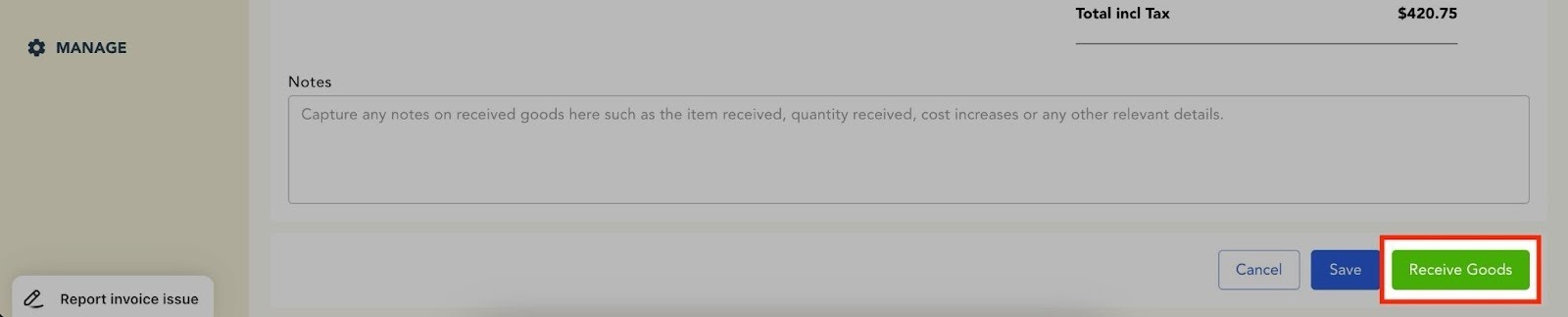
Your Cost of Goods and Gross Profit reports will automatically be updated based on the stock levels and pricing of the goods received.
AI Invoice Processing Features
1. Default Stock Item Variants
If you receive a stock item variant that is not set as the default for that supplier, you'll get a prompt asking if you'd like to update the default. If you update the default stock item variant for the supplier to the variant you're receiving on this invoice, the next time you order that stock item from that supplier, Loaded will automatically select the new default.
For example, let's say a 'Black Pepper' stock item is added to a purchase order, but there's no stock code for 'Black Pepper' in Loaded. Once the invoice is received, Loaded recognises the stock code PEPPER-123 as a variant for the 'Black Pepper' stock item. The order and invoice lines won't match at first because the codes are different, but if you follow the prompts and choose to set the PEPPER-123 variant as the default, Loaded will automatically use this code next time you order 'Black Pepper' from this supplier.
2. Price Change Alerts
Loaded highlights price changes directly on the invoice: a red arrow means a price increase, a green arrow means a price decrease. Hover to see the previous price and a link to the most recent invoice.
3. Price Impact Summary
After receiving, you'll see a summary showing stock items with price changes, the $ and % change, recent price history, and recipes impacted by cost changes. This helps you quickly understand how supplier pricing affects your margins.
4. Discounts
If your invoice includes a discount, enter the total discount (incl. tax) and toggle "Show discounted item costs" if needed. Loaded will use discounted values for price comparisons and COGS calculations.
5. Freight
If your invoice has a freight cost, click "Add Item" then search 'Freight'. Enter the freight cost in the Unit Cost field. Freight is not categorised as food or beverage and is exported to Xero as its own category.
AI Invoice Processing FAQs
How do I delete an invoice?
From the Incoming Invoices page, click "Receive" next to the invoice you want to delete, then on the Receive Invoice page click "Delete".
What do I do if an invoice is 'Not Recognised' and there's a 'Delete' button instead of a 'Receive' button?
This means Loaded hasn't recognised the document you've emailed or uploaded as an invoice. Send a copy of the invoice to support@loadedhub.com so the team can update the AI model. In the meantime, double check your invoice file is a PDF or JPEG no larger than 10MB. You can also manually create an invoice by clicking "Upload" on the Incoming Invoices page and checking the box "Create invoice manually without uploading".
Where do I add a freight or delivery charge?
At the bottom of the invoice lines, click 'Add Item', type Freight and select the Freight item, then enter the cost in the Total Cost field for that line.
What happens if the invoice total in Loaded is slightly different (no more than a few cents) to the total on the actual invoice?
This is usually due to Loaded rounding differently to the supplier's calculation. Loaded will automatically round the invoice if it's within 10 cents of the 'Invoice Total' field. If the difference is more than 10 cents, check the Unit Cost and Total Cost of each line item and adjust. For a bigger adjustment, select 'Add Item' and create a stock item called 'Rounding', then enter the amount needed for the invoice to match.
Why do I need to match the Supplier field before some line items match (turn white)?
Loaded needs the Supplier to match the correct stock item variant, since two stock item variants could theoretically share the same stock code but have a different supplier.
Can I upload and receive a Credit Note?
Yes — send or upload a credit note the same way as an invoice. Enter the stock item and make sure the Quantity Received value is negative, to account for any received stock being credited. Enter the dollar value fields as positive numbers (you may need to do this manually while Loaded learns how to read credit notes correctly). The dollar value of the credit note will update your Gross Profit and Purchases reports, and you can reconcile credit notes with supplier statements and export them to Xero from the Received Invoices report.
How do I apply a discount the supplier has provided on the invoice?
Enter the discount in the Discount incl Tax field at the bottom of the invoice. Loaded will automatically update the line item costs, and you can use the toggle that appears to see the line items including or not including the discount.
I received a "We couldn't process your invoice" email — what do I do?
Check you sent a JPG, PNG or PDF file format. If you think the invoice format is correct, send a copy to support@loadedhub.com explaining what you did and the message you got.
How do I set up auto-forwarding my invoices to Loaded from a Gmail account?
You can find setup steps for auto-forwarding invoices to Loaded from Gmail in Loaded's support documentation — reach out to support@loadedhub.com if you can't locate it.
How should I handle keg deposits that are included in my invoice line item price?
Create a 'Keg Deposits' stock item and add it as a separate line item on the invoice, then calculate the correct Unit Cost and Total price for each line item.
Known Constraints
Issue Summary | Description | Workaround |
Quantity Received and Unit Cost don't automatically update if Unit is changed | If you need to manually match or create a new unit for a line item, the Quantity Received and Unit Cost fields won't automatically update. | Manually update the Qty Received field. Then calculate Total Cost / Qty Received = Unit Cost. |
GST in Australia | Currently Loaded does not automatically categorise food items as GST-free or taxable based on Australian GST rules. | Update the Tax Value for the Stock Item to set whether or not it includes GST. On the Receive Invoice page you can manually select the correct tax type per line item in the Tax column. |
Multiple invoices in one PDF from a supplier | If a supplier sends you multiple invoices in one PDF, Loaded cannot currently process those as separate invoices — it can only process one invoice per file. | Ask the supplier to send each invoice as a separate PDF/file. |
Tips & Tricks
Receiving a Credit follows the exact same process — just make sure the quantity received is a negative value.
Received Date should always be the date the stock was delivered to site — if you do this process infrequently, backdate it so it doesn't cause issues for your Stock on Hand figures.
Blue line items and 'NEW' labels on an invoice mean the item isn't matched to an existing Stock Item in Loaded — select the correct existing item or create a new one.
If there's a variant mismatch between the order and the invoice, duplicate lines (black + blue) will show. The black line is what was on the purchase order, the blue line is what's on the invoice. You don't need to delete either line — just ensure Quantity Received is correct for each line, then receive goods, and update the default variant when prompted if you want the received variant to be the default for future orders.
What's Next?
Once invoices are received, you can reconcile supplier statements, export invoices to Xero, and review Live COGS reporting.