
Getting Started with Loaded Stock
Set up your stock once, and everything starts working smarter. You’ll unlock true end-to-end inventory management with real-time cost of goods, driven by live pricing across your stock items, recipes, menus, and sales. You can easily compare what things should cost against what they actually sell for, and take the friction out of ordering by ordering from all your different suppliers in a single hit. Your initial stock setup forms the foundation of the entire system, so it’s important to get this right. Your setup outlines:
Who you buy from (your suppliers)
What you buy (items and ingredients)
How you measure what you buy (unit of measurement)
Everything in Loaded Stock flows from this. Get these right from the beginning, and your data and insights will be accurate and easy to follow.
What You’ll Learn
There are two key concepts you’ll need to grasp before getting started.
We’ll also give you some quick Tips & Tricks and tell you What’s Next to check in on your progress and understanding of these concepts.
Video with an Expert
How Stock Items and Variants Work
Stock Item Variants allow you to create, use & monitor one item in Loaded, even if you buy it from different suppliers, in different sizes, or brands.
Put simply, a Stock Item is what you track. A Variant is how you buy it.
Let’s take a look at an example using flour.
You want to:
Order flour from various suppliers
Count flour in stocktakes
Use flour in recipes
Track flour usage through POS Links
So you set up flour as a Stock Item. But you might buy:
5kg Smart Choice from Bidfood
25kg Pams from Bidfood
10kg Chelsea from Service Foods
Different sizes. Different brands. Different suppliers. But it’s still just flour. Instead of creating three separate flour items (which would fragment your reporting), you create:
1 Stock Item → Flour
3 Variants → 5kg, 25kg, 10kg
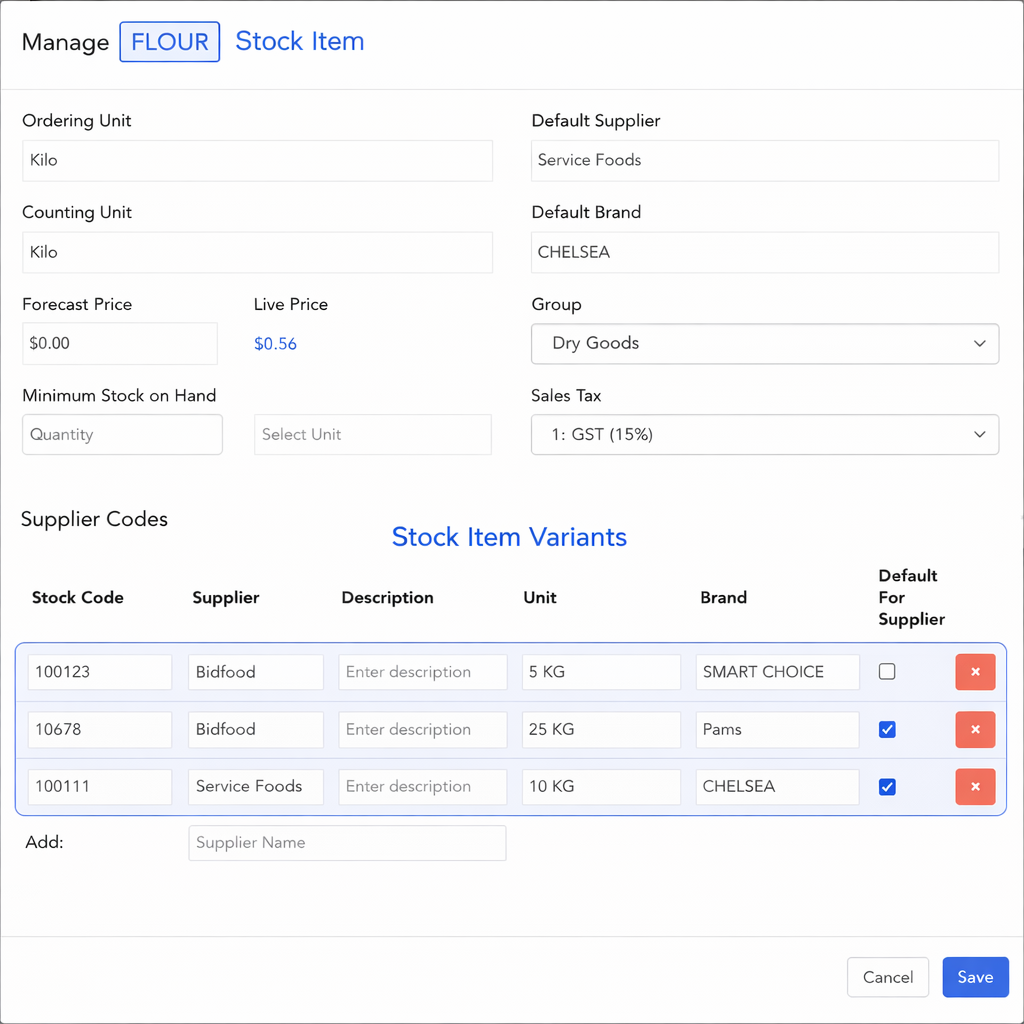
Everything rolls up into one clean data point. That’s how you maintain consistent reporting as substitutions increase.
The Importance of Unit Consistency
Loaded works with three unit types:
Weight (kg ↔ g)
Volume (L ↔ mL)
Count (e.g. 24 pack → each)
Conversions are calculated seamlessly within unit types, but not between unit types. That means:
kg → grams ✔ | kg → each ✘ |
litres → mL ✔ | litres → kg ✘ |
pack → each ✔ | pack → litres ✘ |
The Rule
For each stock item, choose one unit type and use it for:
Order By unit (how you order & receive the item)
Count By unit (how you count the item in stocktakes)
Variant unit
Recipe portion unit
POS link quantity
Example of an Incorrect Setup
If you:
Order wine as a 6 Pack (count unit)
Then use 150mL in a recipe or POS Item Link (volume unit)
Trying to convert between “6 Pack” (count) and “150mL” (volume) will cause costing and stock usage errors. Everything must stay in the same unit type. If you mix and match unit types on a single stock item, you’ll get incorrect COGS, odd stock-on-hand levels and wacky stocktake variances.
To fix this, change the ‘Order By’ unit to a Custom Unit with
Description: 6x750mL
Type: Volume
Ratio: 4.5
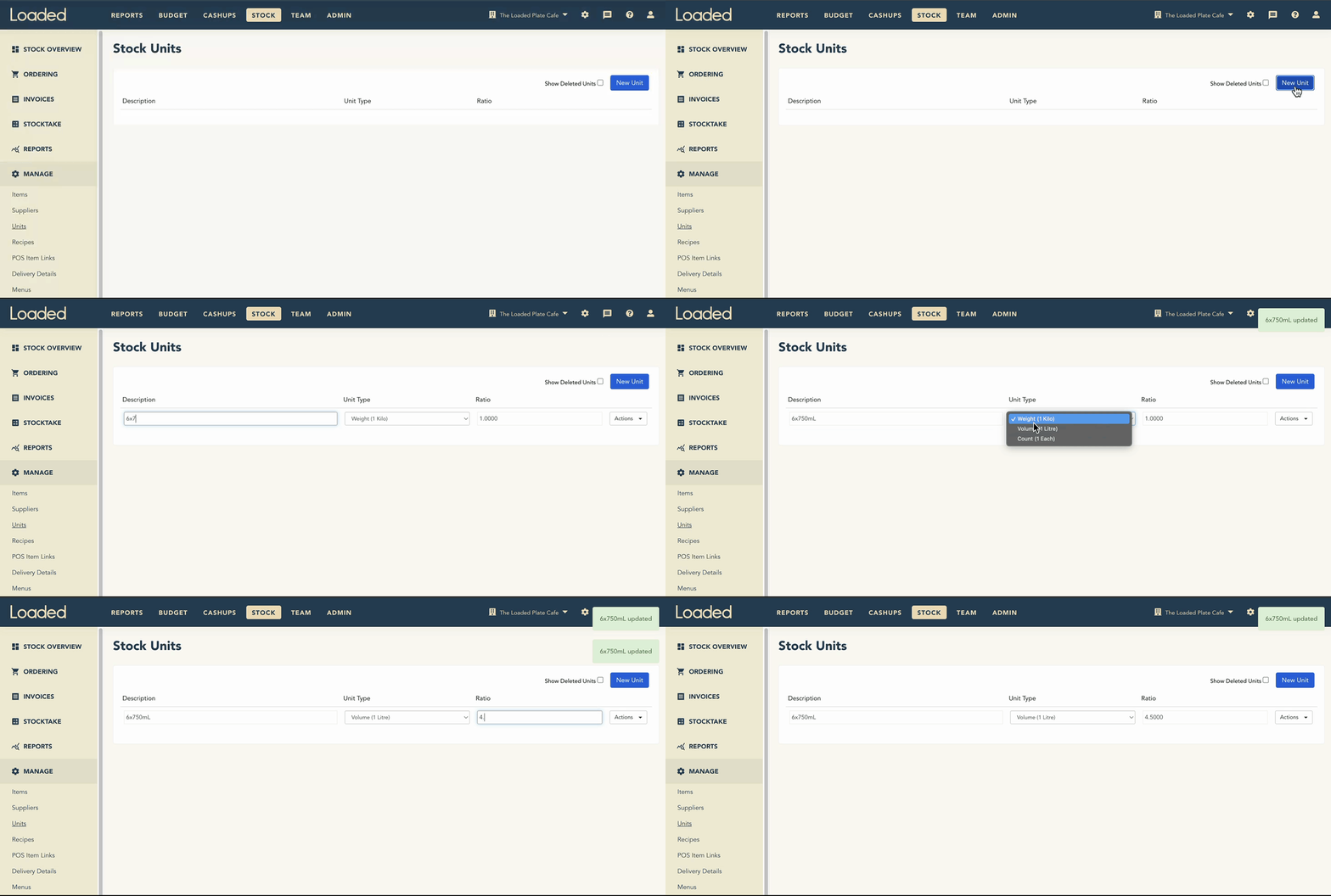
You will read more about Stock Items and Units soon.
Tips & Tricks
Use variants instead of duplicating stock items
Keep item naming consistent for easier reporting
Choose unit types based on how the item is ordered and used
Never switch unit types mid-workflow
What’s Next?
Now that you have these two concepts dialled, you’re ready to get started with setting up!