
You need Stock permission to create a stocktake template. If you don't have access to this module, ask someone with Manager permissions to update your user permissions.
You need to have entered your stock items before you can create a stocktake template.
Before you can use your completed stocktakes to generate a stocktake report you'll need to have received all purchase orders/credit requests for the stocktake period and completed all POS links.
In order to avoid confusion and get the most out of the stocktake report, follow our best practice stock set up.
Stock templates are used when you want to stocktake a group of items that are different from the All Beverage, All Food or All Other Stock system templates provided by Loaded Reports.
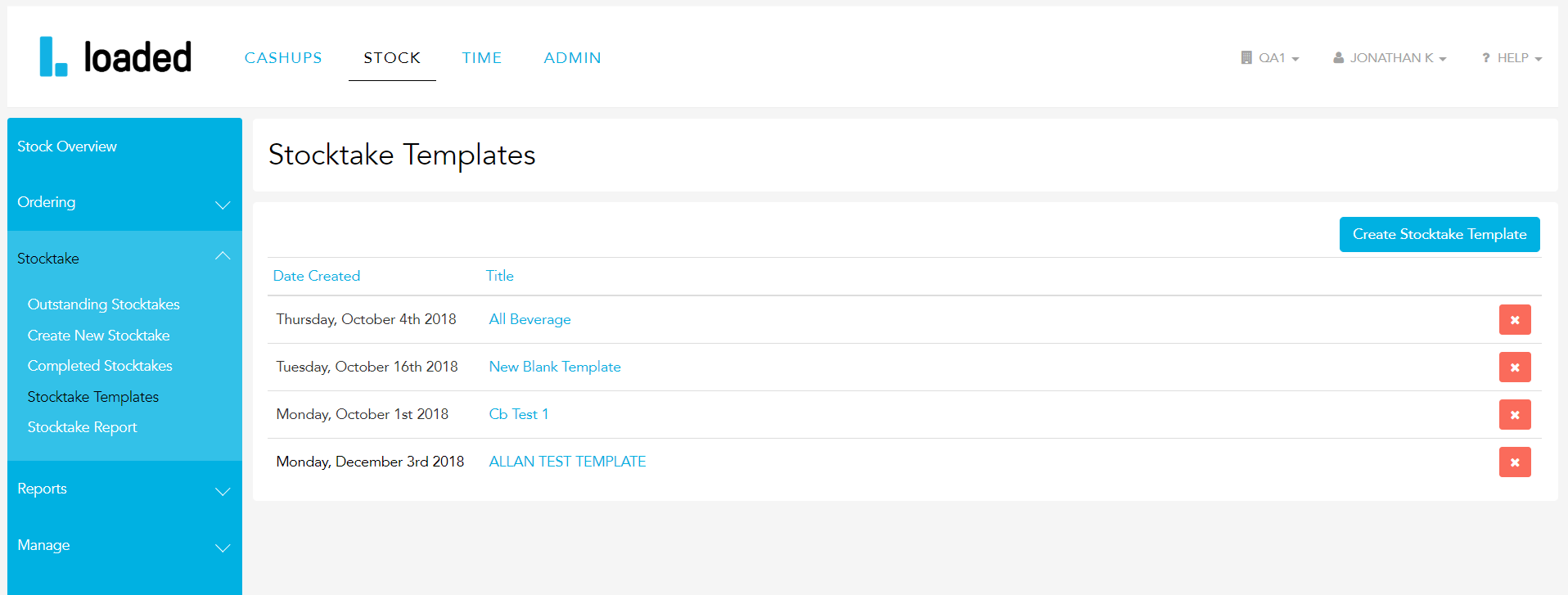
To access, head to Stock and then Stocktake, Stocktake Templates.
Click Create Stocktake Template.
Next, choose what to base your new stocktake template off. You can choose to start with all of a particular group of items (Food, Beverage, Other), copy one of your existing templates, or start with a blank template.
For example, if you only want to stocktake a couple of items, start with a blank template. If you want to simply remove a number of very low-value items from your food stocktake, click on All Food.
Once you have selected the starting template you want to use, it will appear at the bottom of your list of stocktake templates.
Open it by clicking on the title.
Type in a new title.
If starting with an All Food, All Beverage or All Other template, make any edits to the list needed.
Use the arrow buttons beside each item and item heading to re-arrange the order of the lines on your template, and use the cross button to remove an item or item group from the stocktake template.
If starting with a blank template, add a new Item Group to the template by clicking Add Item Group and entering a name for your new item group in the input box.
To add items under the Item Group, click the Add Item link next to it, then use the search box to find the item you want to add.
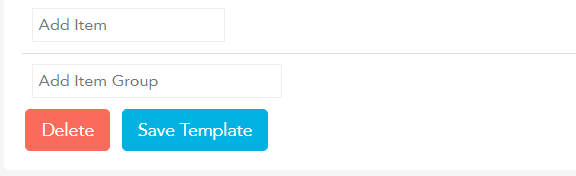
When you are happy with the new template, click Save Template.
If you need to edit an existing template, click on the title to open it and begin making edits.
Click Save Template.
To delete an existing template, click on the red x beside the template name.