You need Stock permission to create a stocktake template. If you don't have access to this module, ask someone with Manager permissions to update your user permissions.
You need to have entered your stock items before you can create stocktake areas.
It will be helpful if you are familiar with creating stocktake templates before you start to add areas.
Stocktake areas provide you with the ability to separate your stocktakes into logical areas that your stock is actually stored in. You count these areas separately from your main stocktake sheet.
In order to ensure accuracy and get the most out of the stocktake report, follow our best practice stock set up.
To access, head to Stock and then Stocktake, Stocktake Templates.
Click on Create Stocktake Template.
Type in a title for your area.
Check the Stocktake Area tick box.
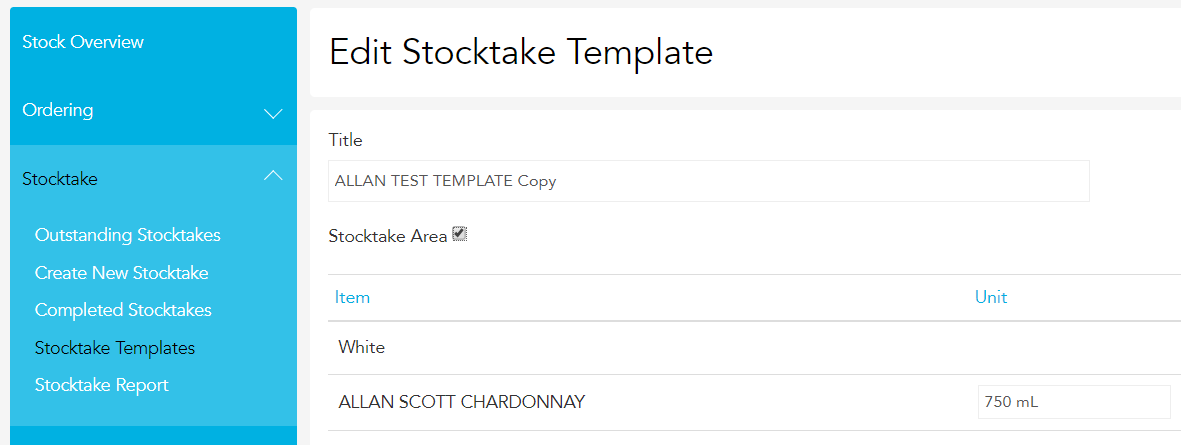
Edit the template to include all item groups and items needed.
Then click Save Template.
Once you have created your stocktake area, it can then be added to your stocktake and used for counting.
On the stocktake count sheet, click Add Areas to see the areas overview page. This will show all areas that have been added to this stocktake.
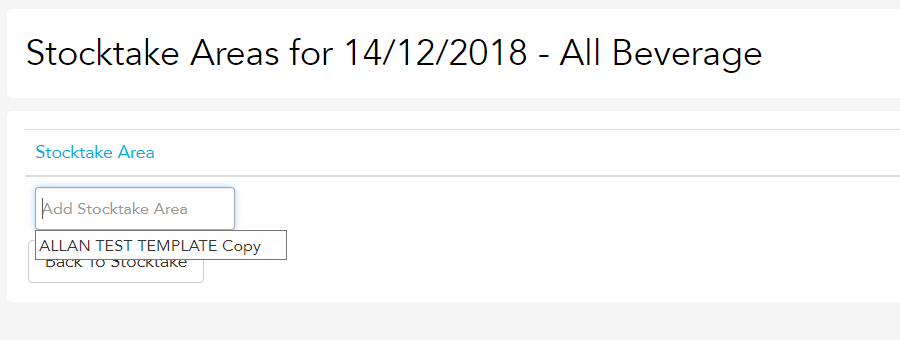
Stocktake areas aren't added to a stocktake by default. To add an area to a stocktake, click Add Stocktake Area and select the area to add. If an area doesn't appear in the dropdown, that means the area and the stocktake don't have any stock items in common.
Once you have added the area to the stocktake, click the area name to go to the area count sheet. From here, add your item counts for the area in the same way as the main count sheet.
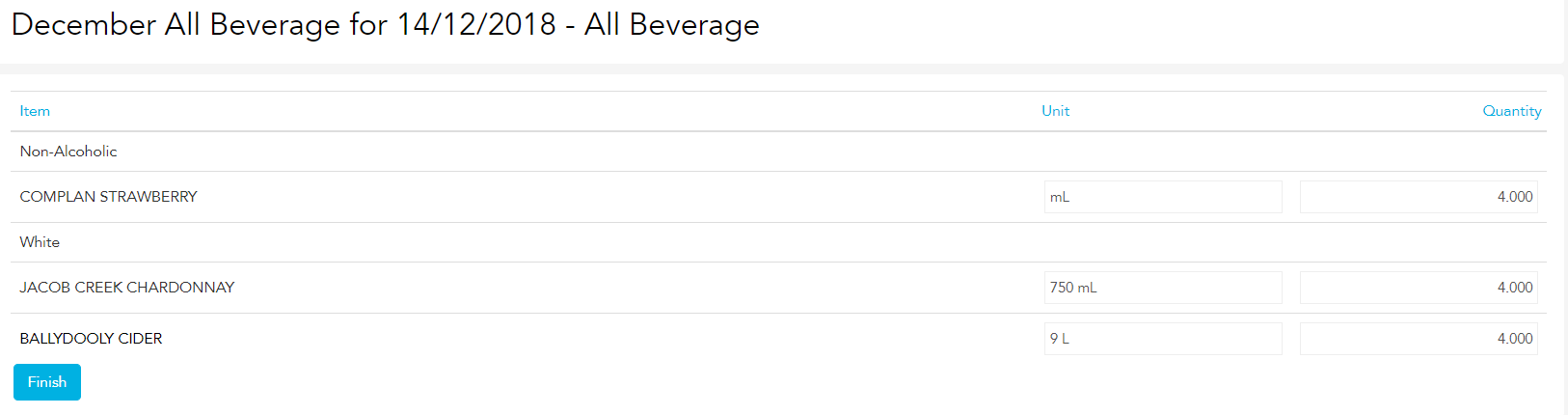
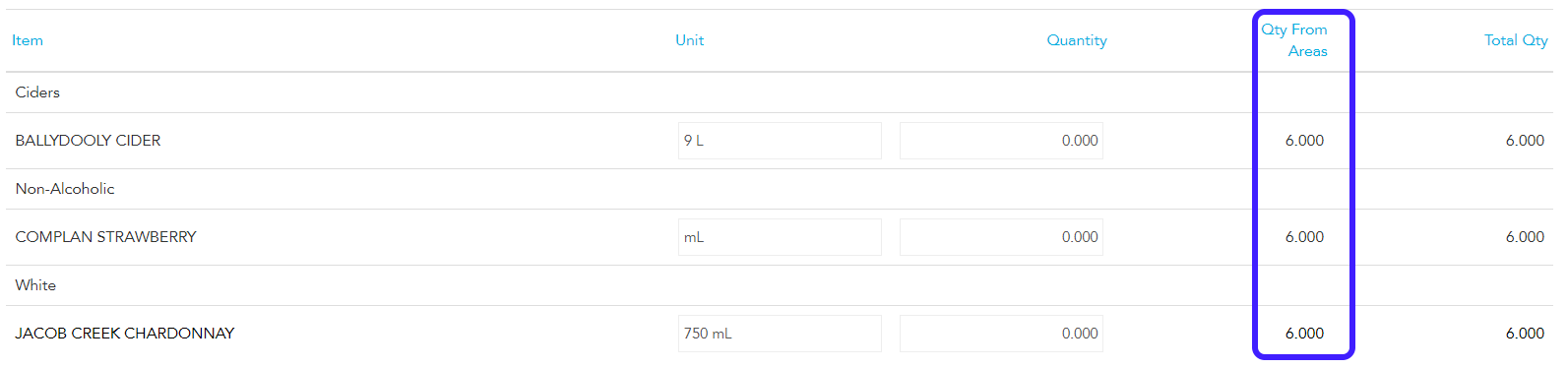
Once you have entered your count, click Finish to return to the areas overview page. Then click Back To Stocktake to return to the full stocktake count sheet. On the stocktake count sheet, you will now see a Qty From Areas column with the counts you have entered on your area count sheet.