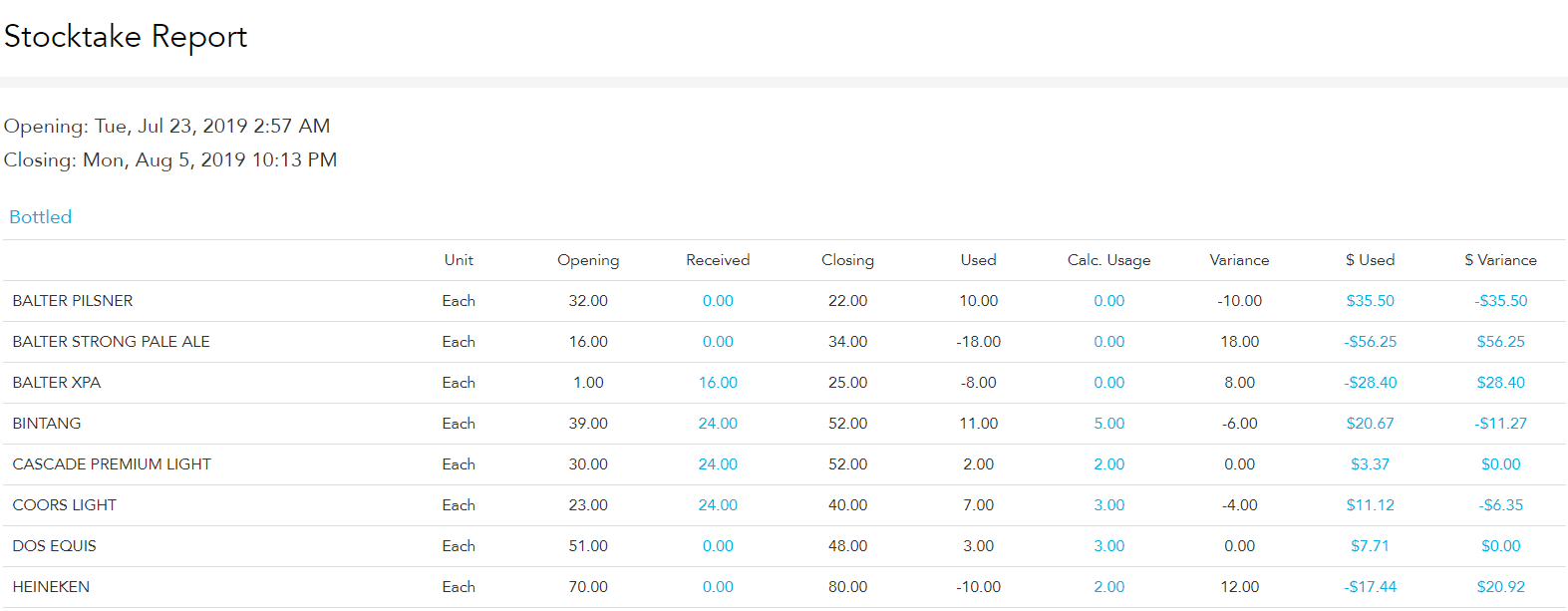
You need Stock permission to view a stocktake report. If you don't have access to this module, ask someone with Manager permissions to update your user permissions.
In order to ensure accuracy, follow our best practice stock set up.
You will need to have completed two stocktakes to generate a stocktake report.
To access, head to Stock and then Stocktake, Stocktake Report.
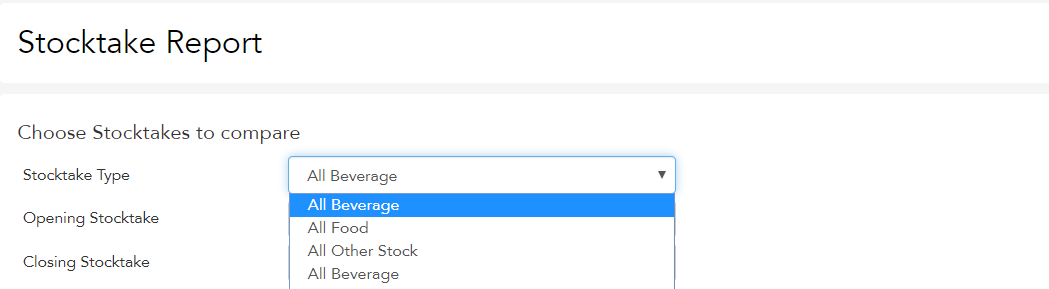
Select the type of stocktake report you'd like to generate from the Stocktake Type drop box.
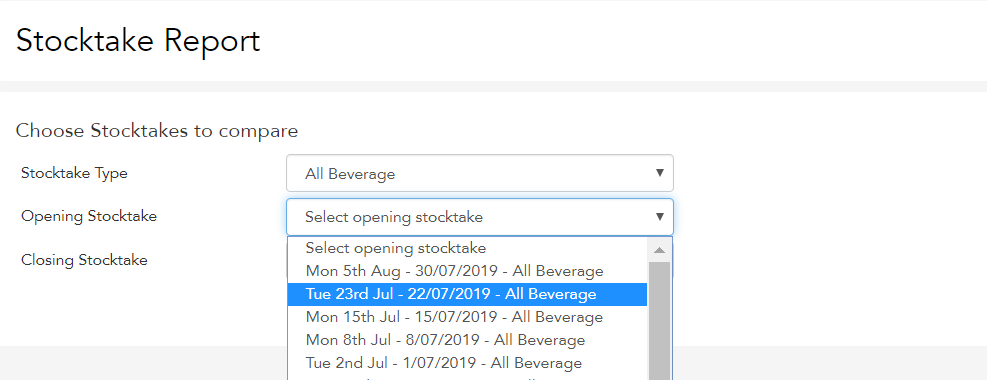
Select the opening stocktake from the Opening Stocktake drop box. (The opening stocktake is the initial count — e.g. if you stocktake weekly/monthly, the opening stocktake is the count at the beginning of the week/month.)
Select the closing stocktake from the Closing Stocktake drop box. (The closing stocktake is the final count — e.g. if you stocktake weekly/monthly, the closing stocktake is the count at the end of the week/month.)
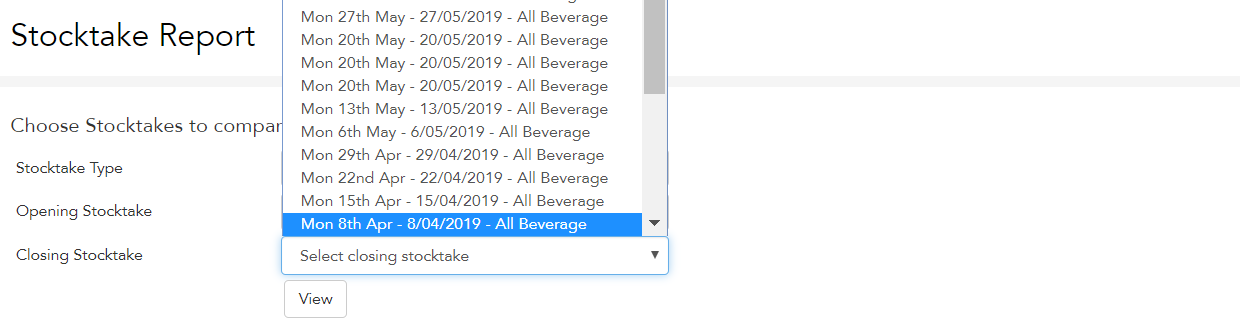
Click View.
This will create the stocktake report, comparing the actual stock usage across the stocktake report period (calculated by your opening count, plus the amount received through purchase orders and credit requests, minus your closing count) to the calculated stock usage through your POS (calculated by POS item links).