
You need Stock permission to view a stocktake report. If you don't have access, ask someone with Manager permissions to update your access.
To ensure accuracy, follow our best practice stock set up.
You'll need to have completed two stocktakes to view a stocktake report.
For more on stocktaking, see our blog article here.
Report Overview
Once you've completed two stocktakes you can generate a stocktake report, which shows the following columns:

Opening — your initial count
Received — all stock received/credited across the stocktake period
Closing — your final count
Used — opening count + received stock − closing count
Calc. Usage — everything sold via the point of sale, based on quantities set up in your POS item links
Variance — difference between Used & Calc. Usage
$ Used — Used column data in dollar value (taken from most recently received purchase orders)
$ Variance — Variance column data in dollar value (taken from most recently received purchase orders)
Troubleshooting
If you're seeing variances you don't think are correct, work through troubleshooting in the following order.
Incorrect item/unit set up — ensure units are consistent across your ordering, counting and POS links. Loaded will try to convert units, and if your setup isn't as expected this can result in incorrect variances in your stocktake report.
Incorrect opening/closing count — if either count looks incorrect, go to Stocktake → Completed Stocktakes, find the date of the incorrect stocktake, open it and click Edit Stocktake.

Update the count and re-save the completed stocktake. Hint: if you're seeing a negative number in the Used column, that's a good indication your opening/closing count is inaccurate.
Incorrect received goods — check all received items for a stock item by clicking the relevant link in the Received column, which brings up all purchase orders the item has been received against.
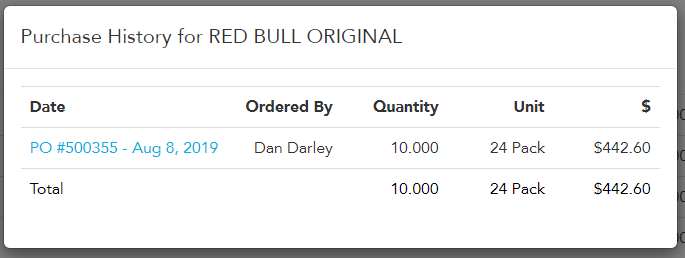
If this looks incorrect, go to Reports → Orders by Item and check the dates around the opening and closing stocktake to see if an item was received either side of the stocktake period rather than within it.

If needed, update the date/time the purchase order was received: click the purchase order link, update the date and time, then click Save.
Incorrect calculated usage — click the calculated usage tab to see all POS links associated with that item (an item might be linked to many different POS items because it's in several recipes). Open Manage → Recipes in a new tab so that if a recipe is incorrect you can update it, save it as a new version dated prior to the opening stocktake, and it will correct the calculated usage. The other thing that can affect calculated usage is the POS link itself — open Manage → POS Links to check it, and if it's incorrect update it, then change the date the POS link decrements from so it applies from before your stocktake started. Re-run the stocktake report to see the correction.
If you've worked through all of the above and still can't track it down, send a message to the support team with the item you're having issues with and the period you're viewing, and they'll drill down into the units used on that stock item to see if there's a setup issue.