
You need Stock permission to create a tender. If you don't have access, ask someone with Manager permissions to update your access.
You need to have entered your supplier details and stock items before you can create a tender.
This article covers the technical detail of creating a tender in Loaded — for broader guidance on entering into contract pricing with your suppliers, see our blog article here.
You can review a tender to compare the stock prices you've actually been charged to the prices you agreed with your supplier.
To access, head to Stock → Ordering → Supplier Tenders.
Click Add Tender.
Select the start & end dates from the drop box under Tender Period.
Enter the relevant supplier the tender relates to under Supplier Name.
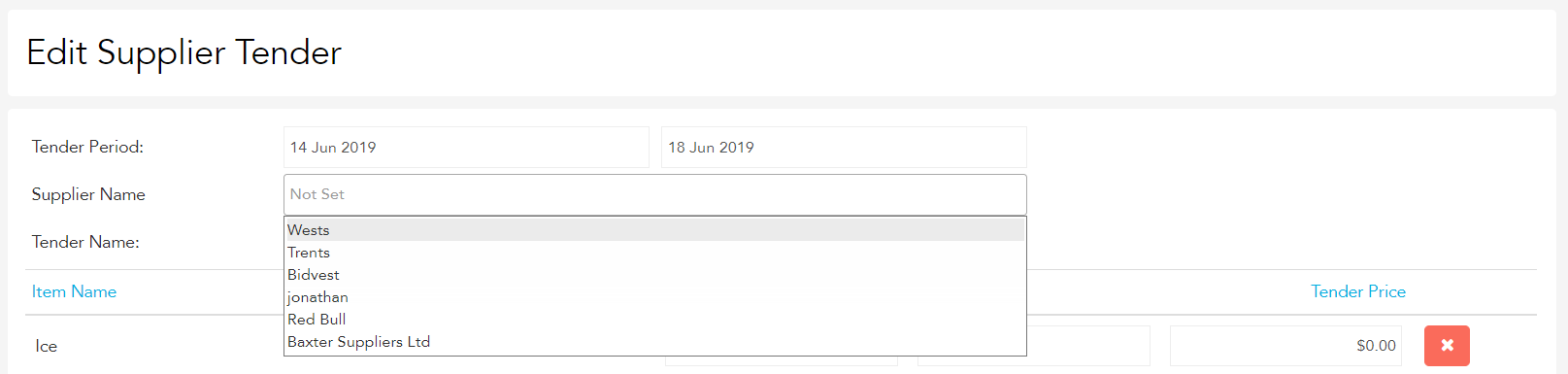
Type in the name of the tender under Tender Name.
You can then choose to add individual items or an entire group to the tender.
To add an entire group, type in and select the group name from the drop box under Add Item Groups.
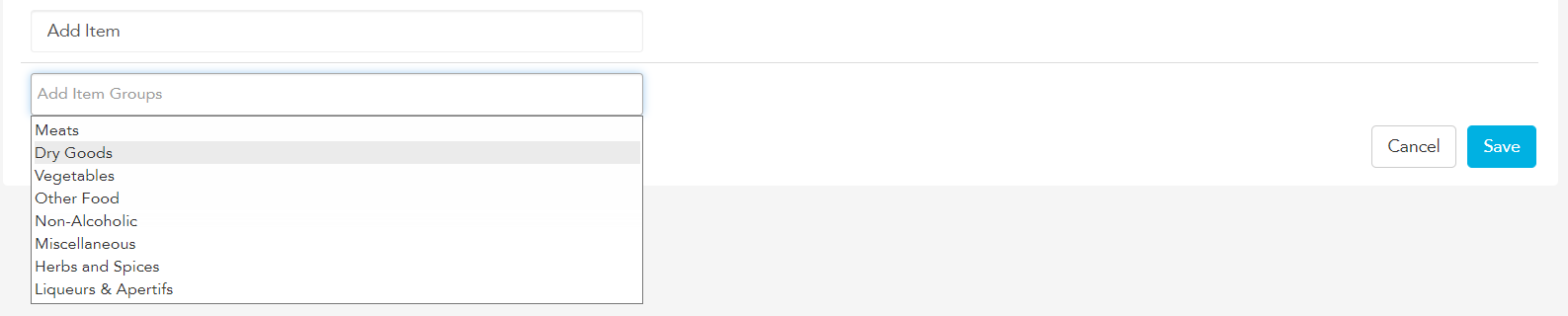
To add individual items, type in and select the item name from the drop box under Add Item.

Update any unit or brand details if needed.
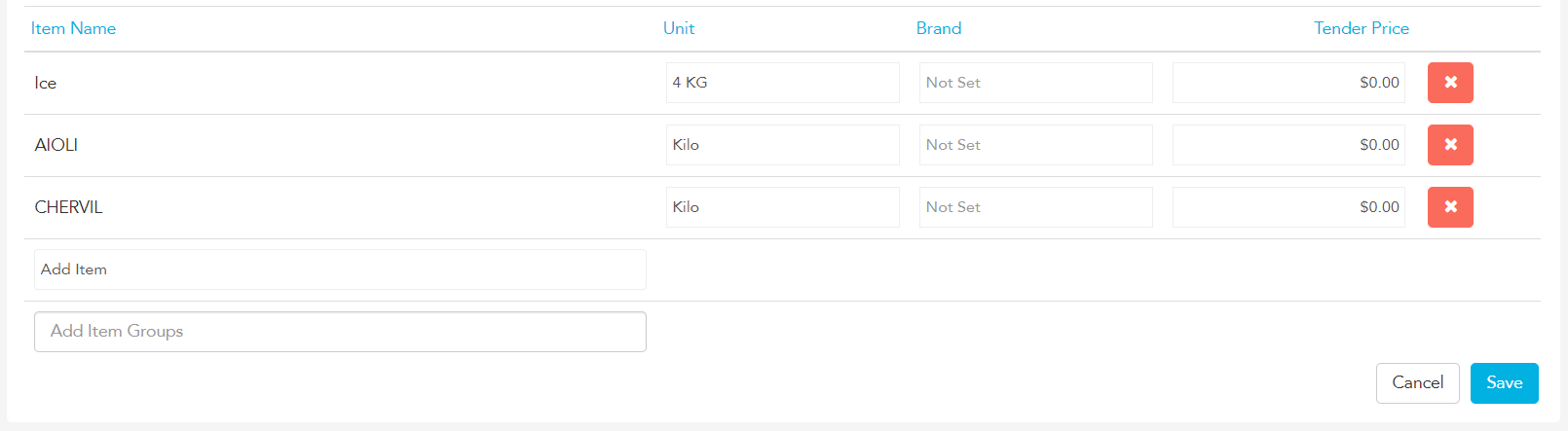
Enter the contract price you've agreed with your supplier for the item under Tender Price.

Once you've entered all items and are happy with the details, click Save.
Your tender will save and can be edited, deleted or reviewed at any time. To edit, click Actions → Manage Tender, make your changes and click Save. To delete, click Actions → Delete Tender.