
You need Stock permission to add supplier codes. If you don't have access to this module, ask someone with Manager permissions to update your user permissions.
You'll need to have your supplier details and stock items set up before you add codes.
You can also add a supplier code when creating a purchase order — this article covers how to do it when adding a stock item.
For best practice stock item setup, take a look at Loaded's stock item grid guidance.
To access, head to Stock and then Manage, Items.
Click on the Item Name of the product you want to add a code for.
The manage item screen will show.
Under the supplier codes section, type in the supplier name.
Make sure the Unit & Cost for the item are correct.
Enter a Brand if necessary.
Type in the Stock Code under the supplier codes section for this item, then click Save.
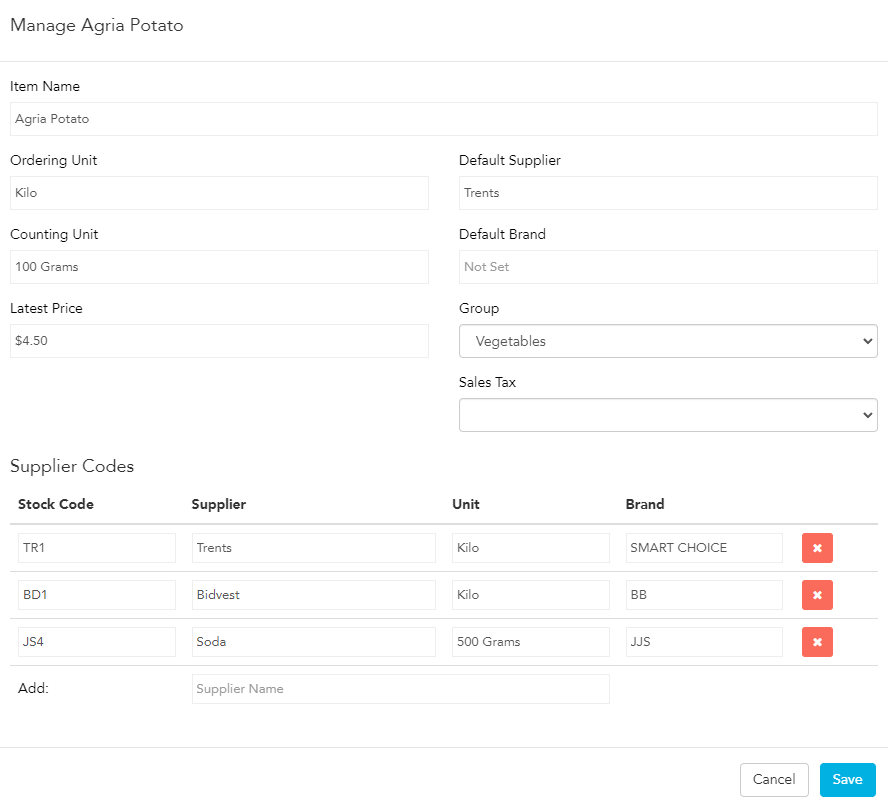
The code will now automatically show when you add this item to a purchase order. You can add as many suppliers as you like under the supplier codes section in case you order this item from more than one supplier.