
You need Stock permission to create, send and receive purchase orders. If you don't have access to this module, ask someone with Manager permissions to update your user permissions.
You need to have entered your delivery details, supplier details and stock items before you can generate, send and receive a purchase order or credit request.
It is important to have a copy of the supplier invoice for your order on hand so you can match the details exactly.
When receiving purchase orders or credit requests, it's important that the details you save in Loaded match what's on the supplier invoice exactly. There are two main ways invoices can differ from the original order:
The supplier is out of stock of a specific item and doesn't deliver it, or places you on back order.
The supplier delivers the wrong item by accident, the product gets damaged in transit, or for some reason you return the item.
We'll look at what to do in both cases.
Scenario 1: An Item Wasn't Delivered
In this scenario, we need to remove the item from the original order before we receive the purchase order. To access, head to Stock and then Ordering, Outstanding Orders.
This page shows a list of any purchase orders/credit requests which have been sent to suppliers but not yet received.
Select the appropriate purchase order from the list and click Receive to open it.

This will take you to the purchase order.
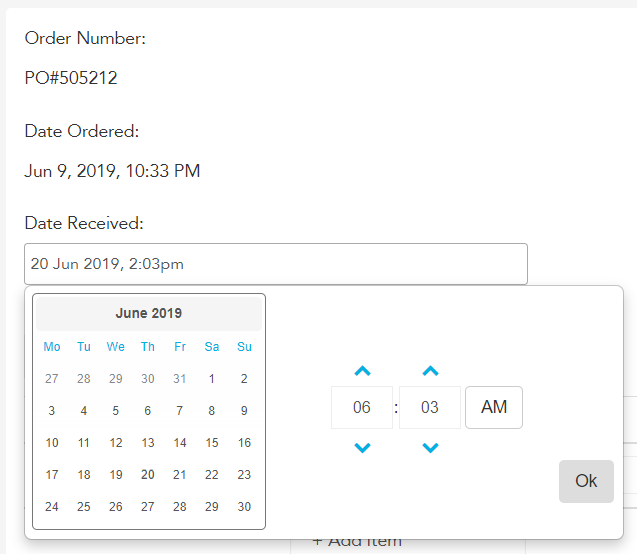
Change the date received and date invoiced to match the date on the invoice or packing slip from the supplier.
Enter the invoice number (from the supplier's invoice) into the text box on the right-hand side of the purchase order.
Go through the list of stock items and match them against what's on the invoice — ensure the quantity delivered on the purchase order matches the quantity delivered on the invoice.
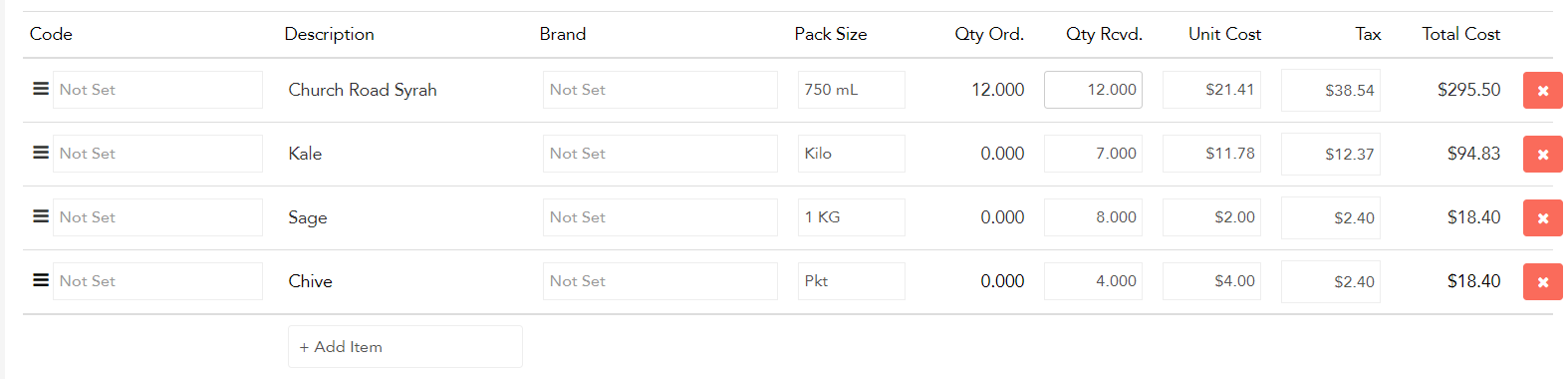
Check that the unit cost matches on the purchase order and on the invoice.
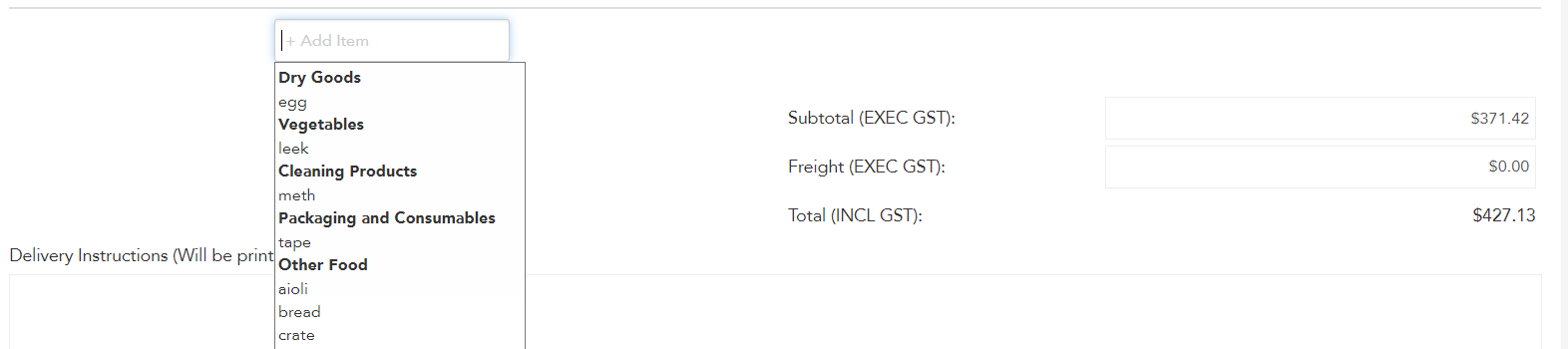
If you need to add an item that's on the invoice but not on the original purchase order (e.g. keg deposits), click +Add Item, type in the product name, select it, and ensure the quantity and price match the invoice.
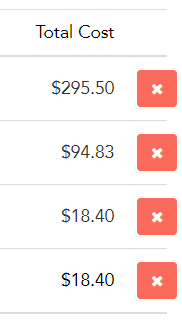
Delete the item that wasn't delivered.
If the item was back ordered and is delivered later, create a new purchase order for it and receive it without sending the purchase order to the supplier — just follow the same process and make sure the details in Loaded match what's on the supplier's invoice.
Some suppliers will charge you freight — add this into the text box between the subtotal and the total including GST boxes.
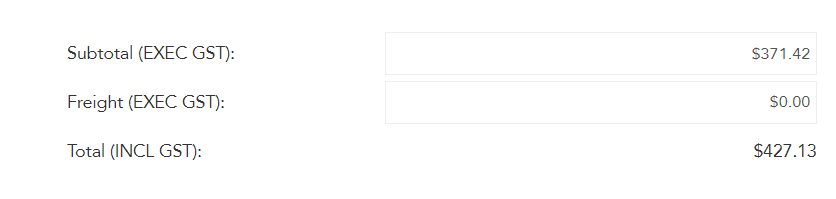
When you've matched all items, check that the subtotal and the total including GST match on the purchase order to within 10 cents of the invoice. Note that rounding differences may occur depending on how the supplier rounds versus how Loaded rounds.
When you're happy with all the details, click Receive Goods.
This will mark the purchase order as received and move it to the orders by supplier and orders by item pages. If you ever need to track down received purchase orders or credit requests, use the Order History page.
Scenario 2: The Wrong Item Was Delivered or Damaged in Transit
In this scenario, we need to keep the item on the original order and then generate and send a credit request to the supplier, so it doesn't impact your stock levels and the supplier knows to credit you the cost of that item. To access, head to Stock and then Ordering, Outstanding Orders.
This page shows a list of any purchase orders/credit requests which have been sent to suppliers but not yet received.
Select the appropriate purchase order from the list and click Receive to open it.
Change the date received and date invoiced to match the date on the invoice or packing slip from the supplier.
Enter the invoice number (from the physical invoice you have) into the text box on the right-hand side of the purchase order.
Go through the list of stock items and match them against what's on the invoice, ensuring the quantity delivered on the purchase order matches the quantity delivered on the invoice.
Check that the unit cost matches on the purchase order and on the invoice.
If you need to add an item that's on the invoice but not on the original purchase order (e.g. keg deposits), click +Add Item, type in the product name, select it, and ensure the quantity and price match the invoice.
Some suppliers will charge you freight — add this into the text box between the subtotal and the total including GST boxes.
When you've matched all items, check that the subtotal and the total including GST match on the purchase order to within 10 cents of the invoice. Rounding differences may occur depending on how the supplier rounds versus how Loaded rounds.
When you're happy with all the details, click Receive Goods. This will mark the purchase order as received and move it to the orders by supplier and orders by item pages.
Now click New Credit Request.
Type in the item you need credit for, and ensure the supplier details, quantity and unit are correct.
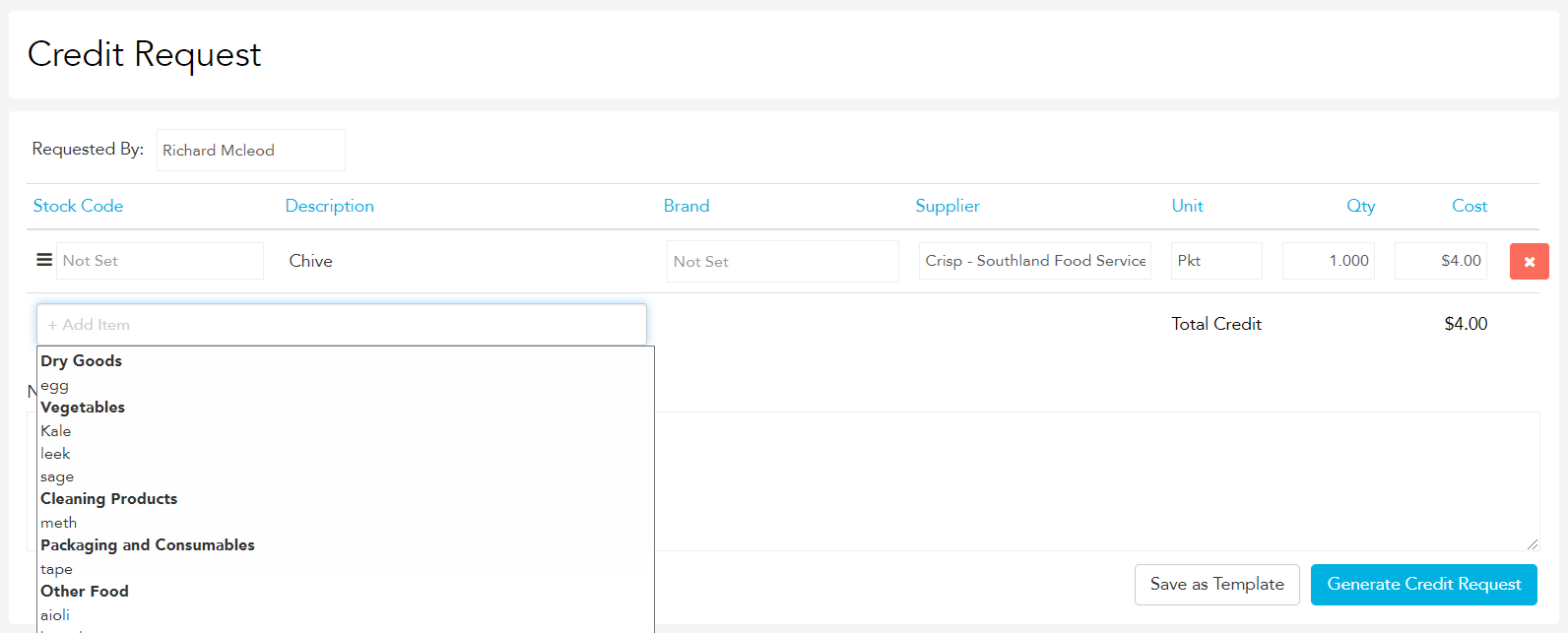
Click Generate Credit Request.
Loaded will take you back to the Outstanding Orders page, from where you can send the credit request to your supplier by clicking Send and selecting your send method preference. Alternatively, if you already have a credit note, you can mark it as received straight away without sending.
If you ever need to track down received purchase orders or credit requests, use the Order History page.