
You need Stock permission to access this page. If you don't have access to this module, ask someone with Manager permissions to update your user permissions.
You need to have created purchase orders to see any information on this page. It will show any outstanding, sent, deleted and received orders.
All orders, regardless of status, can be tracked on this page. You'll also have the ability to restore any deleted purchase orders or credit requests if needed.
To access, head to Stock and then Ordering, Order History.
If you're looking for a specific purchase order or credit request, there are a few different ways you can filter the information.
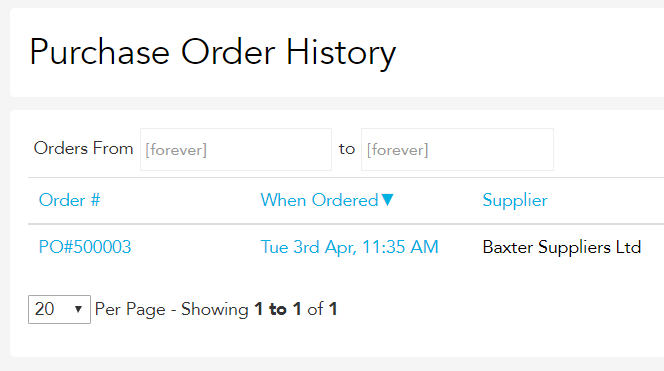
To search for a specific date, use the Orders From _ to _ drop boxes to select the dates, then click Update. The report will filter out any orders outside of the selected dates.

If you have an order or invoice number, type it into the Search bar and click Update. The report will filter out any orders that don't match the details listed.
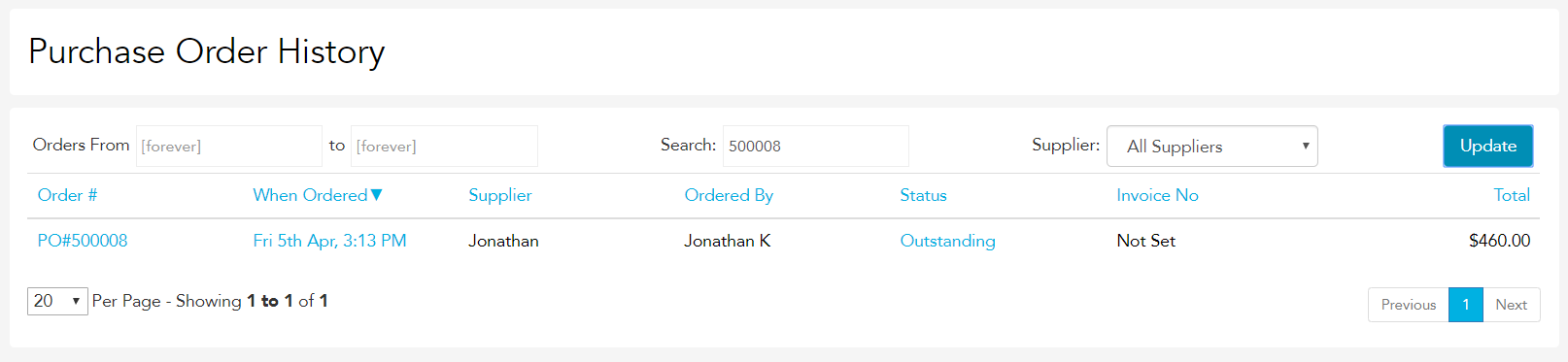
You can also use the Supplier drop box to select a specific supplier, then click Update. The report will filter out any orders from other suppliers.

You can reopen any order by clicking on the Order #.
To change any details on an order, make the desired edits then click Save.
To delete an order altogether, click Delete.
To restore a deleted order, click Restore.