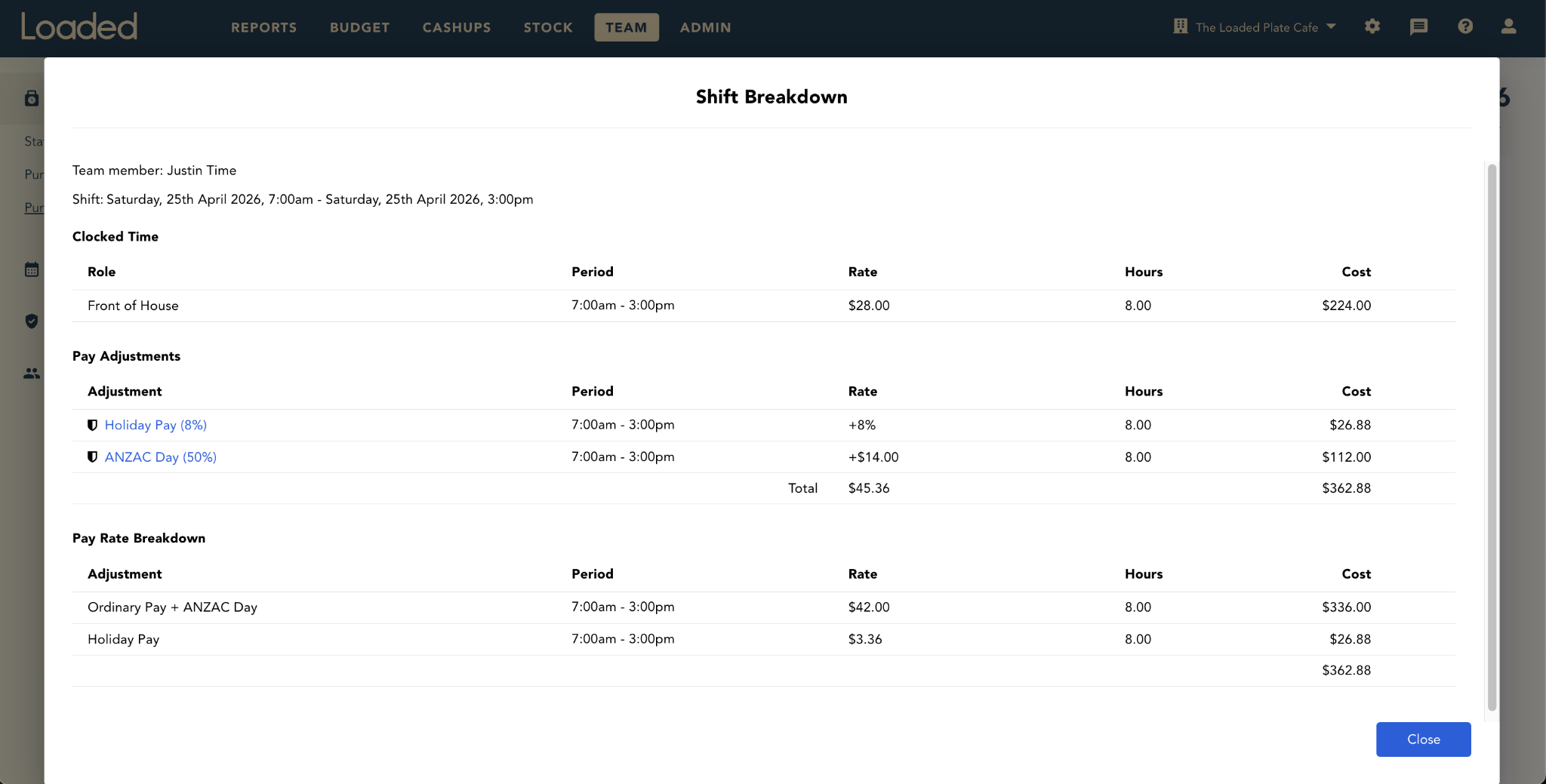
You can now track On Costs in Loaded using Pay Adjustment Packages. Loaded has the following centrally managed On Cost packages:
- NZ Holiday Pay (8%)
- NZ KiwiSaver (3.5%)
- AU Superannuation (12%)
- AU Workcover (1.5%)
Alternatively, you can set up a custom On Cost package and set any adjustment you want.
This update lets you include On Costs in your total labour cost in Loaded so you're confident that you're comparing apples to apples between Loaded and your payroll or accounting system. To avoid confusion, or duplication, On Costs are not exported to payroll.
What you'll need
Team, Manager and Payroll permissions. If you're unable to view or edit any of the following areas, ask someone with Manager permissions to update your access.
You'll also want to have your Staff Roles and Staff Member details set up before working with Pay Adjustment Packages.
How to set up On Costs
To add a Loaded-managed On Cost package:
- Go to Team → Compliance → Pay Adjustments
- Click Add New and choose one of the following packages:
- NZ Holiday Pay (8%)
- NZ KiwiSaver (3.5%)
- AU Superannuation (12%)
- AU Workcover (1.5%)
- Click View to see the details for that On Cost package. Note: the condition and rate here refer to the additional cost that will be added to your staff members' pay on these dates.
- Click Enable to set up the package in your venue and set:
- Valid date range — you can specify the date range this adjustment will apply to rostered shifts and clock-ins. The default is for the On Cost to start applying from today, and continue forever.
- Staff members affected — specify if On Costs should apply to salaried staff members by ticking Include salaried employees. If you want to customise which staff members On Costs apply to, change the dropbox from "All Employees" to "Only Employees" and click Add Condition. Select employees, roles, employment types or pay classifications, choose Equals or Does Not Equal, then select the specific options.
- Once you're ready, click the green Enable button to finish setting up the On Cost package.
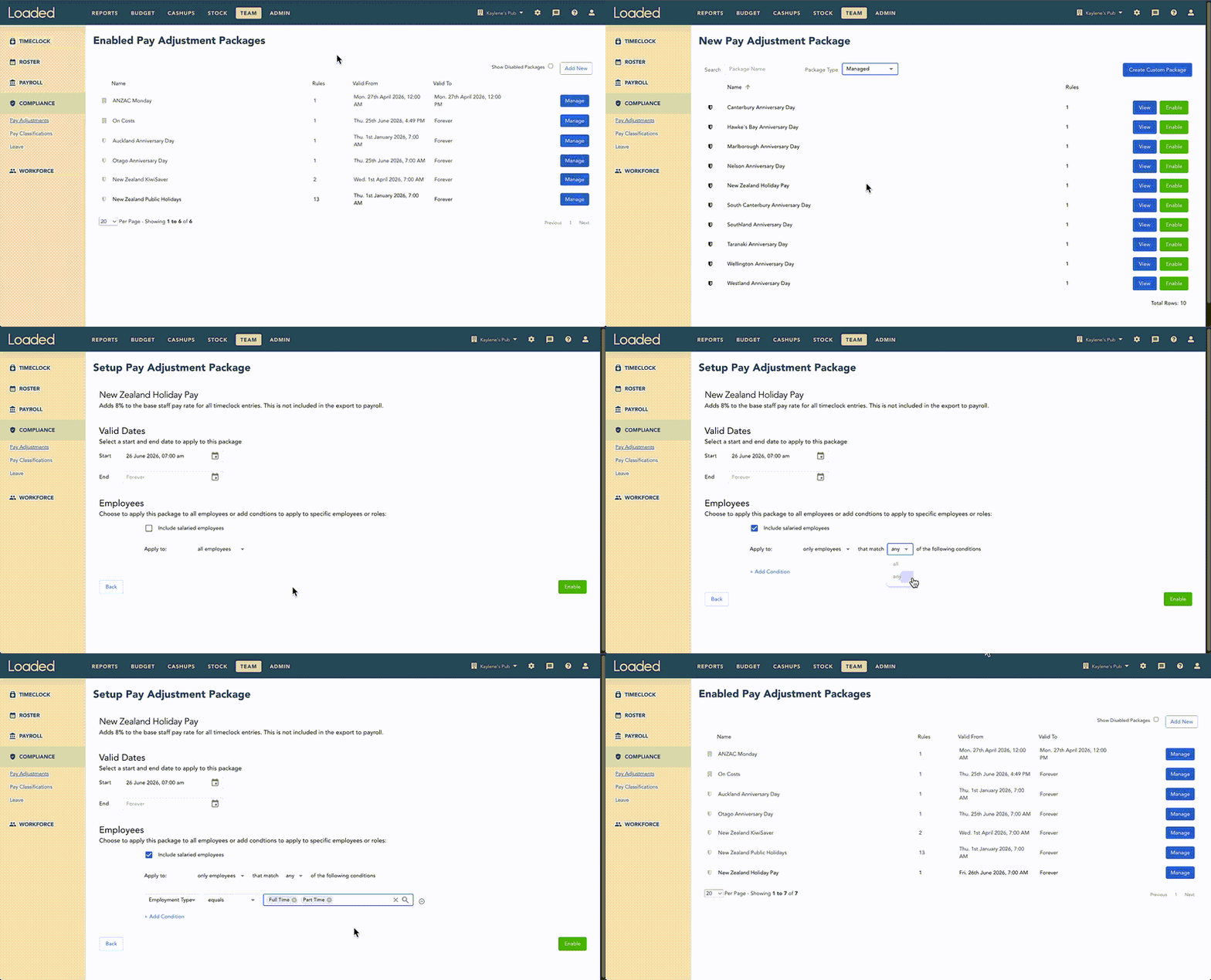
You can edit or delete an On Cost package at any time by going to Team → Compliance → Pay Adjustments and clicking "Manage" next to the package name you'd like to edit — then click Edit or Disable. Read more in Setting up Pay Adjustment Packages.
How to create a custom On Cost adjustment
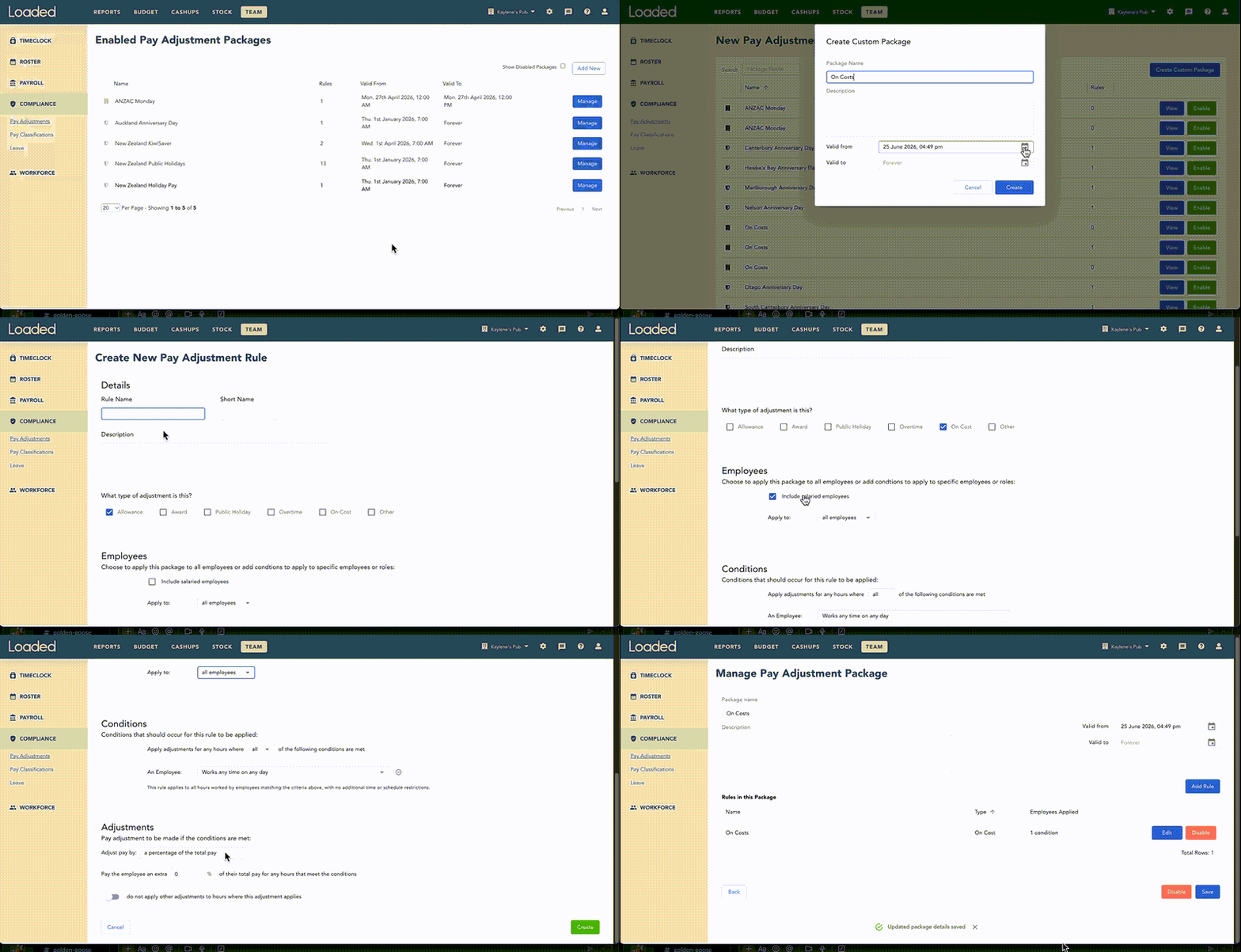
- Go to Team → Compliance → Pay Adjustments
- Click Add New
- Click Create Custom Package, enter the name, description and valid date range the On Cost adjustment should apply to, then click Create
- Click Add Rule and enter the name, description and type of adjustment.
- The rule name is what will appear in the Punches by Staff breakdown, e.g. "On Costs 10%"
- The type of adjustment must be set to "On Cost"
- Specify if you'd like the On Cost adjustment to apply to salaried staff members by ticking Include salaried employees
- Specify which staff members the On Cost adjustment should apply to by changing the dropbox from "All Employees" to "Only Employees", then click Add Condition and select employees, roles, employment types or pay classifications, Equals or Does Not Equal, then the specific options
- Enter the percentage you want to add on top of a staff member's total pay to represent your custom On Cost
- Click Save, then Save again
You'll now see your custom package in your list of enabled Pay Adjustment Packages.
What happens once an On Cost package is enabled?
Three areas are impacted by On Cost packages:
- Rosters — the cost of any roster shifts that fall within the valid date range of the On Cost package will automatically include the On Cost percentage. Check the breakdown of pay adjustments for a staff member by clicking the total hours and expected pay under their name in the roster editor.

- Labour Reports — for any report period within the On Cost package's valid date range, labour cost reports will automatically include the On Cost percentage in both rostered and actual hours.
- Timeclocks — the cost of any staff clocks that fall within the valid date range of the On Cost package will automatically include the On Cost percentage.
Head to Team → Timeclock → Punches by Staff to see a breakdown of ordinary pay and the value of On Costs applied for the period — click into the blue number under "Pay Rate" for a further breakdown per staff member. For more on this report and how to edit adjustments, see Managing Staff Timeclocks.
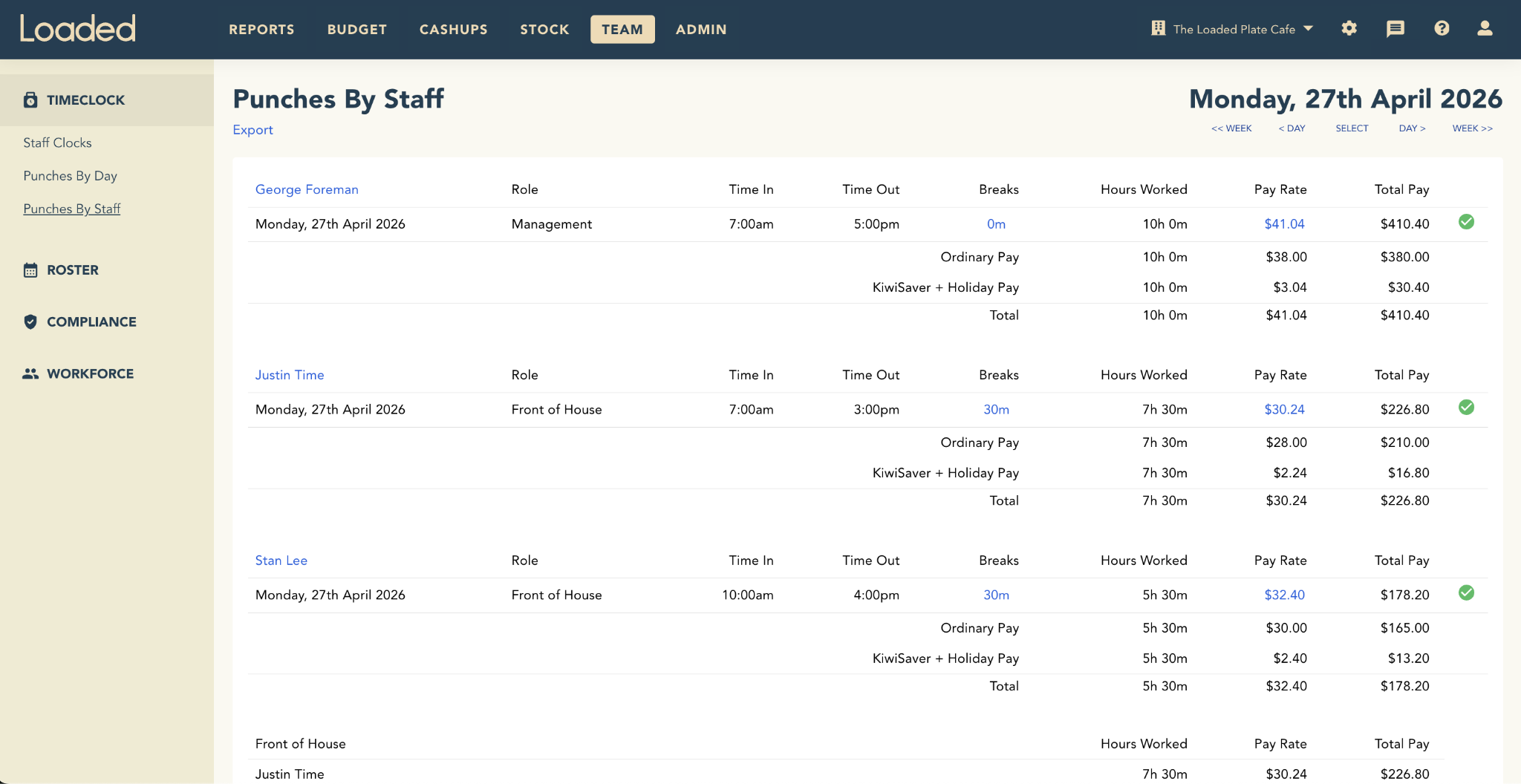
A reminder that On Costs aren't exported to payroll. Total Pay (including On Costs) may differ between Loaded and your payroll system, but Ordinary Hours should match.