You need Payroll permission to add and edit roles. If you can't do this, ask someone with Manager permissions to update your access.
A role in Loaded is the area or department an employee works in.
Roles must be added before a staff member can be assigned to them.
Roles are used when creating a roster and in the wage report breakdown on the Punches by Day report.
Roles can be set to cost to Food or Beverage in Loaded, which shows in the relevant wage cost reports.
Roles can also have a department code — only needed if you want to attribute wage cost in your payroll export.
Adding a new role
Click on the Time module
Click Manage on the left-hand side of the page
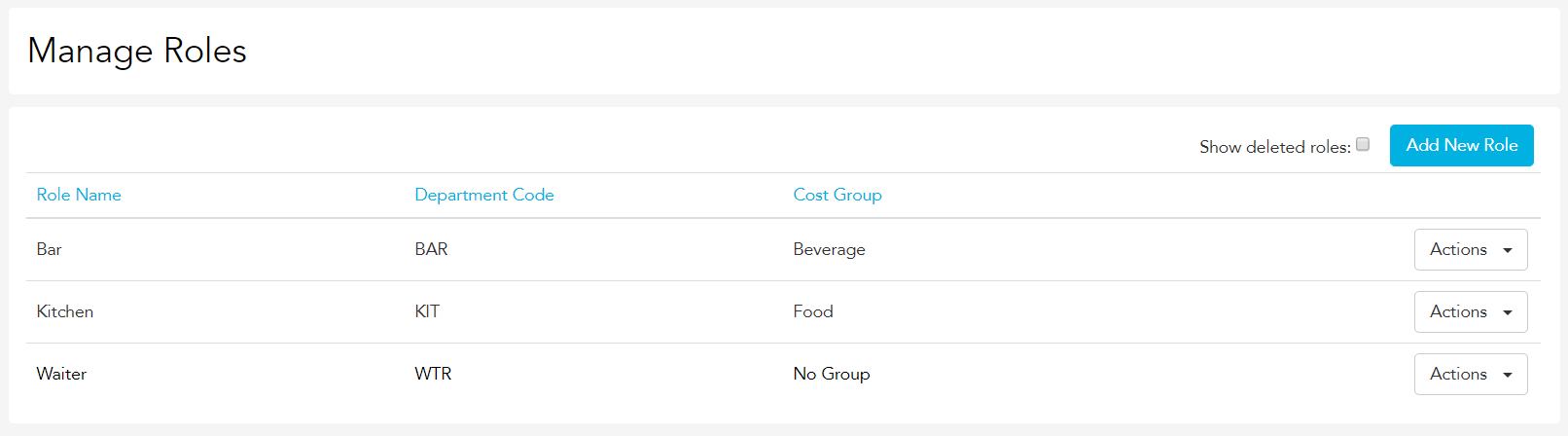
Click Roles
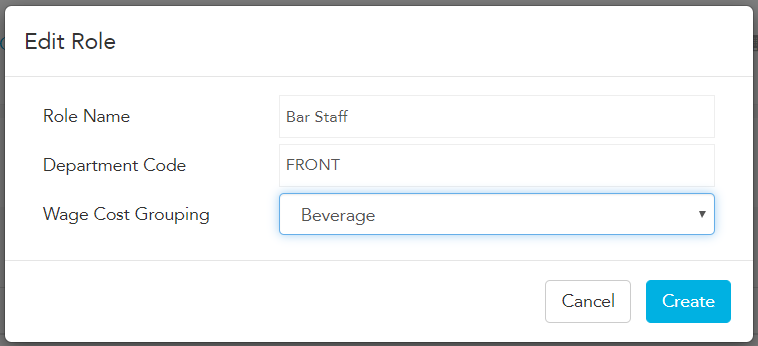
Click the blue Add new role button. Type the name of the role and select whether it's a Food, Beverage, or No Group cost (this adds the expense to overall wage cost without assigning it to food or beverage). Click Save.
Editing an existing role
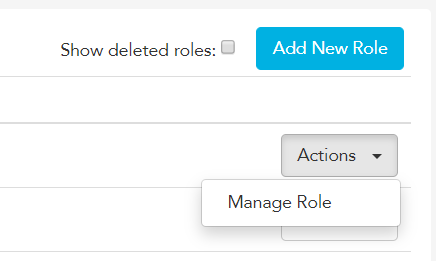
Head back to the Manage Roles page, click the Actions dropdown, then click Manage Role.
From here you can edit the role name, department code, or cost code and re-save.
Questions? We're here to help.
Bring last month's numbers and we'll show you what this looks like in your venue — twenty minutes, no pitch deck.