
You need Stock permission to create order templates. If you don't have access to this module, ask someone with Manager permissions to update your user permissions.
You need to have entered your delivery details, supplier details and stock items before you can create order templates.
It is not necessary to create an order template for each supplier you would like to order from in Loaded — you can create one template and Loaded will split the items into separate purchase orders for each supplier.
Order templates are a great way to speed up the ordering process so you don't need to start from a blank template each time you generate a new purchase order.
To avoid confusion when ordering, it will help if you have entered your preferred suppliers' stock codes for each stock item before you send.
To create a template, head to Stock and then Ordering, Outstanding Orders.
Click New Purchase Order. This will take you to a blank purchase order template.
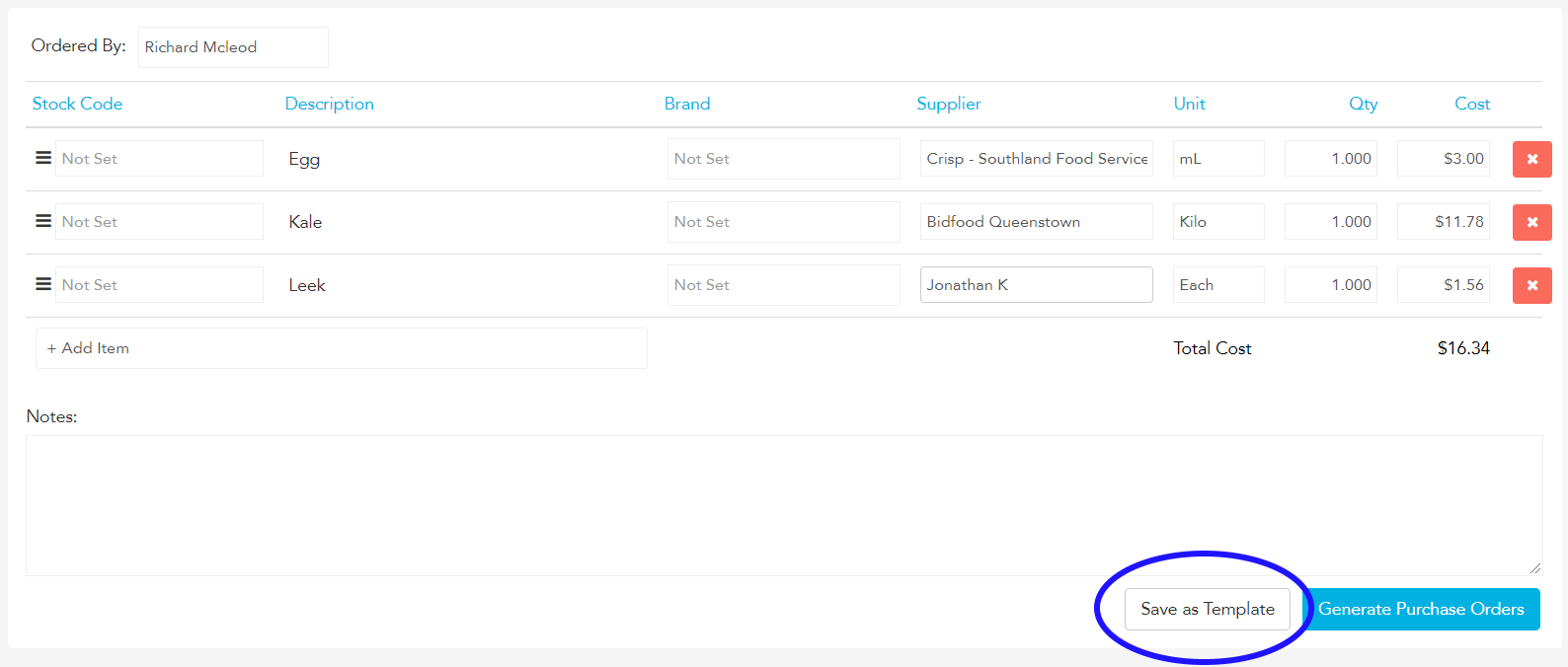
Click +Add Item and type the first product you're wanting to order into the field. Select the appropriate product from the drop box, and ensure the Supplier, Unit & Quantity are accurate before adding the next item.
Continue this process until you have entered every item you want included in your template.
Click Save as Template.
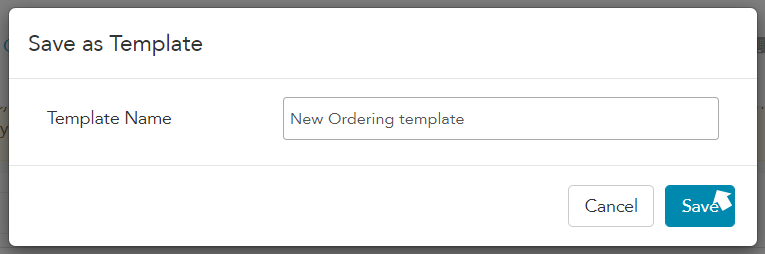
Type in an appropriate template name and click Save.
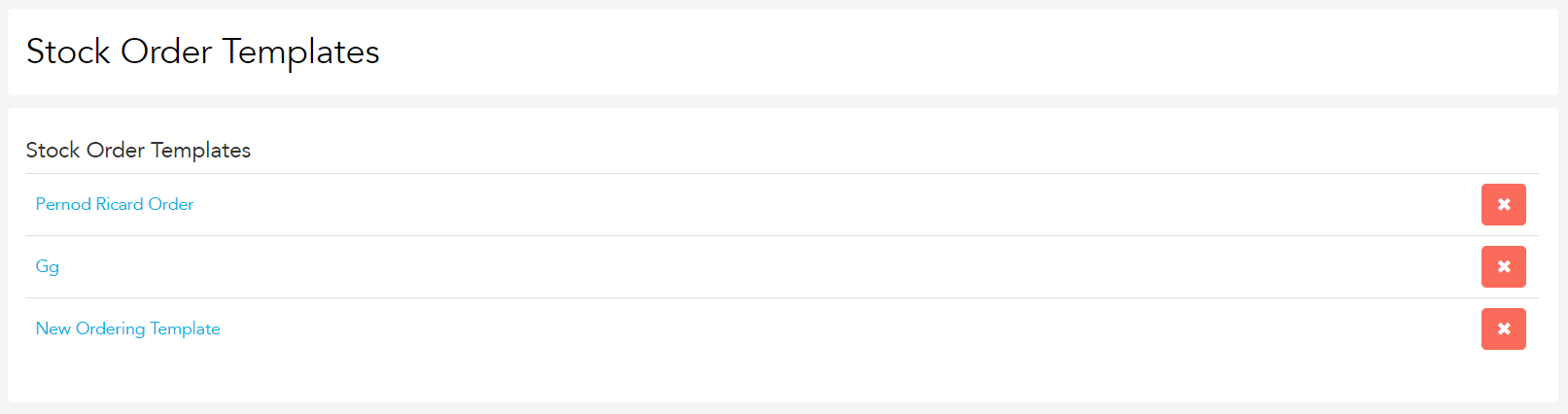
Your template will now live on the Order Templates page.
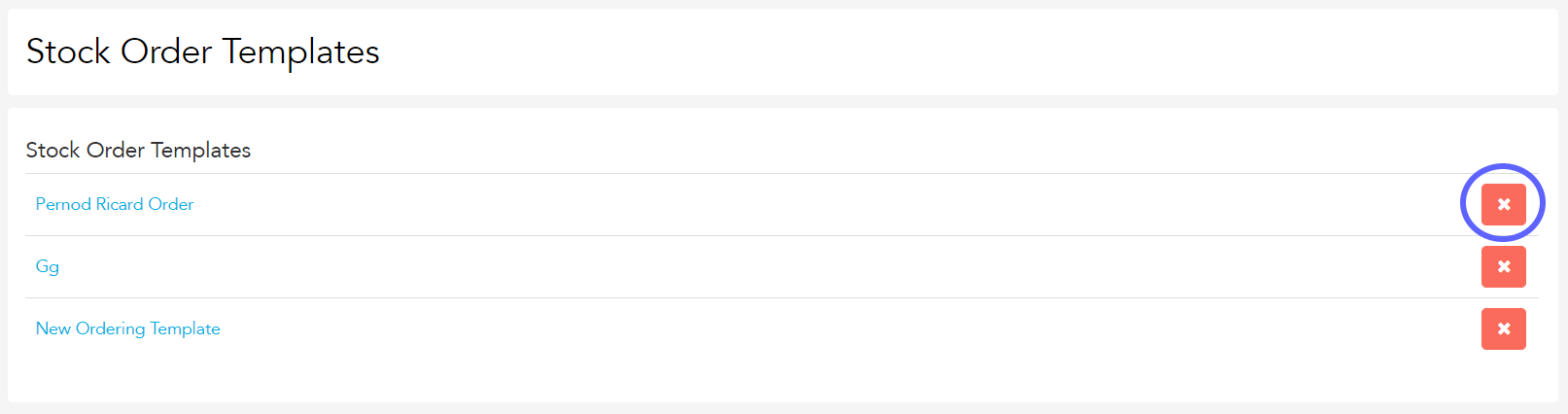
If you'd like to delete any order templates, click the red x beside the template name.
If you'd like to add or remove items from your templates, click the template name, add or remove the stock items needed, and click Update Template.
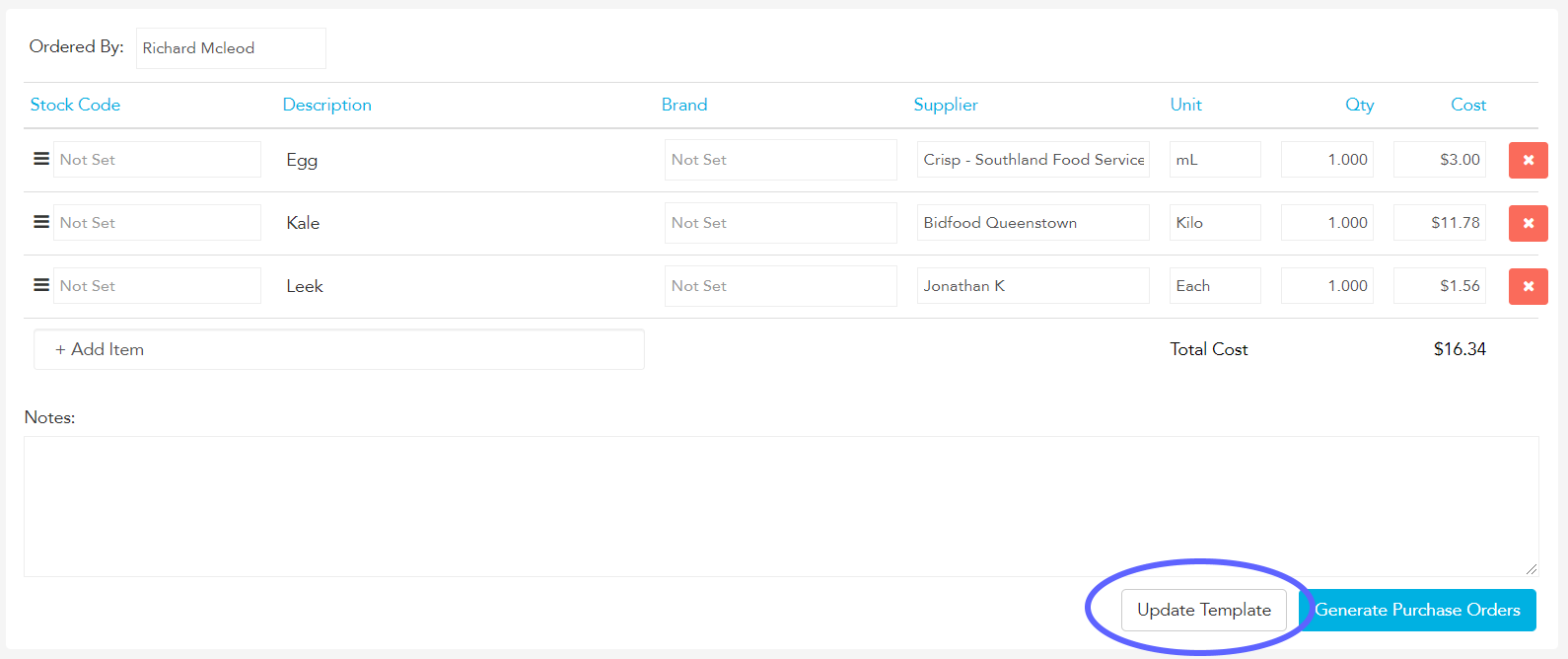
Creating an Order From a Template
To access and create an order from your templates, head to Stock and then Ordering, Order Templates.
Open the template you want to create an order from.
Make any edits you need to the items/quantities of each stock item.
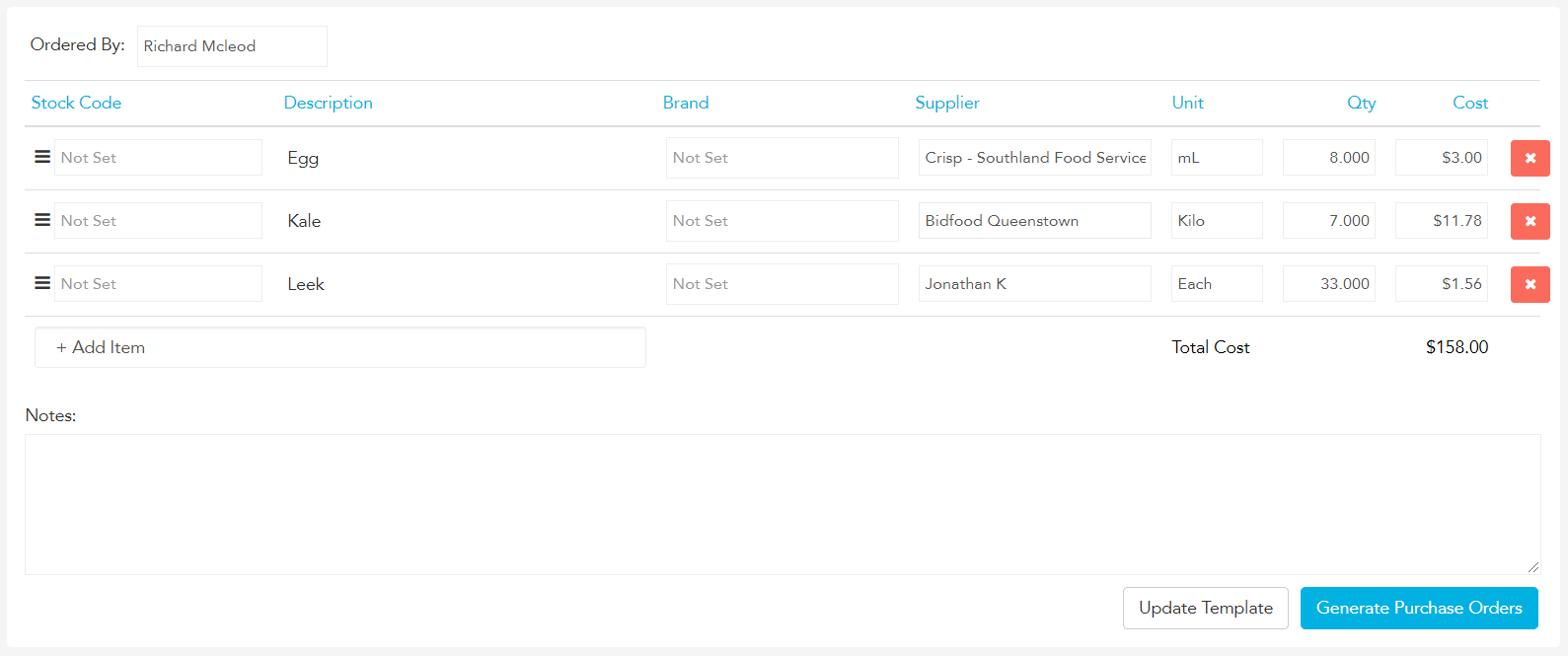
Click Generate Purchase Orders.
You'll see at the bottom of the Outstanding Orders page that all your new purchase orders are there waiting to be sent.
For each purchase order, click Send, then select your preferred send method.
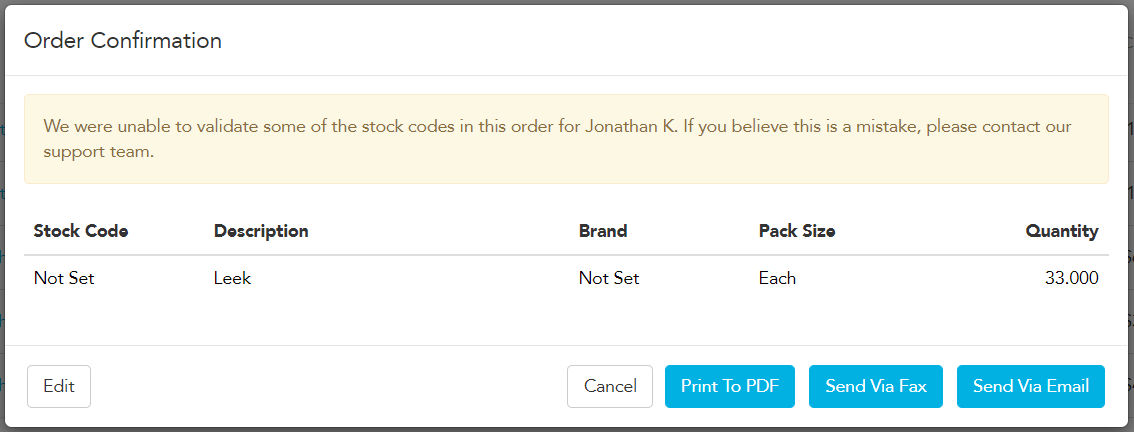
Ensure that all purchase orders then show either Sent or Acknowledged in the Status column on the Outstanding Orders page.