You need Stock permission to create a statement. If you don't have access to this module, ask someone with Manager permissions to update your user permissions.
You need to be able to navigate the orders by suppliers page and have received a purchase order before you can create statements.
To access, head to Stock → Reports → Orders by Supplier.
Scroll through the report to find the supplier name you want to add a statement for.
Click Add Statement.
Edit the period start to match the supplier's statement.
Edit the period end to match the supplier's statement.
Enter a statement number.
Enter the statement total into the Amount $ section.

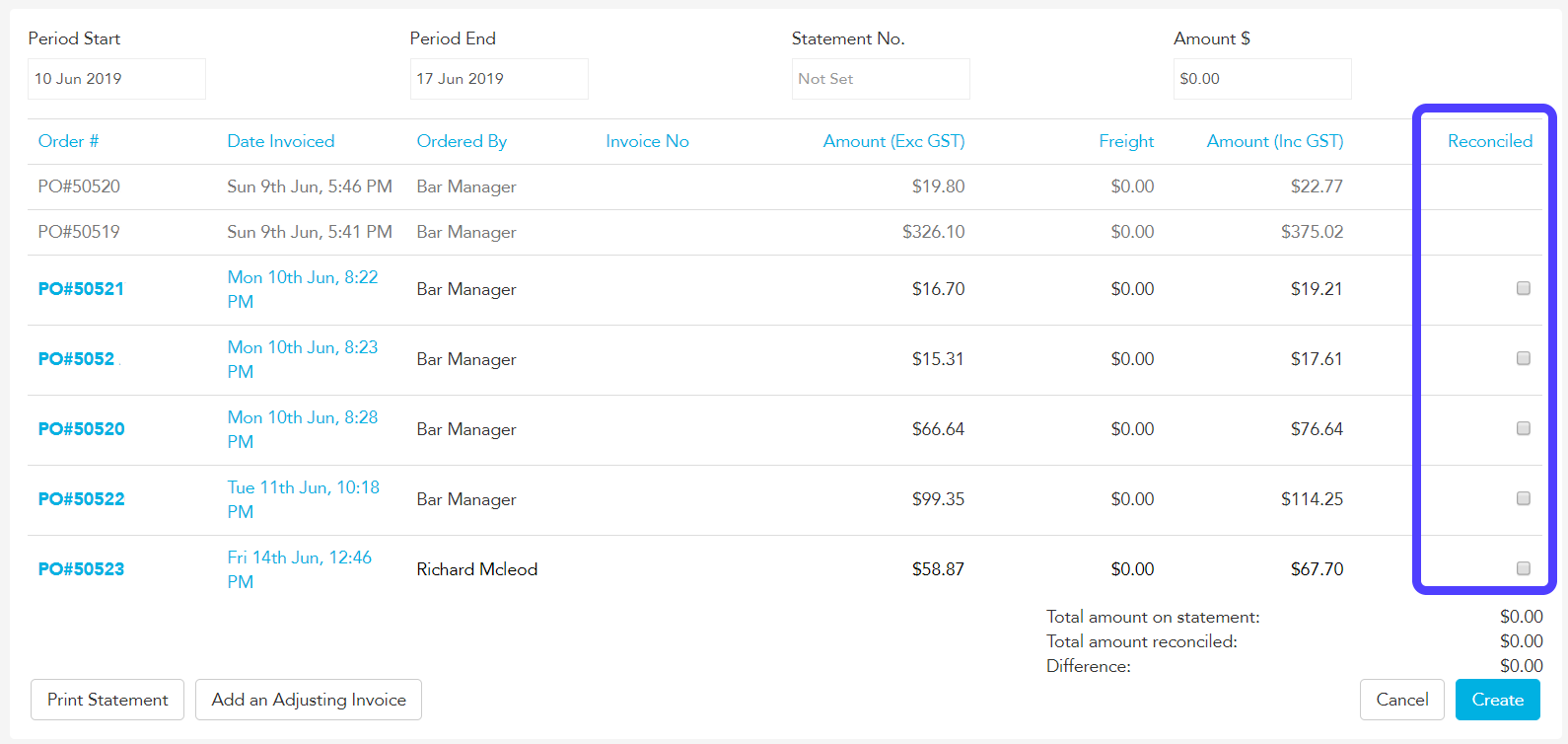
Tick the reconcile check boxes of the purchase orders that match the invoices on the supplier's statement.
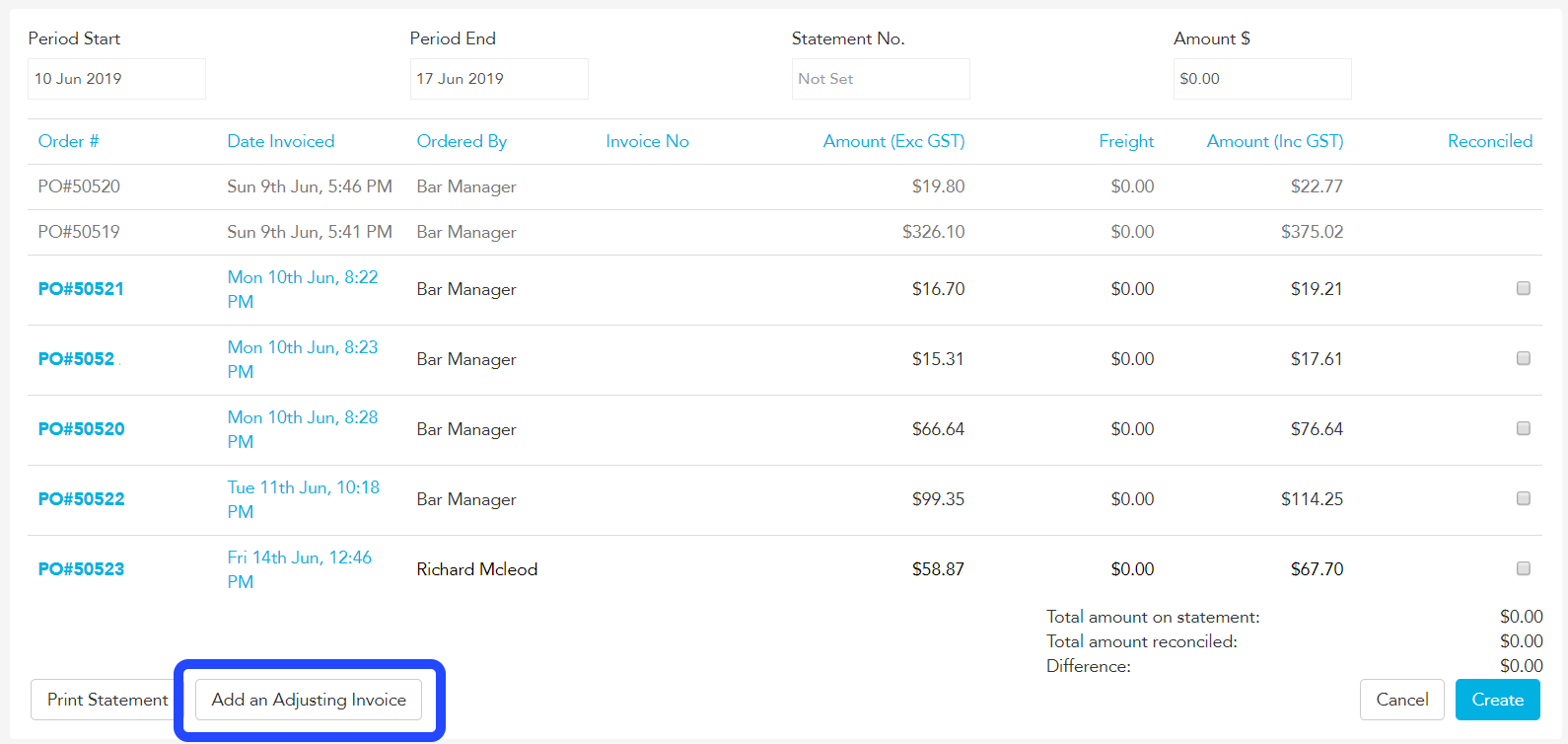
If there's a small difference between the statement amount and the amount reconciled (usually rounding), you can add an adjustment invoice.
Click Add an Adjusting Invoice.
Change the date received and date invoiced to match the statement date.
Enter an invoice number by clicking on the text box and typing it in.
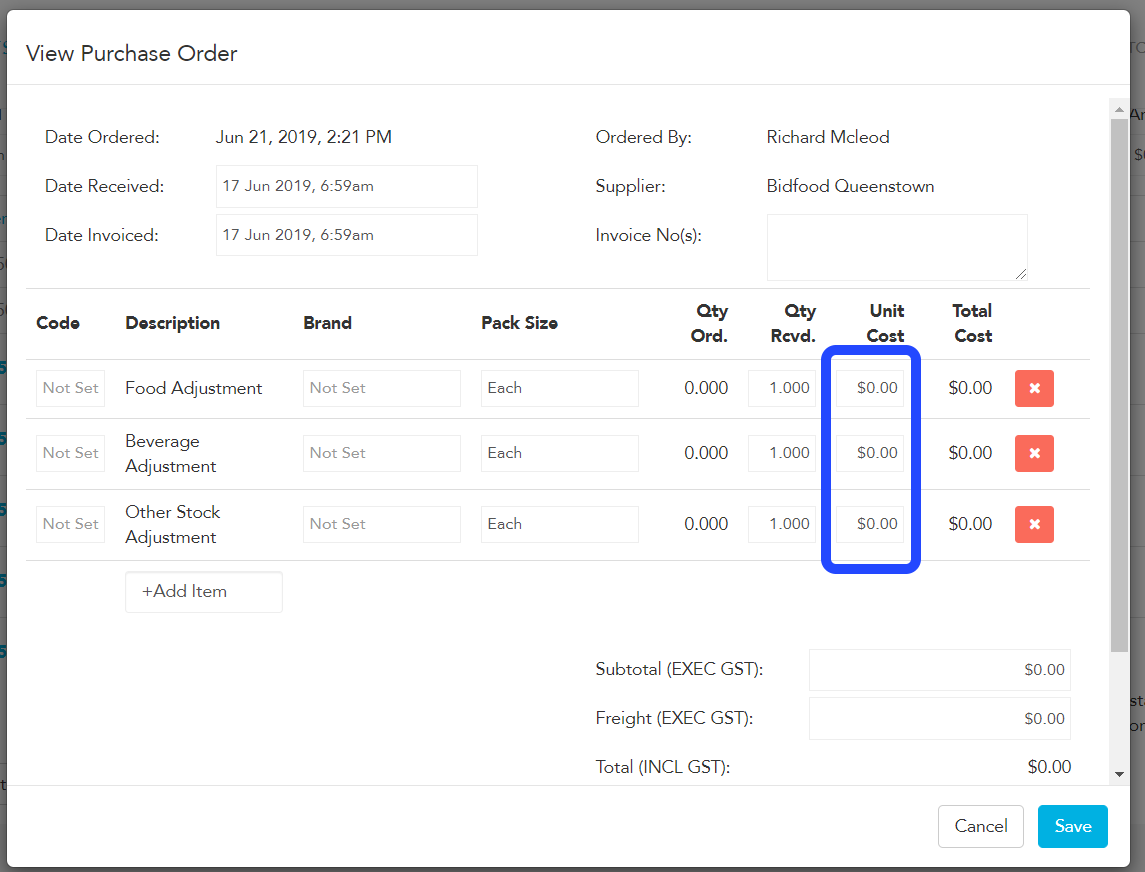
Enter a unit cost for the adjustment under the relevant cost group (Food, Beverage or Other Stock).
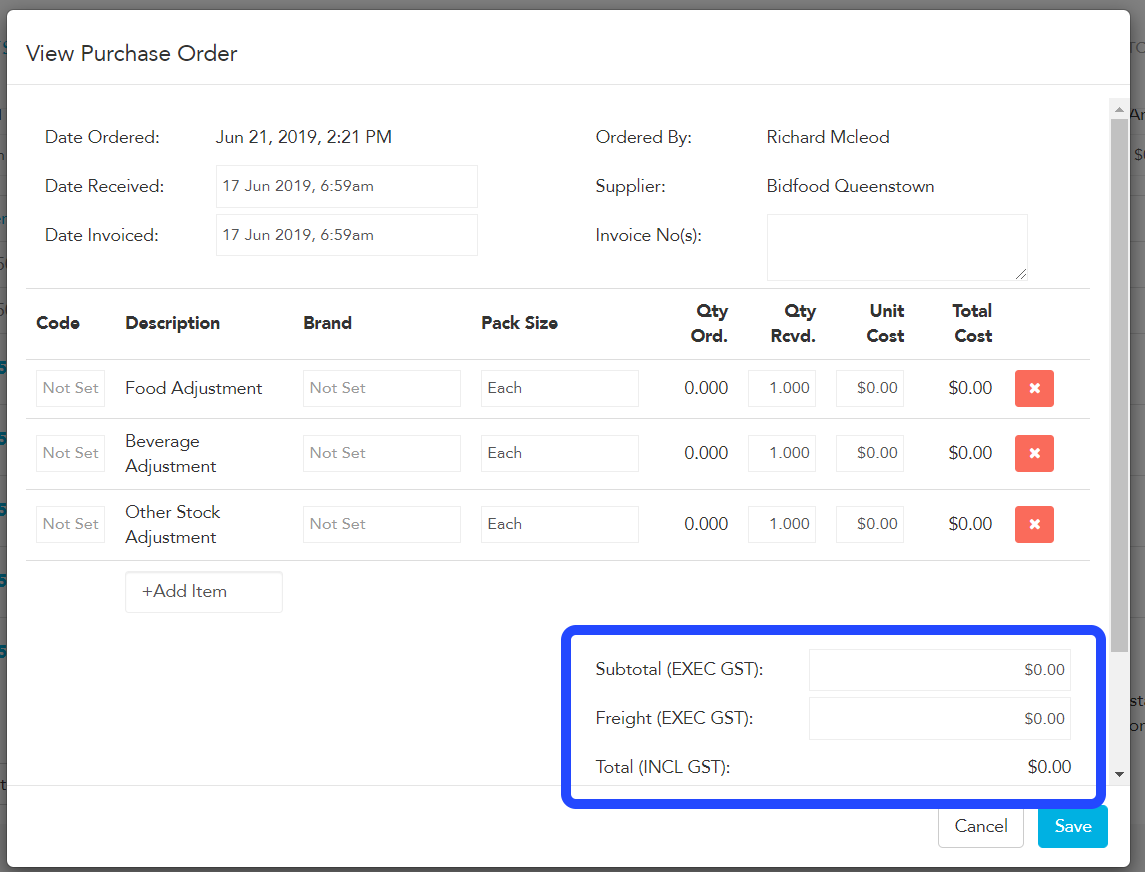
Check the total matches the adjustment you need to make and click Save.