
Everything you can do in Loaded's Timeclock App, now with added security. Choose PIN, Photo, or both so you can trust that the right person is on shift.
🔐 What You'll Need
🔑 The Loaded user you log in with to connect the Timeclock App to your venue needs Manager, Report + Time permissions.
To view clock history and photos taken at clock in, you'll need Time permission to access Staff Clocks.
If you don't have the right access, ask someone with Manager permissions to update your access.
Installing & Connecting the Timeclock App
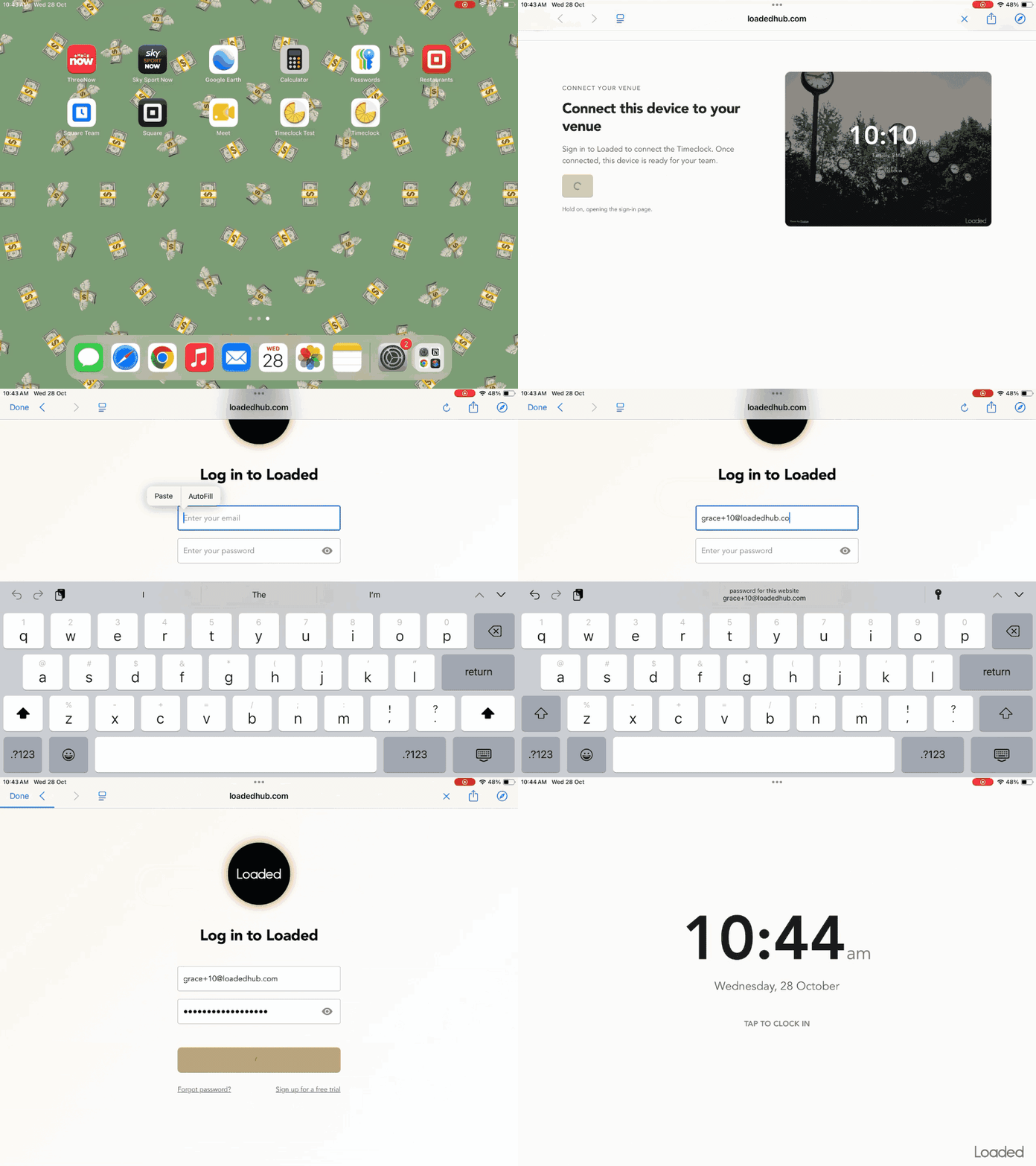
Open https://timeclock-app.loadedhub.com/ in your browser
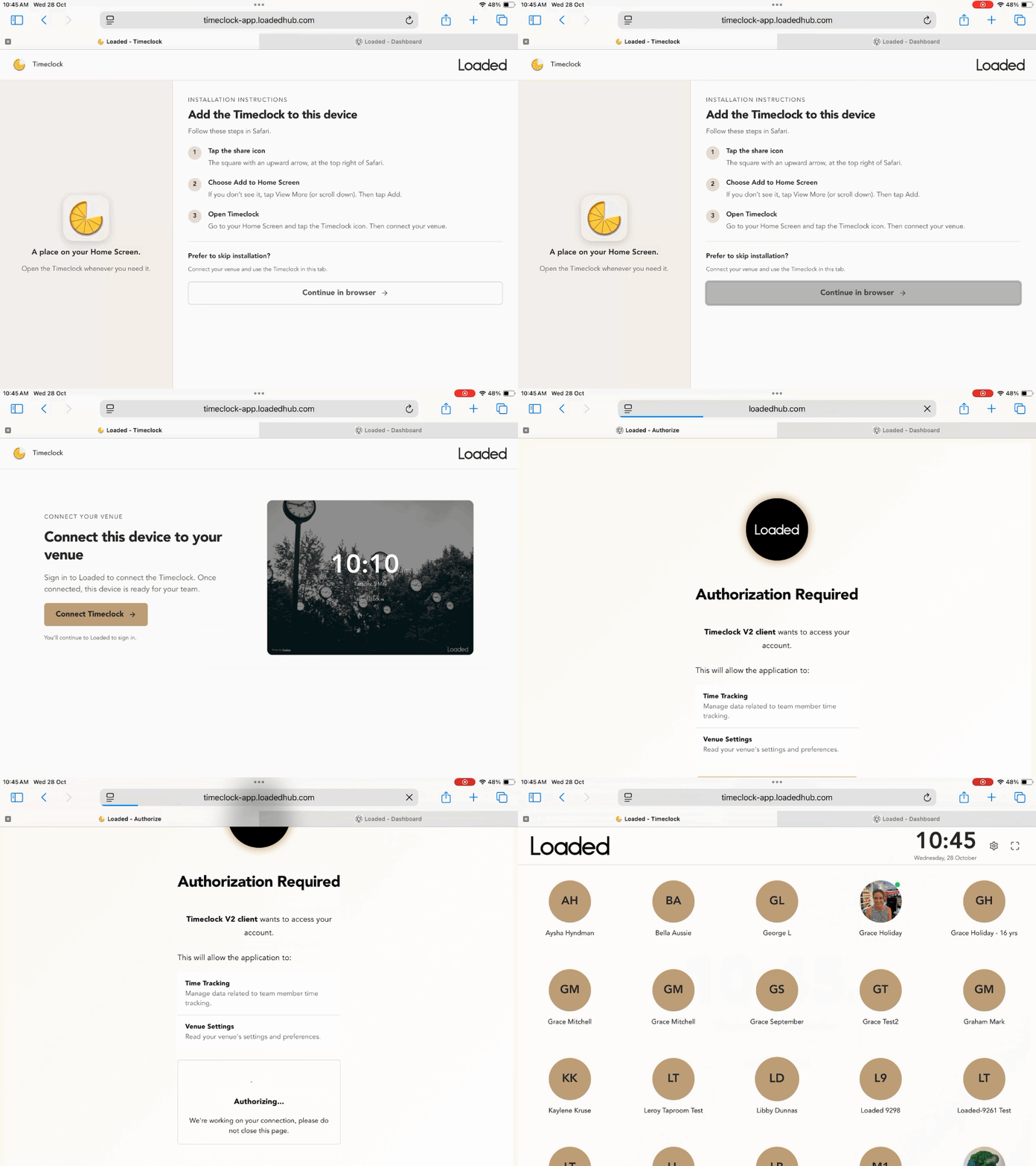
Follow the instructions to install the Timeclock App on your device, or continue using it in your browser
Once installed, open the Timeclock App and click Connect Timeclock
Select the Loaded venue you want to connect to from the dropdown list
Click Authorize
Select your security setting, then you're all set for your team to start clocking in!
Installing the Timeclock App to your device

Connecting the Timeclock App to your venue
Using the Timeclock App in your Browser (Alternative Method)
Timeclock App Settings
In Loaded Hub
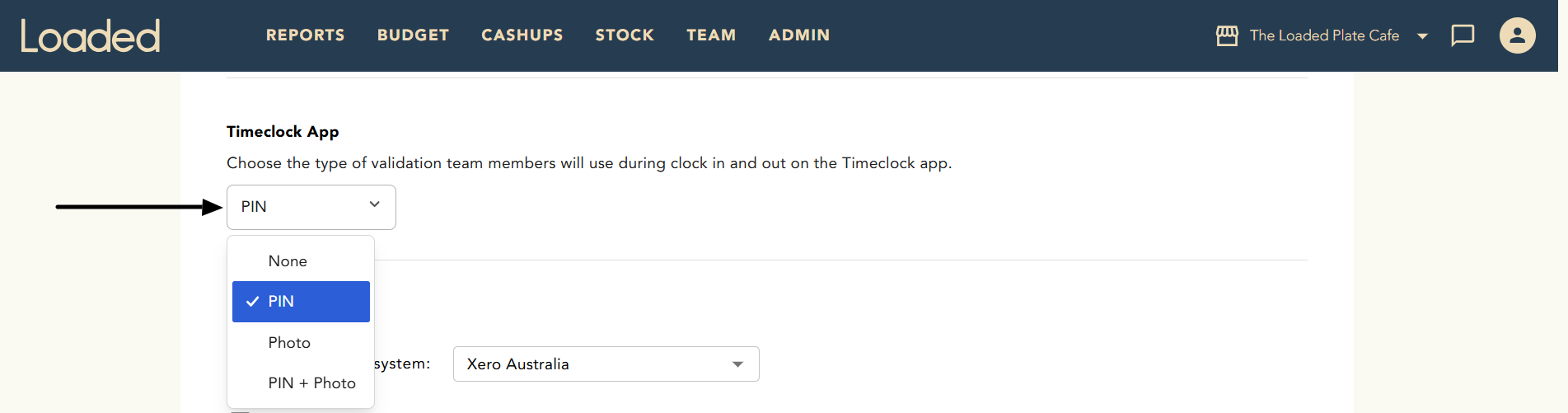
Choose the security method you want your team to use for clocking in and out in your venue settings.
Head to Venue Settings → Team and scroll down to the Timeclock App section
Select the option you want to use: None, PIN, Photo or PIN + Photo
Click Save
🤓 Loaded's Team App: The PIN your team members need to enter is the same PIN they set to log in to the Loaded Team App. If your venue isn't using the Team App yet, check it out here.
In the Timeclock App
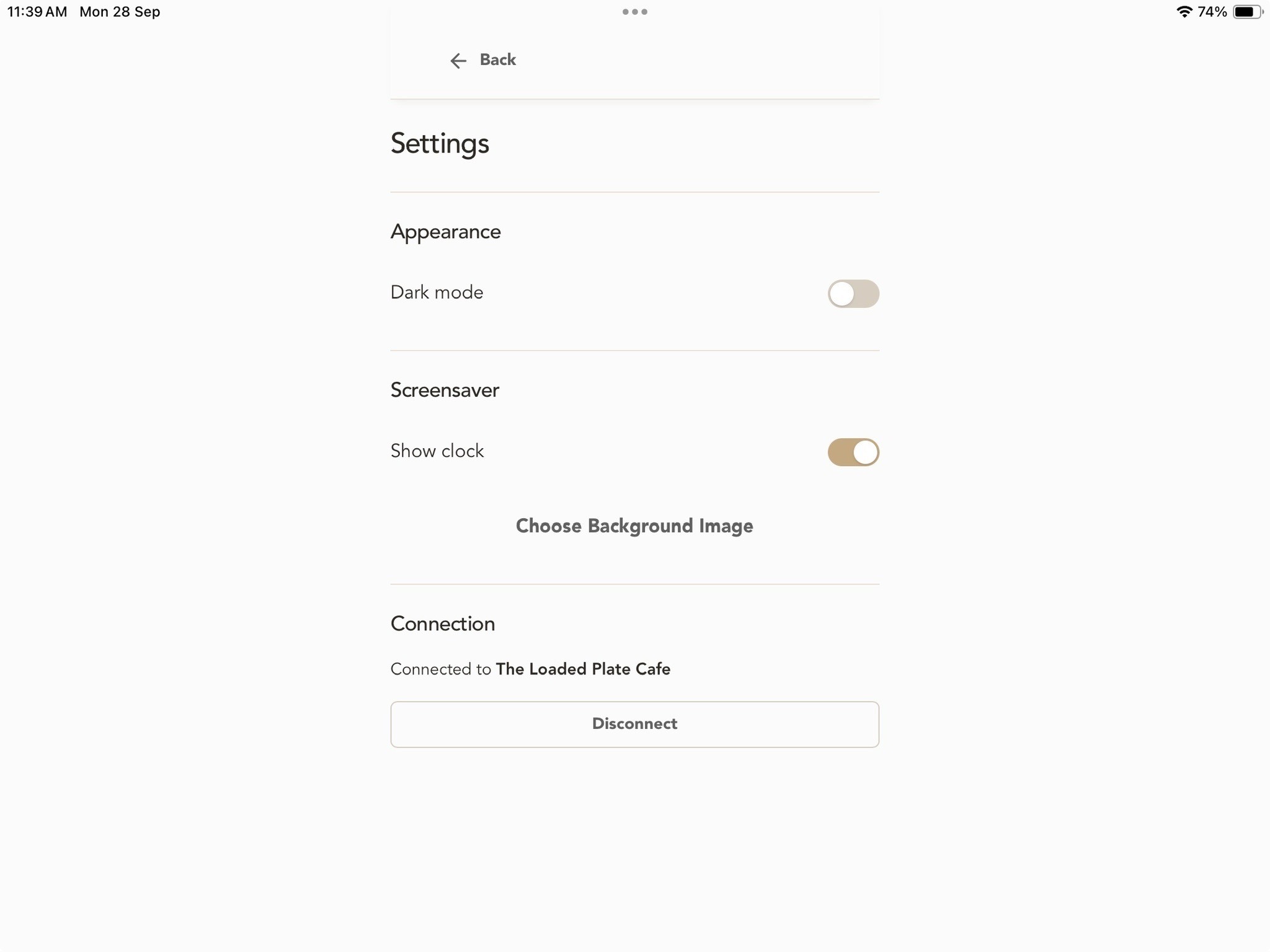
Click the cog icon in the top right-hand corner of the home page to access the Timeclock App settings. From here you can:
Select light or dark mode
Choose whether to show the clock on the screensaver page
Upload an image to use as the background on the screensaver page
Clocking In & Out
From the home screen, click Tap to clock in
Select your staff member name from the list (if you've uploaded a photo via the Team App, you'll see it here)
Click Clock in
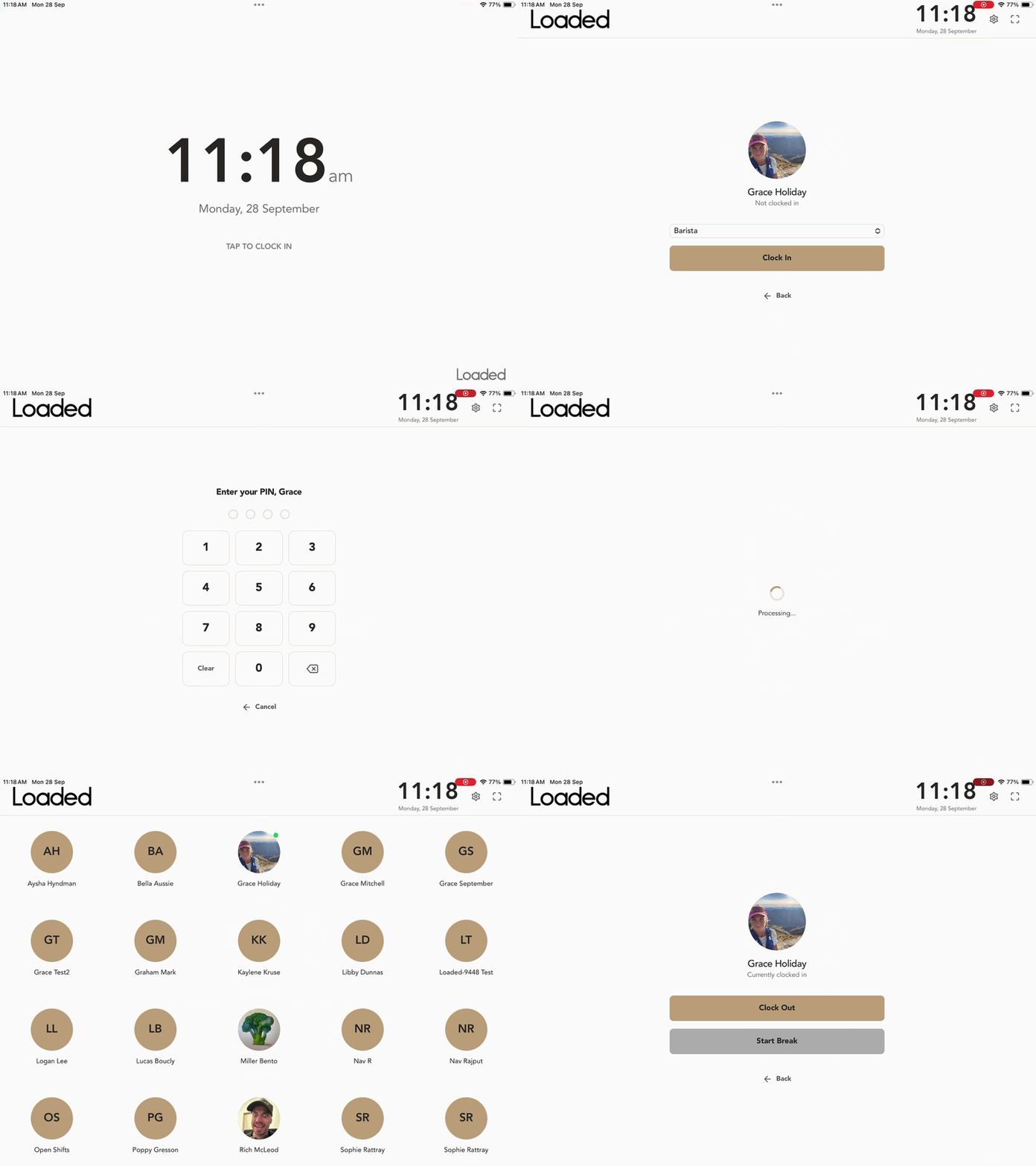
Once a staff member is clocked in, they can either start a break or clock out to finish their shift.
Clock Edit History
The Clock Edit History on the Staff Clocks page shows you:
Where the clock was created (Kiosk means it's from the new Timeclock App)
The security method used to log in
Any edits to the clock in, and who made them
The date and time of all events
To open it, click the clock icon (under the trash icon) on the far right of the clock in row.

The old Timeclock App
The old Timeclock App still exists and can be used alongside the new one. We will eventually stop supporting the original app, so we recommend switching over as soon as you can.
Uninstalling the original Timeclock App
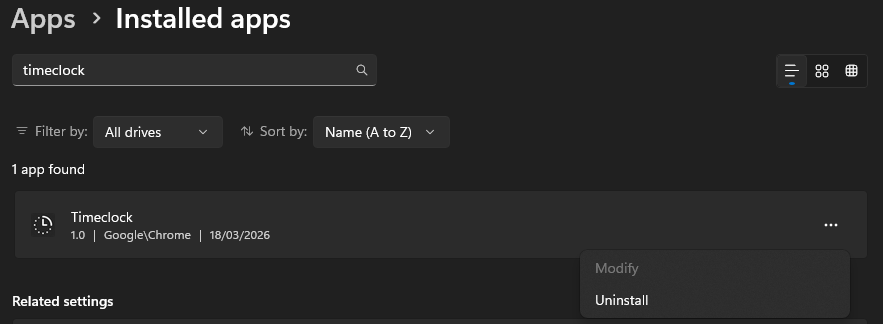
On the Windows device running the original app, press Start, then search for Add or remove programs
Find the app called Timeclock in the list
Click the 3 dots -> Uninstall

FAQs
Getting started
Do I need to uninstall the original Timeclock App?
To encourage your team to use the new Timeclock App and prevent confusion, we recommend uninstalling the original app. However, both can be run side by side, meaning both apps will be updated if a staff member clocks in or out. See The Original Timeclock App above for more.
Can I use the Timeclock App in a browser instead of installing it?
Yes. Just open timeclock-app.loadedhub.com, log in and connect to your Loaded venue.
What devices and browsers are supported?
All devices and browsers are supported, with no restrictions on what it can be used on. This includes iPads, Android tablets, and desktop browsers such as Safari or Chrome.
Can I connect more than one device to the same venue?
Yes, you can have multiple devices running in the same venue. Just follow the Installing & Connecting the Timeclock App instructions above on each device.
Can one device be connected to multiple venues?
Not at the same time. You can disconnect from one venue, then connect to a new venue.
Security settings
Where does my team's PIN come from?
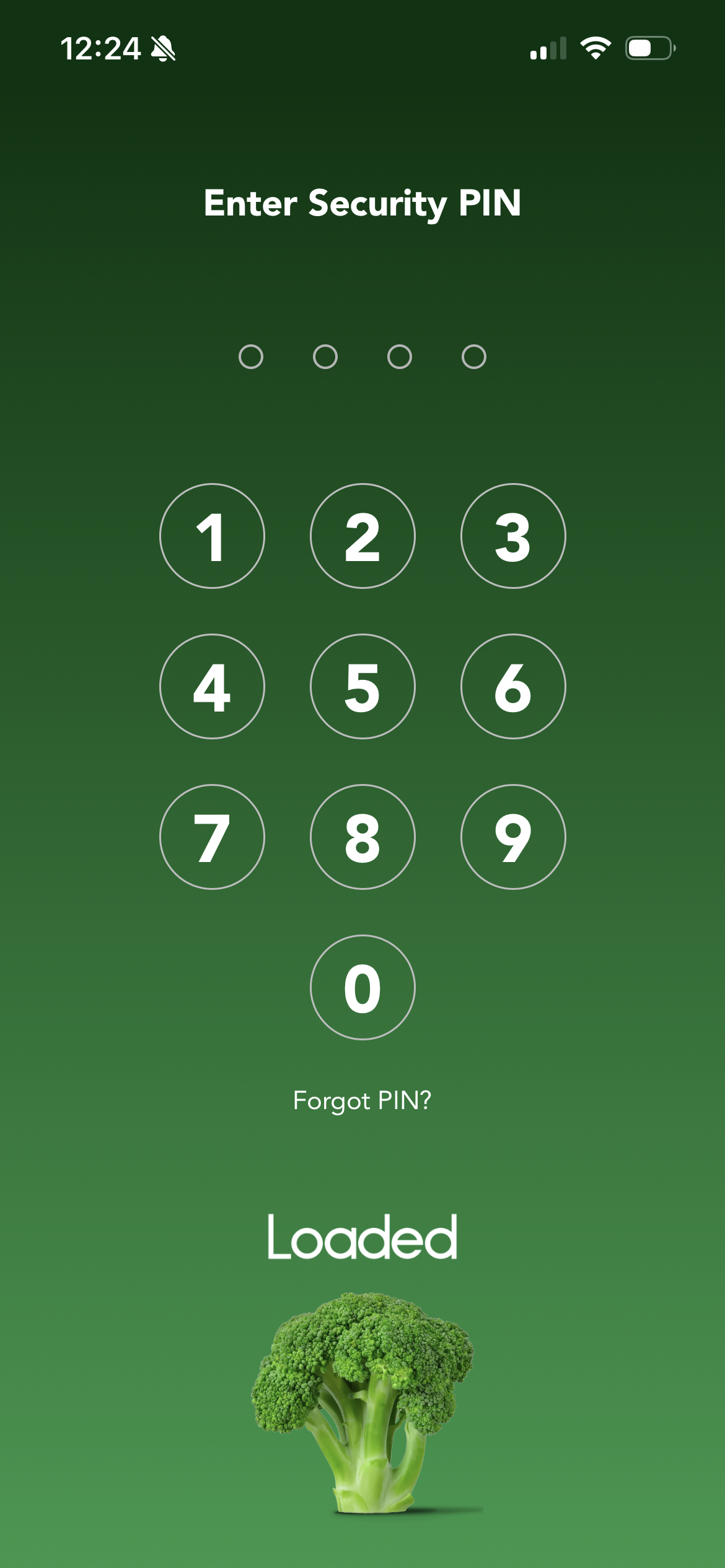
It's the same PIN a staff member sets to log in to the Loaded Team App.
What if a team member forgets their PIN or hasn't set one?
They'll need to open the Team App sign in page and click Forgot PIN? to set a new PIN.
Can I set different security options for different staff members?
No, the security option you select applies to all staff members in the venue.
Where can I see the photos taken at clock in?
In Staff Clocks, click the clock icon on the right-hand side of the page to open the Clock Edit History for the clock in.
Who can see photos taken on the Timeclock App?
Photos aren't visible on the Timeclock App itself, but can be seen in the Clock Edit History in Staff Clocks. Users with Time permission can access the Staff Clocks page.
Clock history
How do I know if a clock came from the new Timeclock App?
In the Clock Edit History, it will show as "Kiosk".
Can I still edit clocks in Loaded Hub?
Yes, you can make the same edits as the original Timeclock App from Staff Clocks. All edits, and who made them, are shown in the Clock Edit History.
Known Limitations
Allowing camera access on iPads: if you're using the new Timeclock App on an iPad (or any Apple device) with the Photo security setting, your team will need to confirm that the Timeclock App can access the camera each time they clock in or out for a shift or break.