You need Time permission to view and edit the time clock and Managers permission to be able to view pay rates. If you don't have access to this module, ask someone with Managers permission to update your user permissions.
To access, click on Time, Timeclock and then Staff Clocks.
Click on the start/finish time you are wanting to edit under the When In/When Out sections.
Edit the date & time to your desired start/finish time.
Then click OK.
Your time clock will now update with the new details.
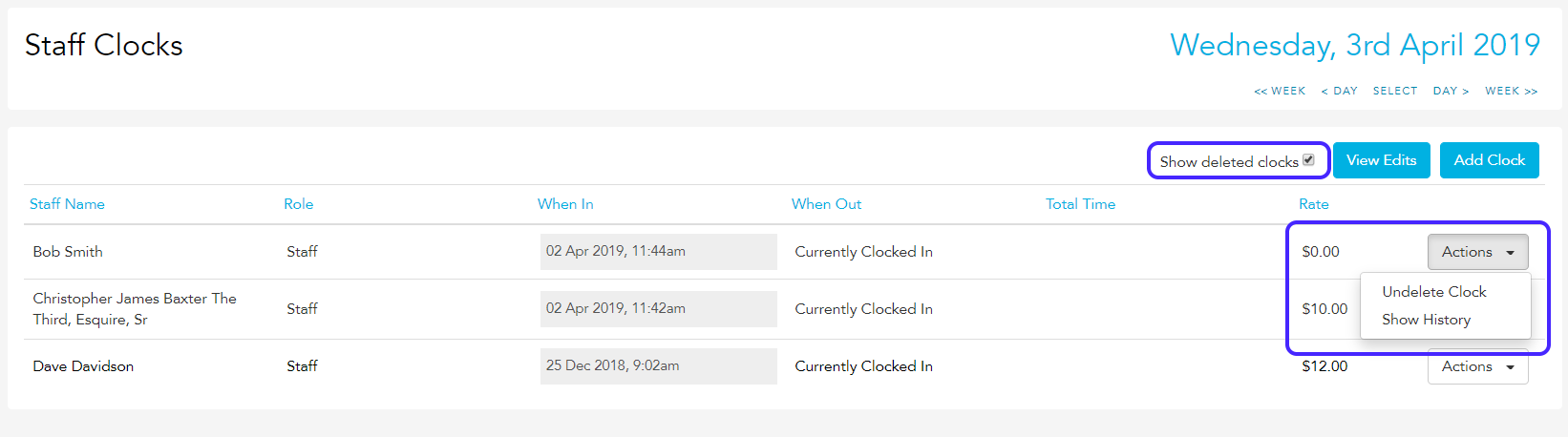
You can use the Show History function from the Actions drop box to see how clocks have been created/edited.
To view an audit of all timeclock entries that have been edited, go to Time then Timeclock, Staff Clocks and finally View Edits.
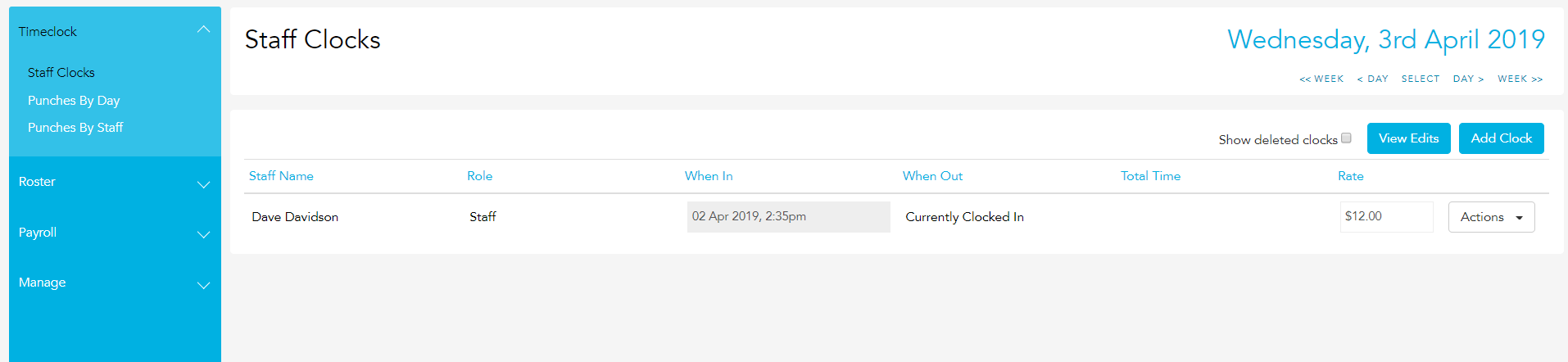
The Edit History page shows an audit of all edits that have been made.
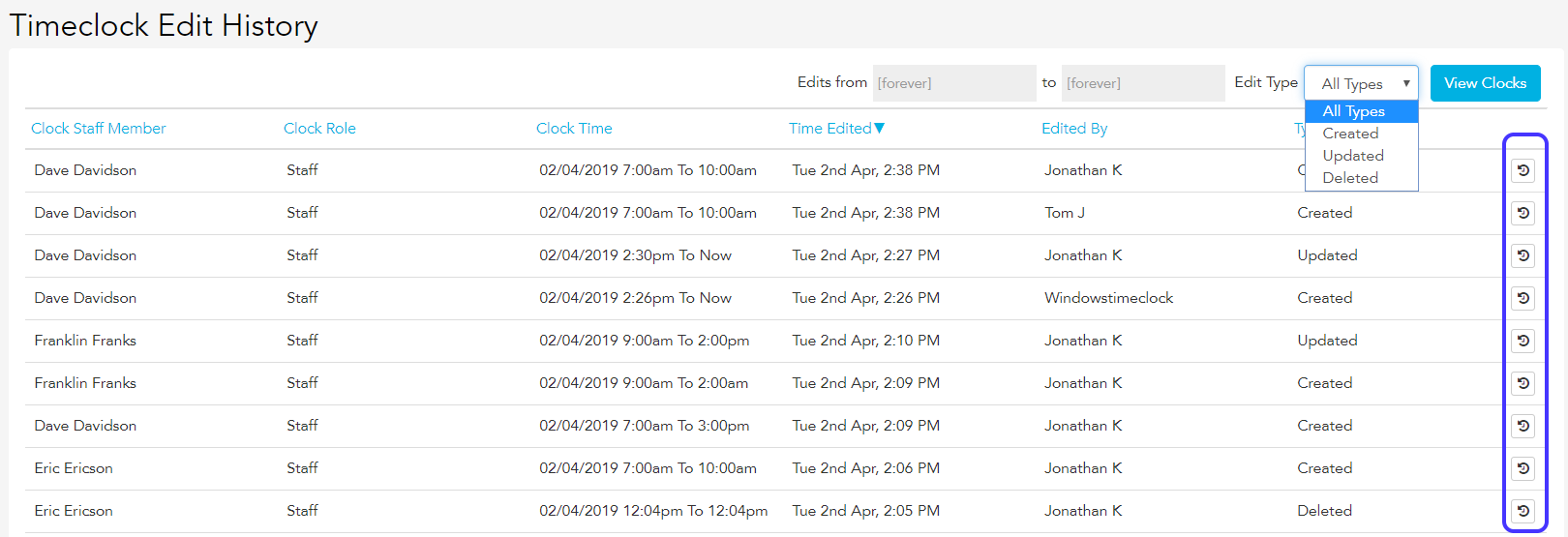
You can filter the list by:
Type of edits
The user who made the edit
The time the edit occurred
Type of edits:
Created shows who has created the clock in for a staff member
Updated shows who has updated or edited it
Deleted shows who has deleted that clock
If the staff member clocks in or out via the Timeclock application, it will show the name of the application, e.g. Windows Timeclock. If the clock has been edited in the staff clocks page, you'll see the name of the person who made the edit.
There is also a small arrow icon on the right hand side, highlighted in the sample above, which provides a more detailed history of the original timeclock punch and any edits made. Below is an example.
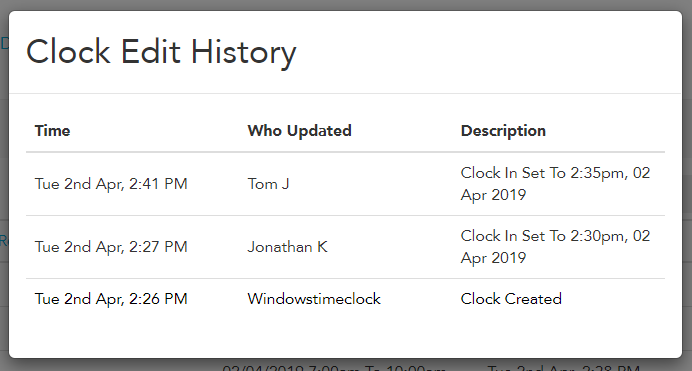
Here you can see that a timeclock has been created by the Timeclock application on Tuesday 2nd April at 2.26pm, Jonathan K then edited the Clock In time to 2.30pm, and finally Tom J edited the Clock In time to 2.35pm.
You can also tick the Show deleted clocks checkbox in order to review clocks that have been deleted. You can also restore a deleted clock by clicking undelete clock.