
Team members can now offer and swap shifts directly from the Team App, with built-in eligibility checks, manager approvals, and automatic roster updates.
🔐 What You'll Need
🔑 Manager permissions to change Team App settings, and Time + Payroll permissions to approve shift offers and swaps.
If you don't have access to your Company Settings, ask someone with Manager permissions to update your access.
Feature Overview
Shift Swapping is ready to use today. We're putting the finishing touches on a couple of final pieces that we'll keep up to date here:
✅ = ready to use · 🦺 = coming soon
Feature | Status |
Offer a shift to a specific staff member | ✅ |
Offer a shift to everyone | ✅ |
Swap a shift with a staff member | ✅ |
Approvals in Loaded Hub | ✅ |
Approvals via email | ✅ |
App notifications for offers & swaps | 🦺 |
Approvals via Team App | 🦺 |
Team App Settings
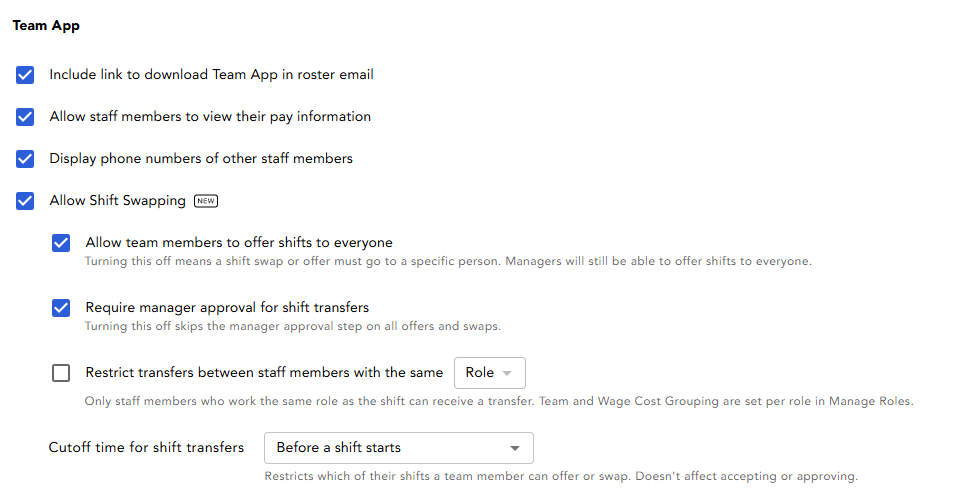
Head to Venue Settings → Team and scroll to the Team App section. Review these settings before your team starts shift swapping:
Setting | What it does |
Allow Shift Swapping | Turns Shift Swapping on for your venue. Turn this on first, then work through the settings below. |
Is the Team App being used? | Includes a link for staff to download the Team App from the published roster email |
Allow team members to offer shifts to everyone | On: staff can offer a shift to everyone. Off: they're limited to offering or swapping with a specific person |
Require manager approval for shift swaps | On: all offers and swaps need manager approval before they're confirmed. Off: they're confirmed automatically |
Restrict transfers between staff with the same Role/Team/Labour Group | Restricts who a shift can be offered to or swapped with, to prevent ineligible staff working the shift |
Cutoff time for shift transfers | The latest time before a shift starts that it can still be offered or swapped |
Downloading the Team App
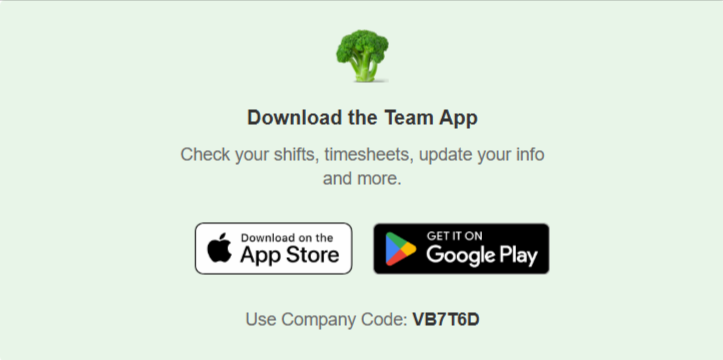
Loaded's Team App is where staff members offer and swap shifts. Here's how they get set up:
Publish the roster via email: the bottom of the email has a link to download the app
Download the app from your device's app store
Log in with the same email address your rosters are sent to
Enter the team access code included in the roster email
Check your email for the one-time passcode, or follow the link in the email
Create a PIN you'll remember: you'll use this to unlock the app
Shift Eligibility
Eligibility determines which staff members appear in the list a shift can be offered to or swapped with. Loaded checks:
Rostered shifts: the staff member isn't rostered for another shift (at any venue) at the same time
Availability: no unavailability overlapping the shift
Leave: no leave overlapping the shift
Role, Team or Labour Group (if restricted): only staff who can work the same role, or a role in the same team or labour group, are eligible
Offering a Shift to Someone
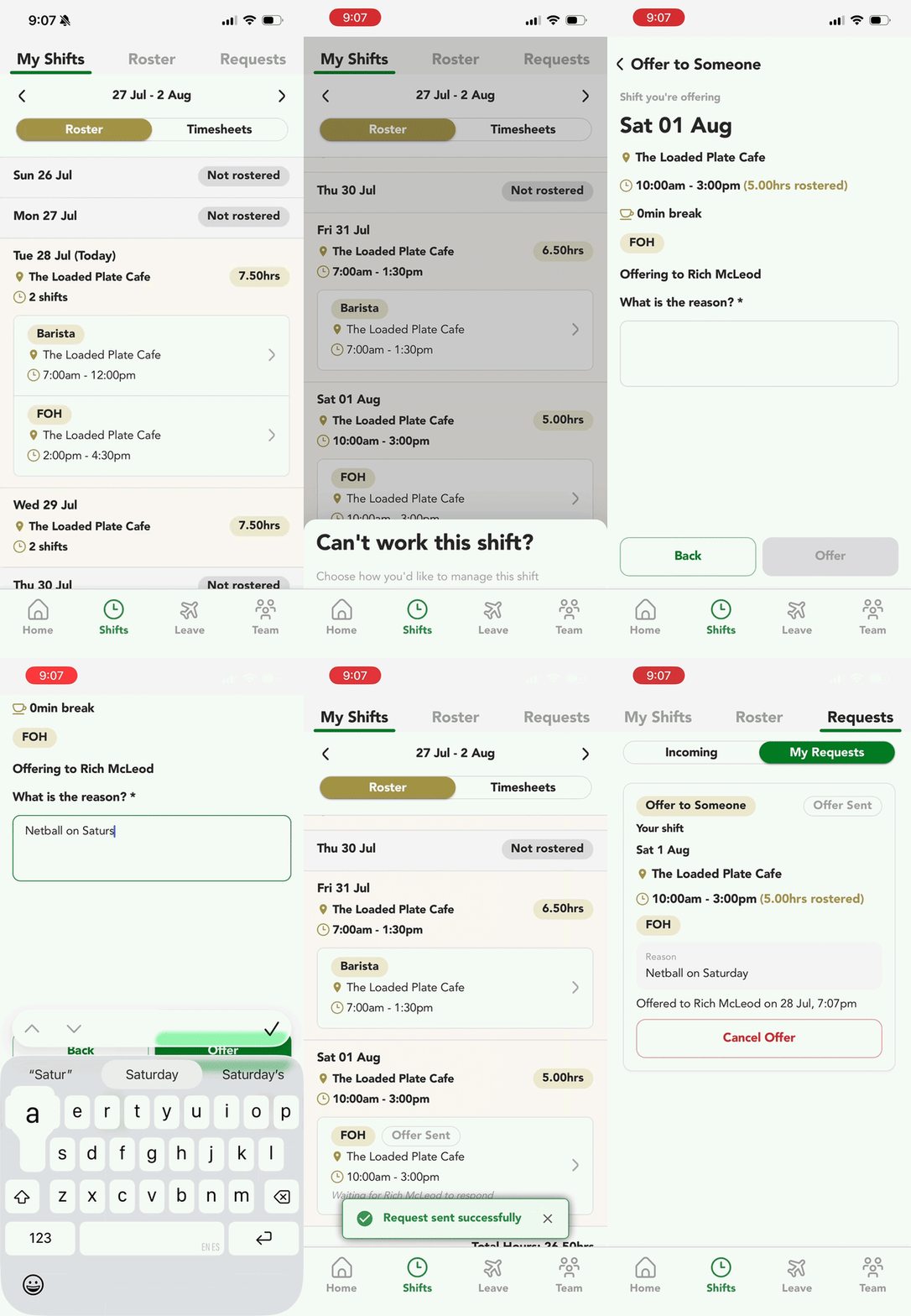
To offer a shift to a specific staff member:
Head to Shifts → My Shifts and select the shift
Click Can't work this shift?
Choose Offer to Someone
Select the team member to offer the shift to
Enter the reason for the offer, then click Offer
Head to Requests → My Requests to see the offered shift. The status updates once it's accepted, then approved (if manager approval is required)
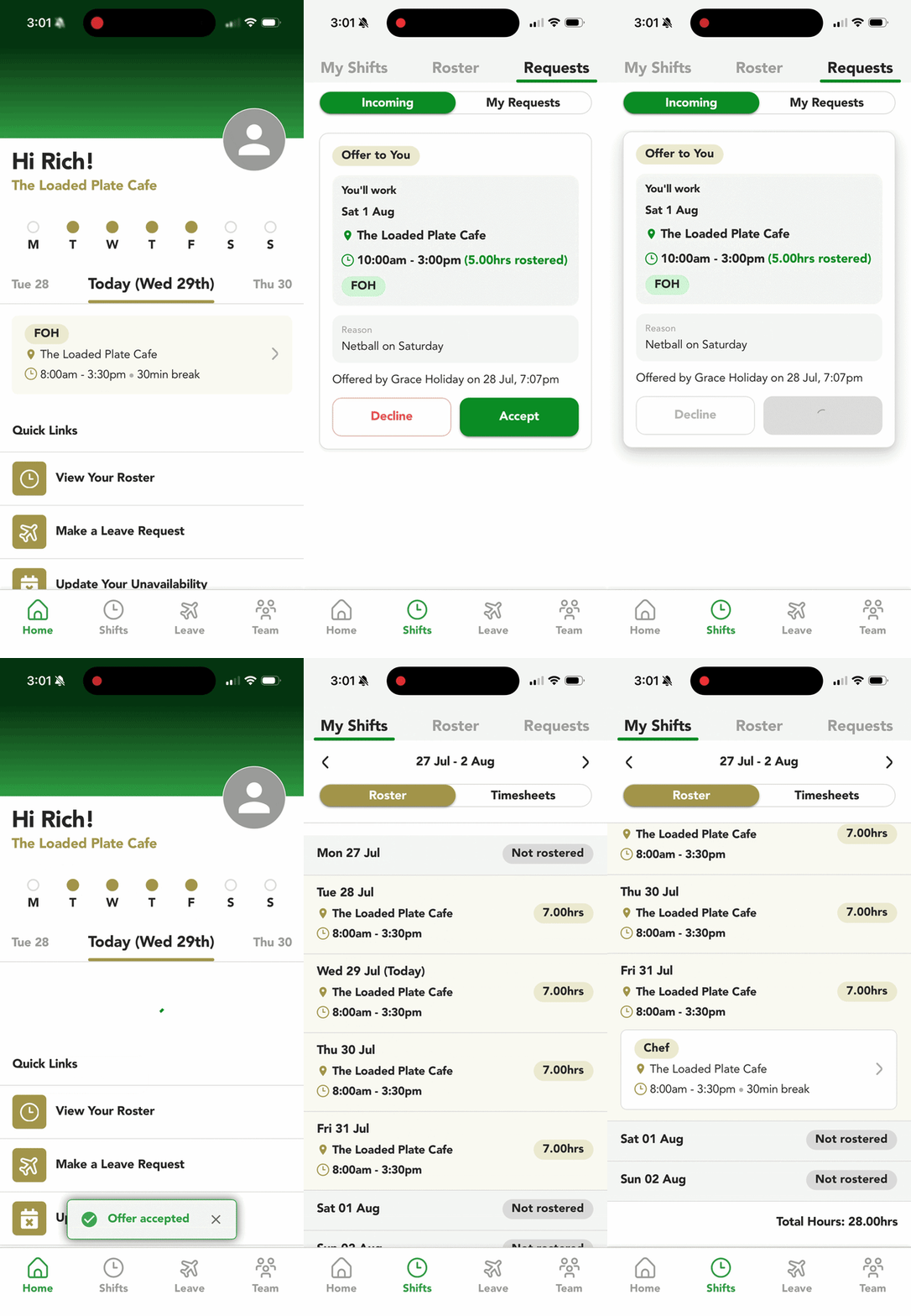
To accept an offer:
Head to Shifts → Requests → Incoming
Click Accept
Once approved (if required), the shift appears in your rostered shifts
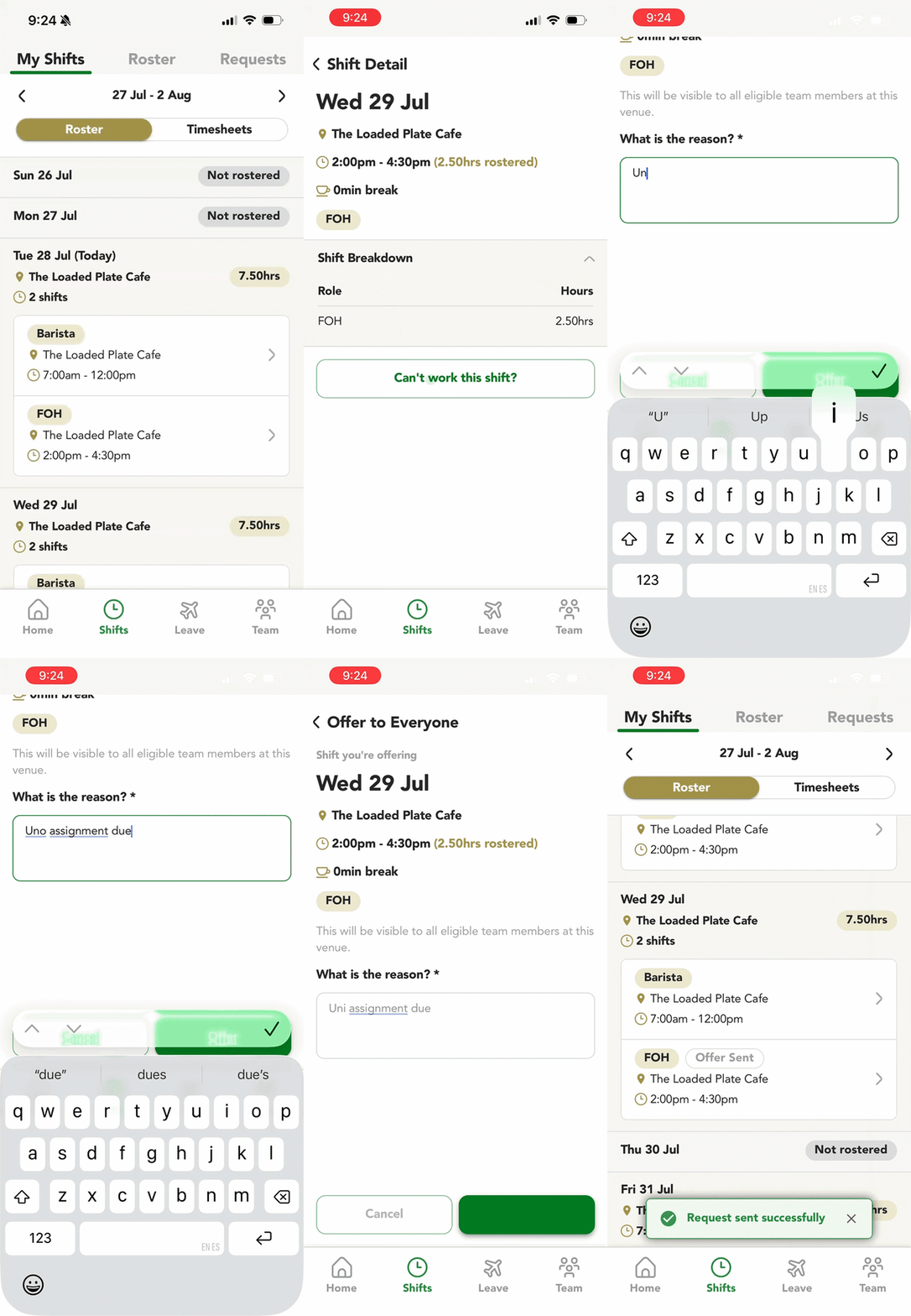
Offering a Shift to Everyone
To offer a shift to all eligible staff members:
Head to Shifts → My Shifts and select the shift
Click Can't work this shift?
Choose Offer to Everyone
Enter the reason for the offer, then click Offer
Head to Requests → My Requests to see the offered shift. The status updates once it's accepted, then approved (if manager approval is required)
Swapping a Shift
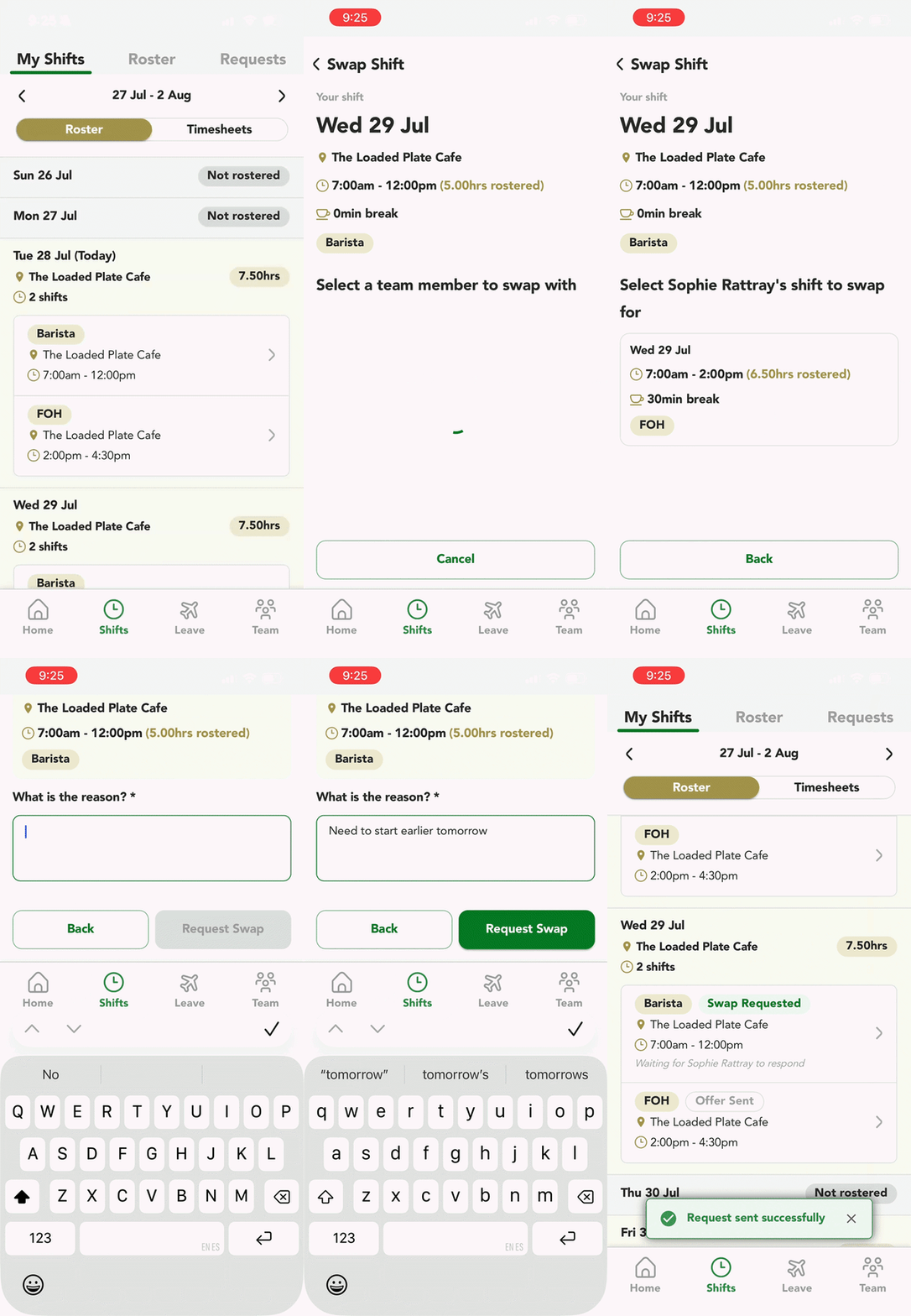
To send a shift swap:
Head to Shifts → My Shifts and select the shift
Click Can't work this shift?
Choose Swap Shift
Select the team member you want to swap your shift with
Select the team member's shift you want to swap yours for
Enter the reason for the swap, then click Request Swap
Counter swaps: If a shift is offered to a staff member (as an offer to one person or to everyone), that staff member can propose a swap with one of their own shifts instead of just accepting the offer.
Managing Requests & Notifications
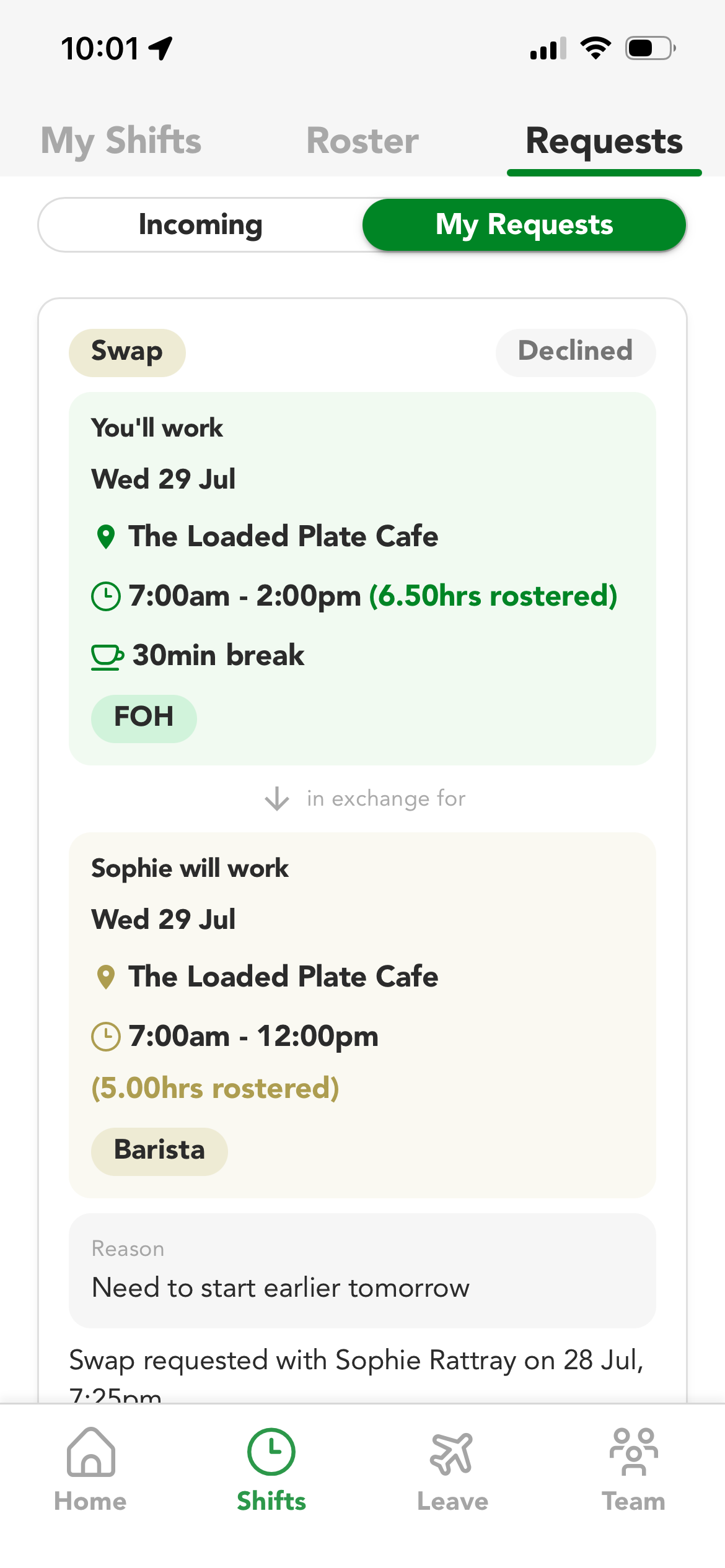
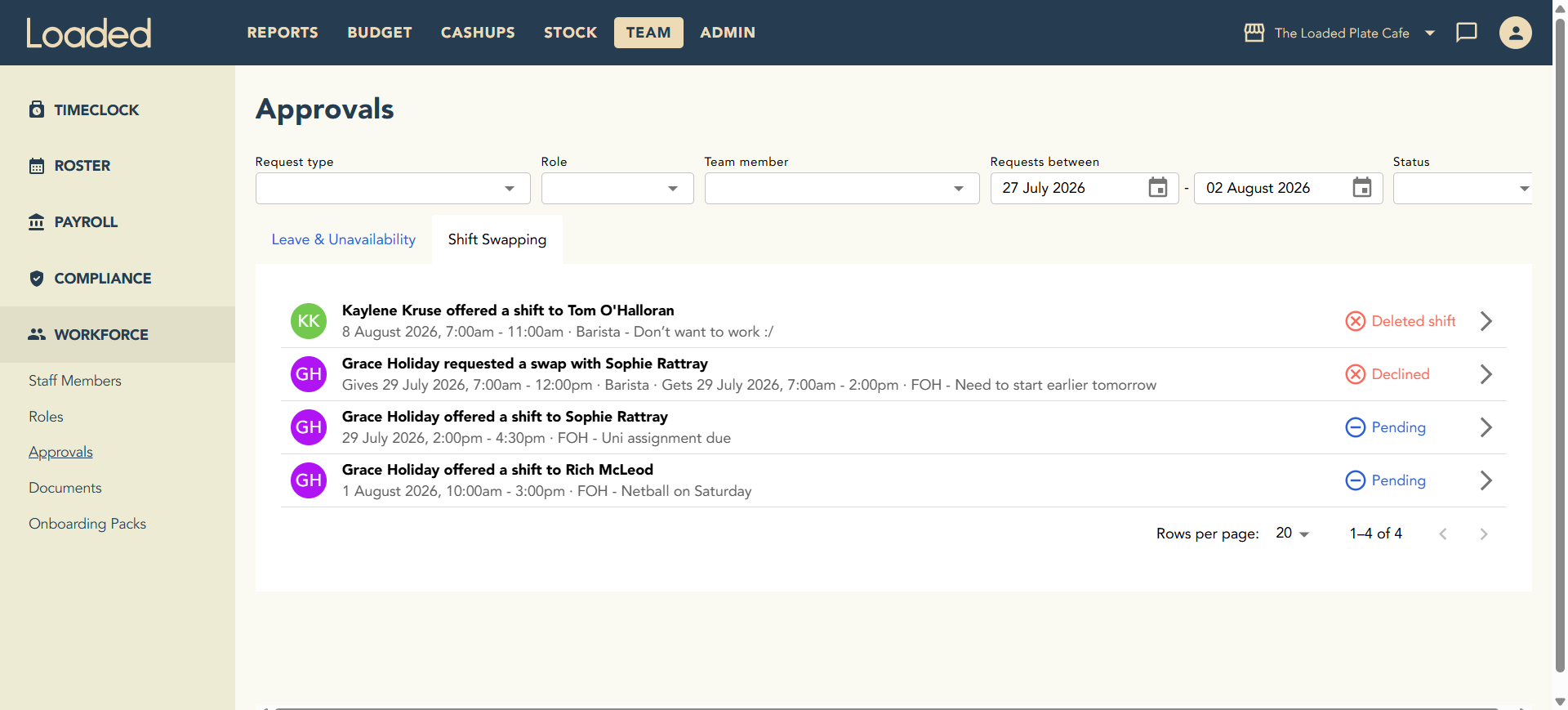
Head to Shifts → Requests to see all incoming and outgoing shift offers and swaps. Status tags:
Offer sent: waiting for a response from a team member
Swap requested: waiting for a response from the person the swap was sent to
Pending approval: accepted by the team member, now awaiting manager approval; the roster isn't updated yet
Covered / Swapped: approved and confirmed; the roster will be updated
Declined: the offer or swap was declined by the recipient or a manager
When a staff member accepts an offer or swap, the person who initiated it receives an email confirming the acceptance and noting it's awaiting manager approval.
Approving Shift Offers and Swaps
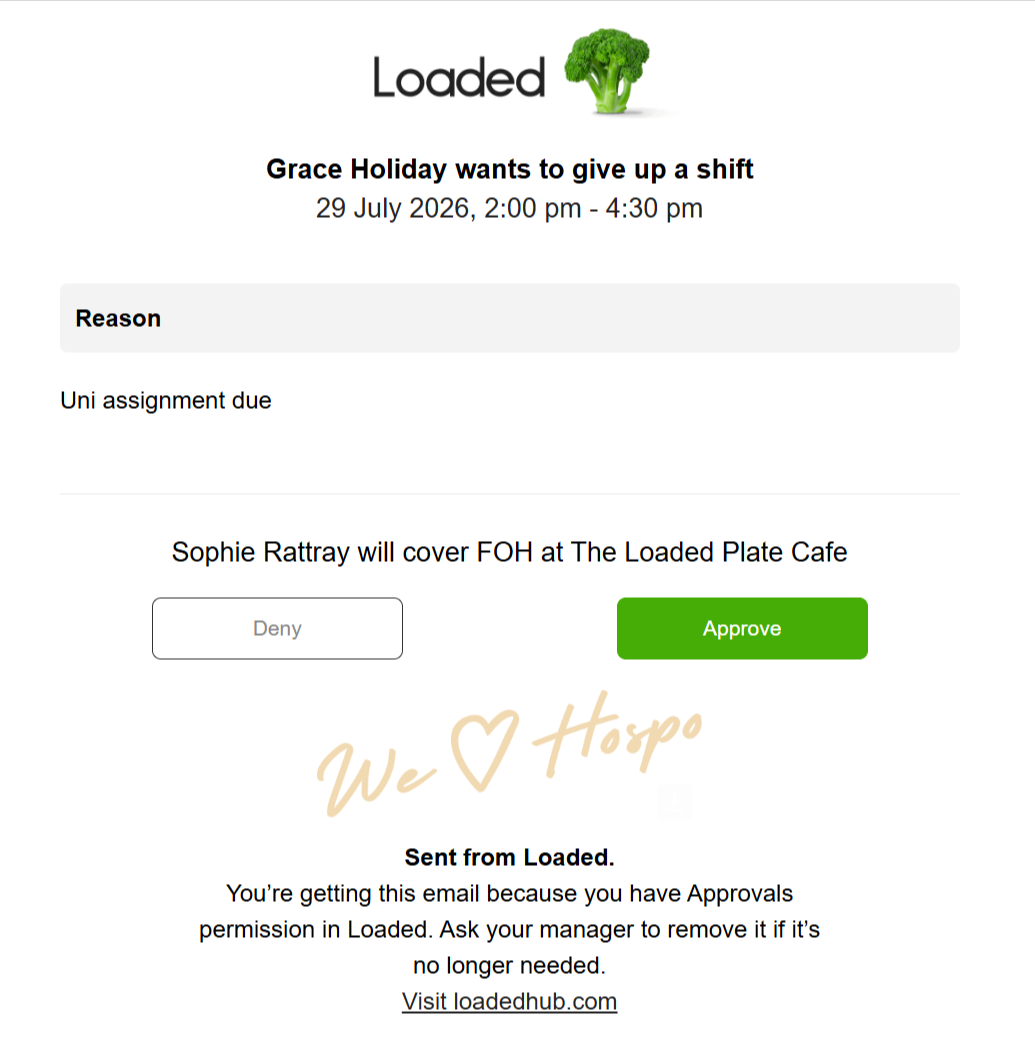
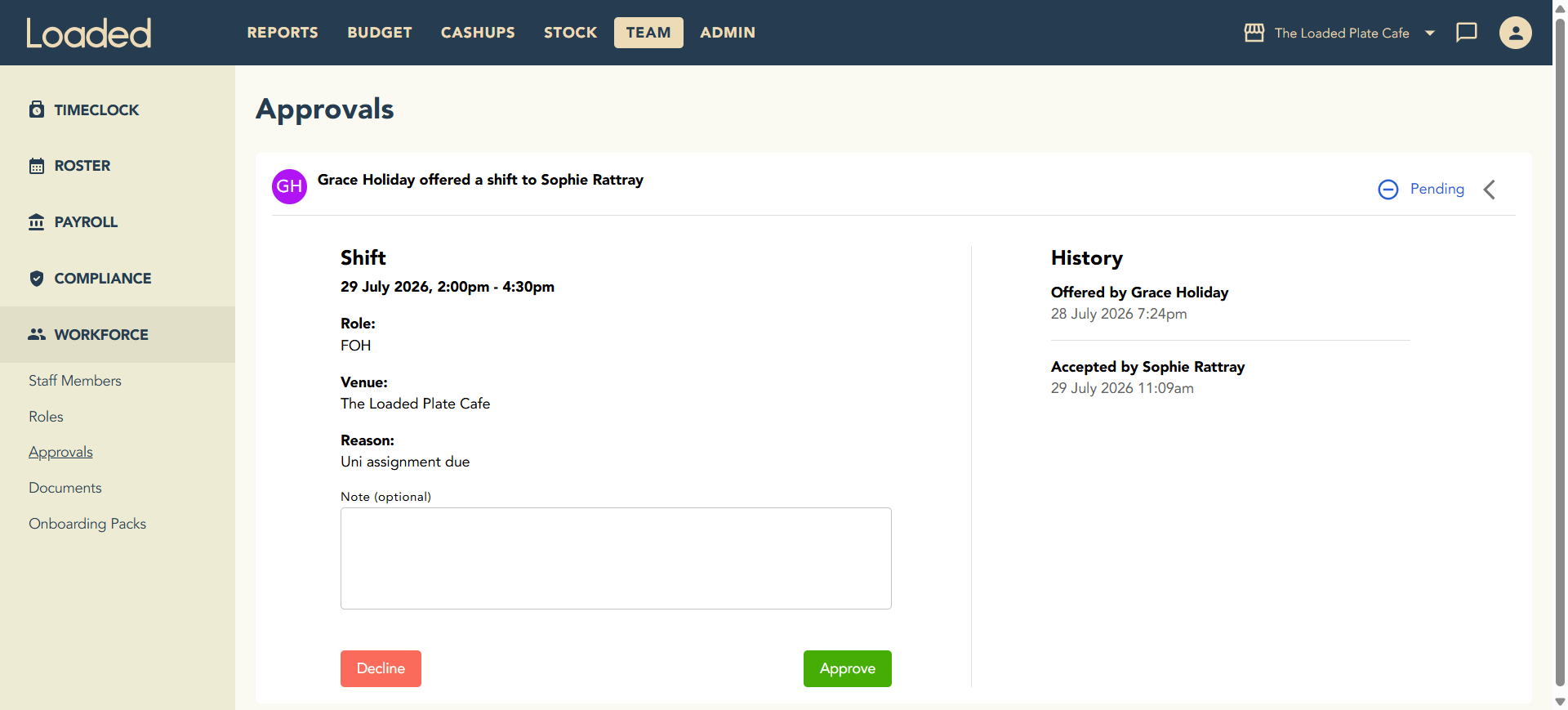
If Require manager approval for shift swaps is on for your venue, every shift offer and swap must be approved by a manager before it's confirmed.
Via Email (requires Approval Emails permission): approve or decline a shift offer or swap straight from your inbox
Via Loaded Hub → Approvals (requires Time + Payroll permissions): head to Team → Workforce → Approvals, open the Shift Swapping tab, click a row to review it, then approve or decline
Roster Updates
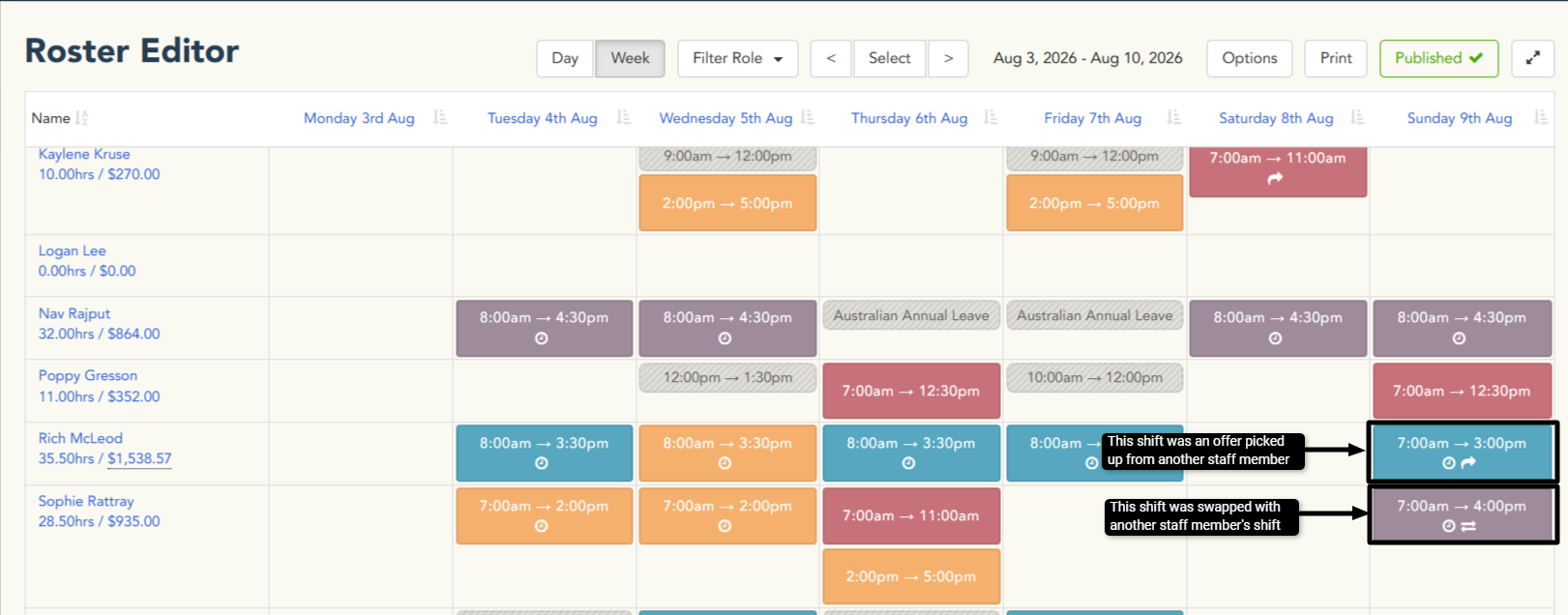
The roster shows shifts that have been picked up or swapped with other staff members as:
Offered (one arrow): the staff member accepted a shift offered to them
Swapped (two arrows): the shift was swapped with another staff member's rostered shift
Offering a Shift on Behalf of a Staff Member
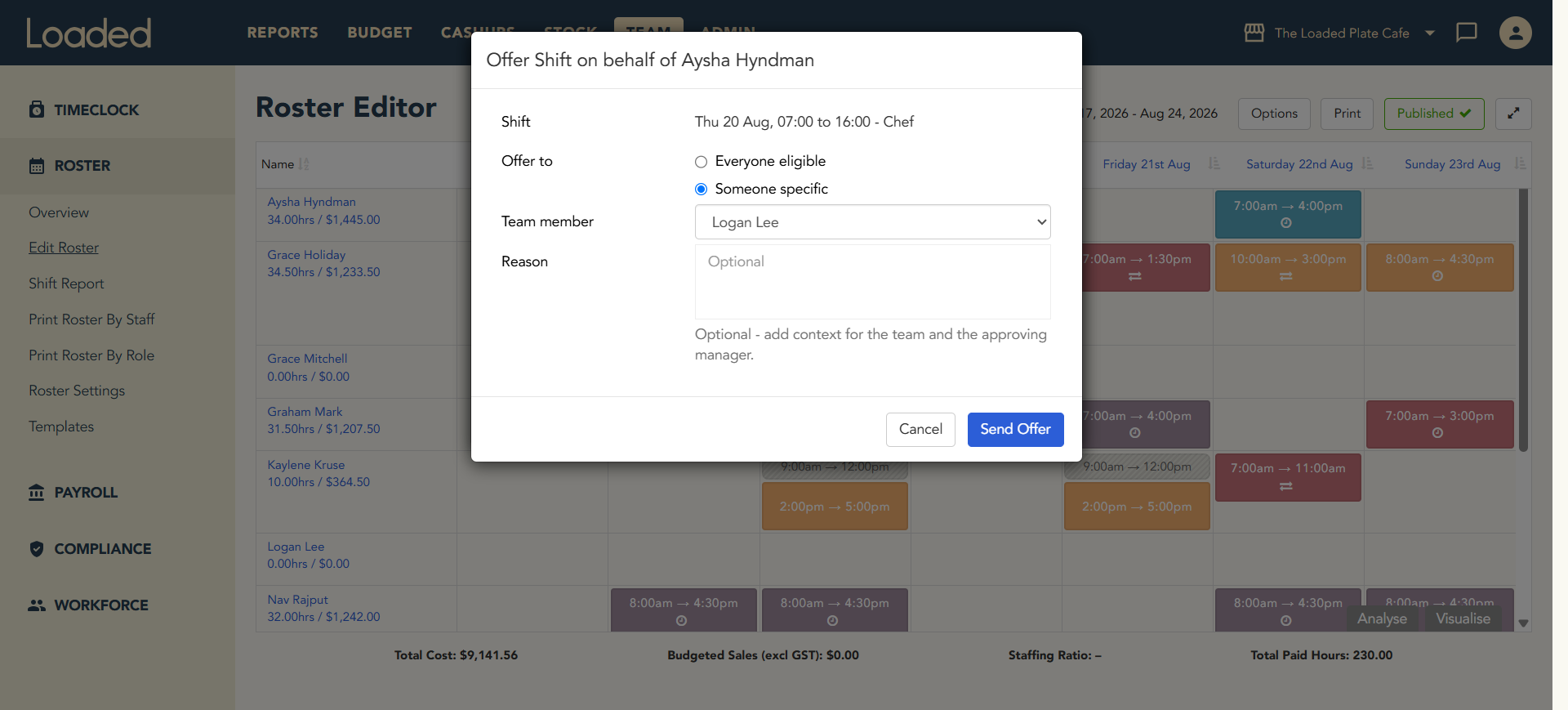
A manager can kick off the shift offer process from the roster in Loaded:
Head to the Roster Editor
Click the shift you want to offer and select Offer Shift
Choose Everyone eligible or Someone specific
Enter the reason for the shift offer (optional)
Click Send Offer
The staff member(s) the offer was sent to will receive an email and can accept the offer in the Team App. The roster updates once the offer is accepted.
Known Limitations
No in-app approvals yet: all shift offers and swaps can currently be approved via email or in Loaded Hub under Team → Workforce → Approvals. We're working on letting managers approve transfers from the Team App itself.
Push notifications are still coming: for now, team members are notified about new offers and swaps by email, with a link to the offer or swap in the Team App.
If a staff member tries Offer to Everyone but there are no eligible staff members, they'll see a generic error message rather than an explanation of why the shift can't be offered.