
You need Stock and Stock Sharing permission to share stock items & recipes. If you don't have access to this module, ask someone with Manager permissions to update your user permissions.
You'll need to have added stock items and recipes before you can share them.
For best practice stock item setup, take a look at our item grid.
Stock sharing lets you link stock items and recipes between multiple sites. This saves time setting up new sites and gives you a way to update items and recipes from a central location.
Sharing Selected Items
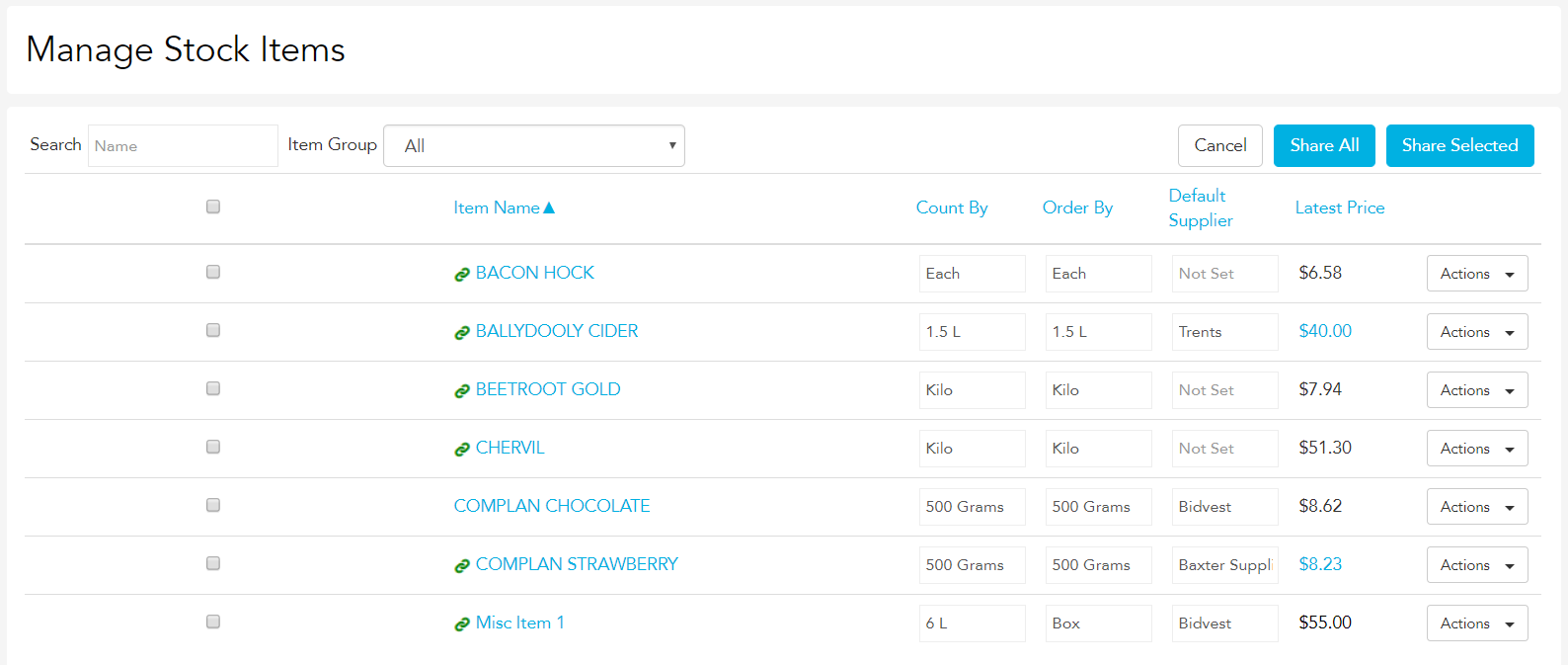
All item sharing functions are managed in the Stock Items Manage page.
To access, head to Stock → Manage → Stock Items.
Click Share.
Select the stock item(s) you want to share by clicking the tickbox beside the item name.
Click Share Selected.
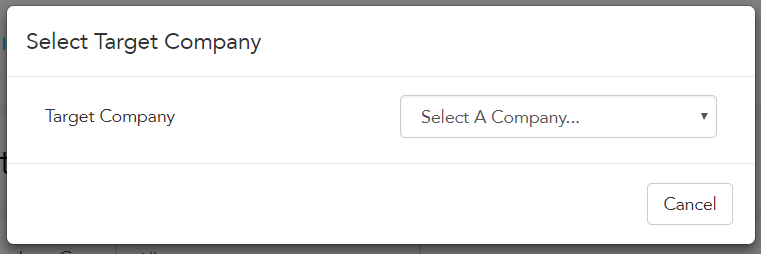
In the window that appears, select the site you want to share the item to.
On the next window, you'll see a confirmation of the share. There are two ways a share can complete:
Replace — if the target site already has an item with the same name, the two items are linked. This won't overwrite the target item's details, but lets you manage both from a central location.
New — if no item on the target site has the same name, a new item is created there.
Click Confirm to complete the share. Once shared, a green shared icon appears next to the item's name on the stock list.
Managing Shared Items
Shared items get the added bonus of central management — no matter which site's item list you're viewing, you can edit the other versions of that item on other sites.
To manage a shared item, select Manage Site Item from the item's Actions menu.
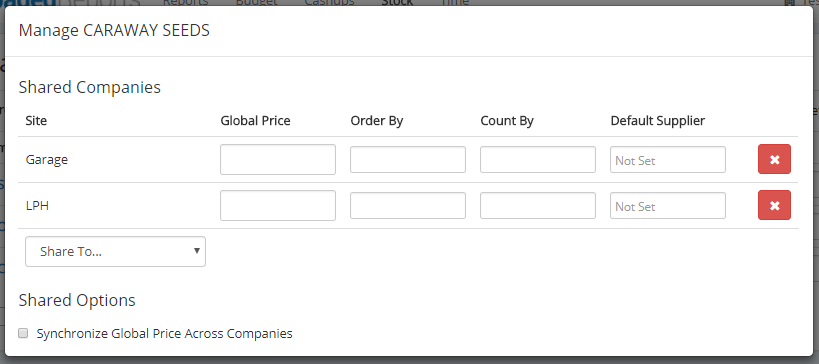
From this popup you can edit fields from the item at each site, delete it from one of the sites, or share it to another site.
Once an item is shared, it can only be deleted from the Manage Stock Item popup.
Sharing All Items
Click Share.
Click Share All.
On the sharing confirmation screen, you'll see the same breakdown of what will happen on the destination site, but this time for all selected items.
Sharing a Recipe
Sharing a recipe works much like sharing an item, and is managed on the Stock Recipes manage page.
To access, head to Stock → Manage → Recipes.
A few differences to keep in mind when sharing recipes:
When you share a recipe, all items and other recipes used in its lines are automatically shared to the target site too.
Once a recipe is shared, any changes to it are also applied to all copies on other sites.
If you add an item that isn't already shared while editing a shared recipe, that item is automatically shared to every site the recipe is shared to.
To Share Selected Recipes
Click Share.
Select the recipe(s) you want to share by clicking the tickbox beside the recipe name.
Select the site you want to share the recipe to from the Select Target Company box.
On the confirmation popup, you'll see the recipe and all associated items and recipes that will be shared to the target site.
Click Confirm to complete the share.
Sharing All Recipes
Click Share.
Click Share All.
Select the company you want to share the recipes with from the target company dropdown.
On the confirmation popup, you'll see the recipe and all associated items and recipes that will be shared.
Click Confirm to complete the share.
Note that when an item's cost updates after ordering, the recipe cost updates only for the site it was ordered from — sites where that item or recipe is shared keep the old price, since suppliers and prices can vary by location.
Other Articles and Resources You Might Find Useful
How to create Stock Items
Best practice stock set up