
Multi-Site Team in Loaded helps prevent rostering conflicts across multiple venues and makes payroll processing smoother by consolidating timesheets into one place.
What you'll need
Manager + Time permissions at each venue if you want to create or edit a staff member linked to multiple venues. You'll need Time permissions to edit and view rosters.
Head to Company Settings → Team → Payroll and select your payroll system — Loaded will generate the correct export format, or prompt you to connect Xero payroll.
Multi-site staff member set up
Link staff members across venues from Team → Workforce → Staff Members.
Adding new staff members
- Click Add New
- Enter personal details (First Name, Last Name, Birth Date — especially important for Junior Staff in AU, Email, Employment Type, Remuneration Type)
- Click + Add another venue, select the additional venue, and add the relevant role(s) and pay rate
- Click + Add available role under each venue and repeat for as many roles as needed
- Choose whether the staff member is paid from one company (select the Payroll Company) or paid by each company they work for (tick Paid by each company)
- Click Save
A green link icon next to their name shows they work at multiple venues.
Linking staff members already set up
- Open the staff member's profile and go to the Job tab
- Click Edit Pay, then + Add another venue
- Select the venue and add the relevant role(s) and pay rate
- Select a Payroll Company (or tick Paid by each company to attribute hours to the venue where they were worked)
- Set the Start From date and click Save
Important: if the staff member already had a separate profile at the newly added venue, deactivate the old profile and use the multi-site one instead.
Rostering
The Edit Roster page shows shifts rostered at another venue with a grey link icon — hover to see the venue and role.
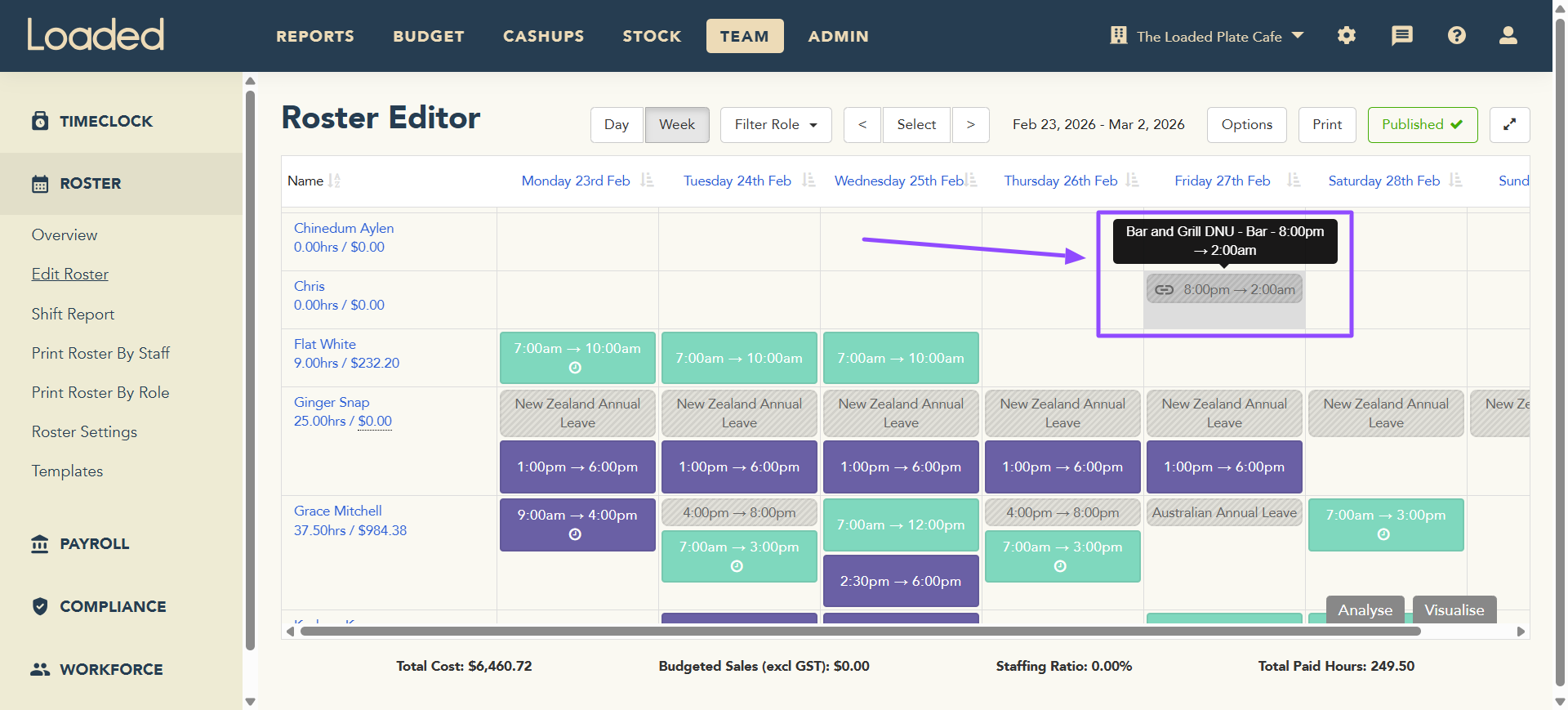
Note: Loaded won't stop you from rostering a staff member over another shift — this is a visual aid only, so it's on you and your team to check shifts don't overlap.
Pay Summary report
The Pay Summary report shows all actual hours worked during a pay period, making payroll review easier before export. What it shows depends on how staff are set up:
- Payroll Company selected: all their hours across venues export from that one company's Pay Summary report
- Paid by each company selected: hours export separately from each venue's own Pay Summary report
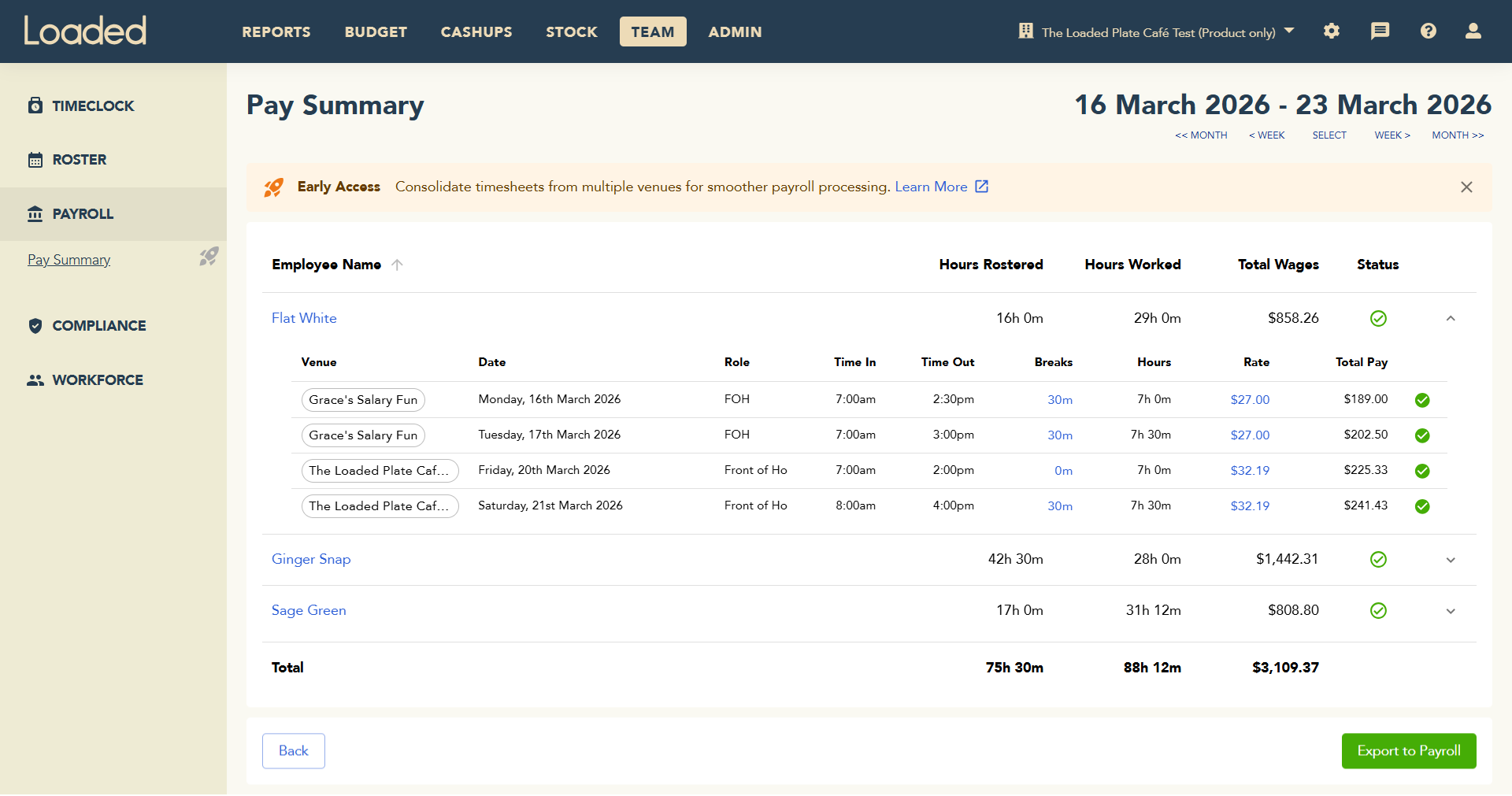
Exporting to payroll: NZ systems — click Export to Payroll and Loaded generates the CSV automatically. Xero Australia — clicking Export to Payroll takes you to the Pay Runs page to create a draft pay run and sync wages directly.
FAQs
What if I already have the same staff member set up separately across venues?
Log into the venue you want as their Payroll Company, add the other venue to their profile using the steps above, save, then log into the other venue and deactivate the duplicate profile. This keeps all historical data intact.
If I update a staff member's roles or venues in one venue, does it update everywhere?
Yes — once linked, updates made in the Job tab apply across every venue they work at.
Do Leave & Availability requests show in all venues?
Yes. Only one approval is needed for a request to show as Approved across every venue. Approving from the Approvals page requires being logged into the staff member's Payroll Company venue — unless "Paid by each company" is ticked, in which case any venue with Manager and Time permissions can approve.
How does this work for salaried staff?
Their pay is attributed across venues based on timeclocks or rostered shifts; with neither, it's attributed to their Payroll Company. A staff member's Remuneration Type (Salary or Hourly) must be the same across all their venues.
Can I edit another venue's roster while creating my own?
No — you can see shifts from other venues for visibility but can only edit the roster of the venue you're logged into.
Does Multi-Site Team work in the Team App?
Yes — staff can log in and see rostered shifts and timesheets for every venue they're part of.
Tips and tricks
- From a staff member's Job tab, click Edit Pay, then use + Add another venue or the bin icon to add or remove a venue
- Multi-site rostering is a visual tool only — always double check for overlapping shifts
- Use the same Leave Types across venues so requests display correctly on every roster
Watch a walkthrough: Multi-Site Team video