You will need Timeclock and Payroll permission to edit, remove or add a pay adjustment. If you don't have access to this, ask someone from your company with 'Manager' permissions to update your user permissions.
You need to have set up your Staff Roles and Staff Members' details correctly.
It'd be best to have your timeclocks set up so they pull through to Loaded automatically.
You will need to have a Pay Adjustment Package enabled in order to edit, remove or add a pay adjustment. For more information please click here.
How to view a specific pay adjustment on a staff member's Timeclock
To view the adjustments that have been applied to your staff member's Timeclocks, go to Time> Timeclock> Punches By Staff. Select the date range you want to view.
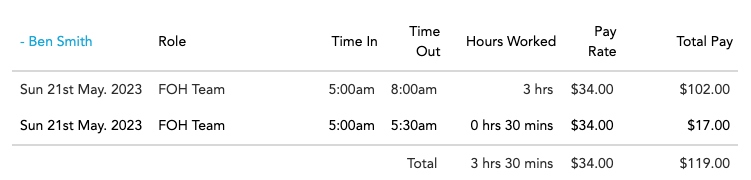
This report will break down all Timeclocks for the date range selected. On a day when your staff only work ordinary time, their punches will look like this:
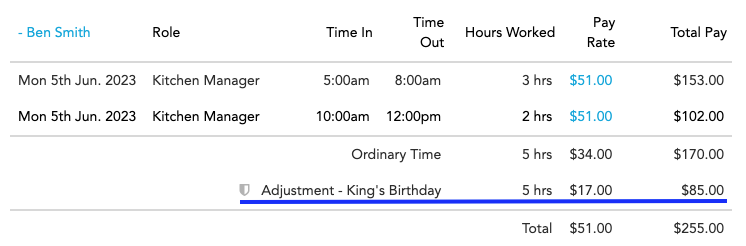
On a day that has a pay adjustment applied, their punches will look like this:
To view the breakdown of the shift and adjustment applied, click on the blue Pay Rate value:
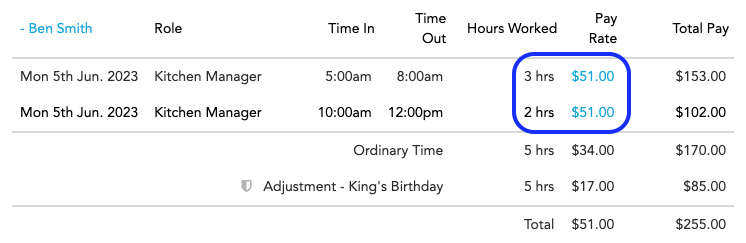
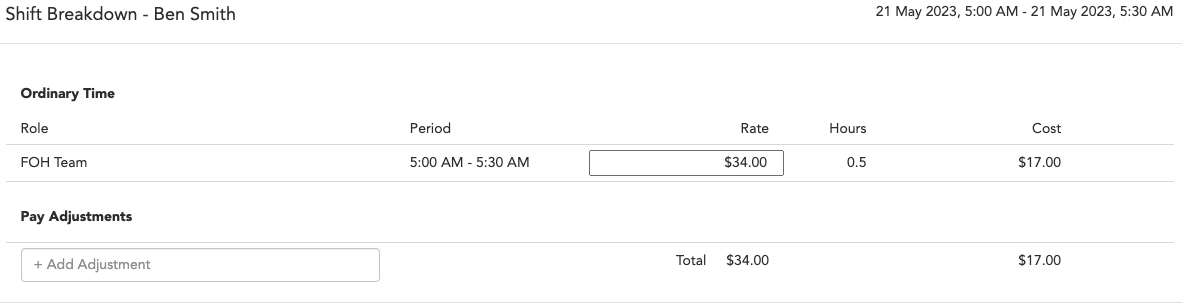
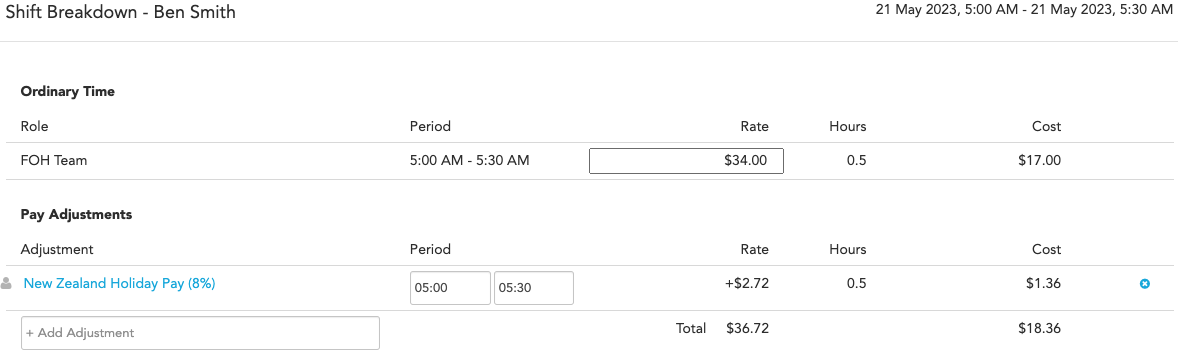
This will bring up the Shift Breakdown for this staff member:
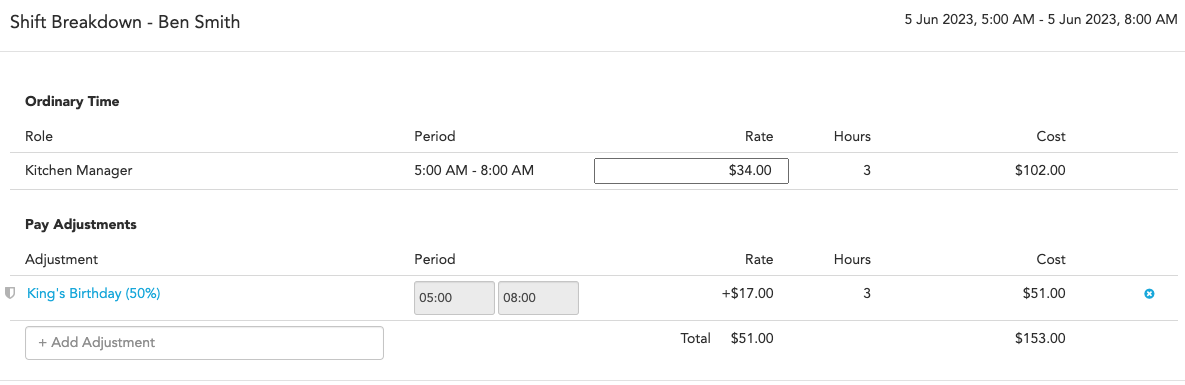
The Ordinary Time section shows:
Period - the times they clocked in and out on this date
Rate - their ordinary hourly rate
Hours - total hours on shift
Cost - the sum of total ordinary pay earned on this shift
The Pay Adjustments section shows:
Adjustment - the name of the Public Holiday or other pay adjustment e.g. Waitangi Day
Period - the times they clocked in and out on this date
Rate - the additional cost the adjustment has added e.g. 50% of their ordinary pay rate
Hours - total hours of the adjustment
Cost - sum of total additional pay earned on this shift
Lastly, the Total at the bottom shows:
Total Hourly Rate - ordinary rate + adjusted rate
Total Cost - sum of ordinary and adjusted pay earned on the shift
Removing a Pay Adjustment from a specific staff member's shift
To remove a pay adjustment for a staff member:
Open their shift breakdown
Under pay adjustments click on the blue 'x'

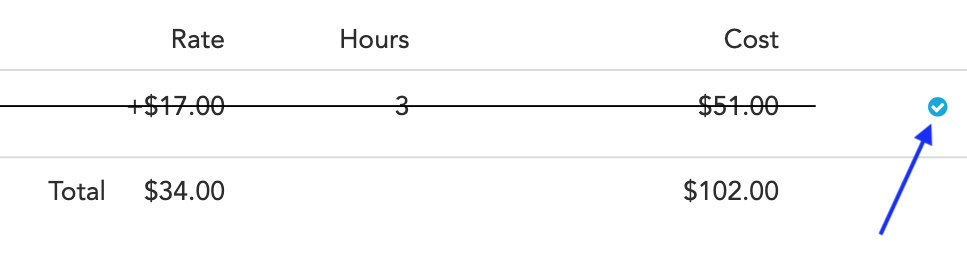
You will know you have successfully removed this when there is a line through the pay adjustment

You will also notice the additional cost of the adjustment has been deducted from the shift total
Note, if you remove an adjustment by accident and would like to add the adjustment back to the shift, click on the blue tick next to the crossed-out pay adjustment
Click Save
Editing a Pay Adjustment on a specific staff member's shift
If you want to edit an automatic adjustment that is applied to a shift you will need to:
Remove the automatic adjustment (see instructions above).
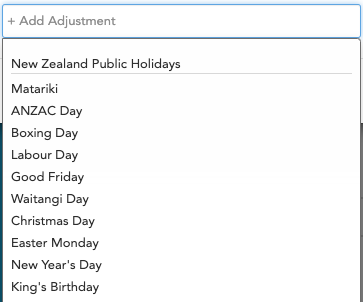
Click on 'Add Adjustment' and select the adjustment you wish to apply instead:
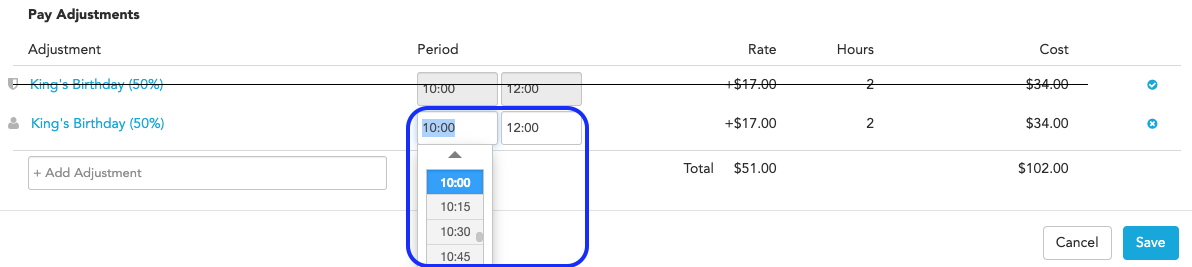
Adjust the period to reflect the hours you want the pay adjustment to apply to:
Click Save
Add a Pay Adjustment to a staff member's shift on a different date
To add a pay adjustment to a shift outside the specified dates in the pay adjustment package, you can do so in the Timeclock itself.
Go to Timeclock> Staff Clocks and select the date you want to add the pay adjustment to.
Find the specific staff member you want to adjust and click on their Rate.
This will bring up a shift breakdown for this staff member.
Under pay adjustments click on Add Adjustment and select the relevant adjustment from the list:
Adjust the period if necessary:
Click Save
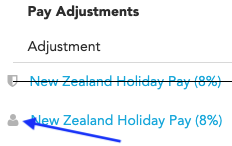
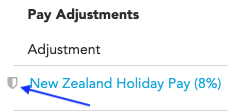
The icons displayed beside the adjustment in both the Punches By Staff report and the Shift Breakdown indicate a Loaded automatic adjustment or an adjustment manually added by a user of your Company.
Loaded automatic adjustments:
Manually added adjustments: