You need Time permission to publish a roster If you don't have access to this module, ask someone with Managers permission to update your user permissions.
You should have your roster completed before you publish a roster.
You should make sure all staff members have a valid email address entered in your staff members details page OR you can update email addresses directly in the publish roster screen workflow (more on that below).
To access, go to Time, Roster, then Edit Roster.
Publishing a Roster:
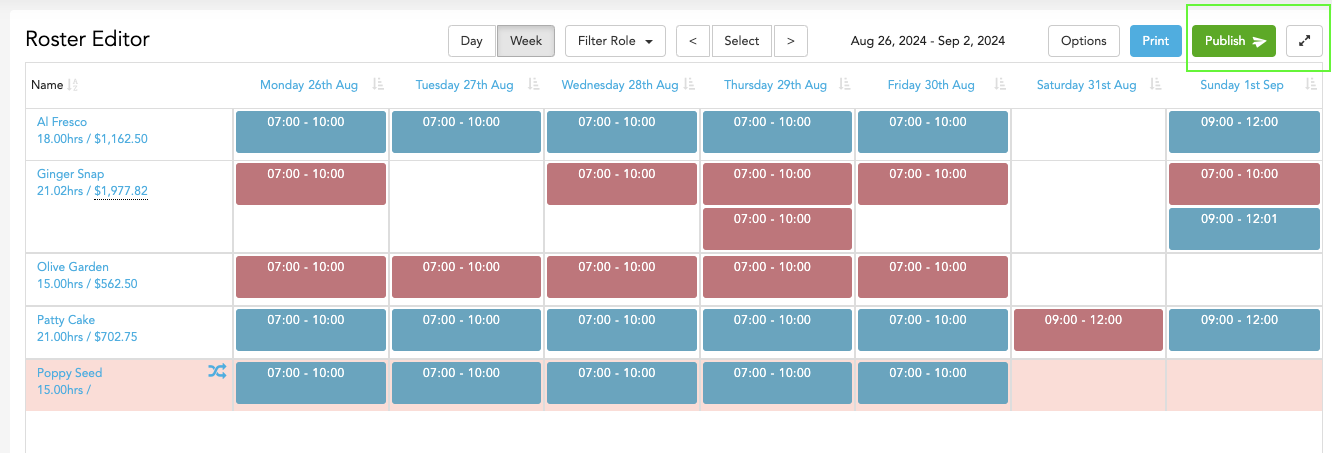
Once you've completed your roster for the week, click the green 'Publish' button at the top right-hand corner of the roster:
Once you click the Publish button, you'll be able to select which roles and/or individual staff members you wish to notify about the published roster:
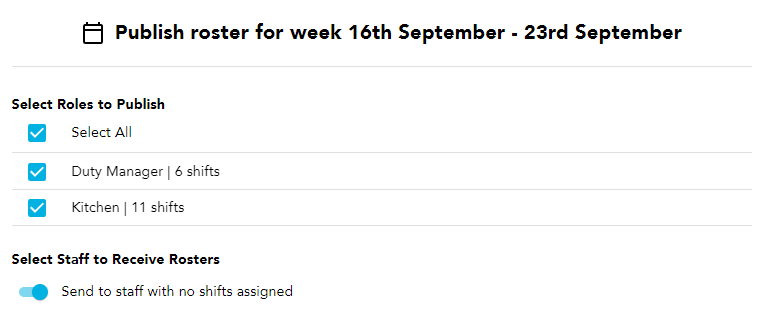
You can also toggle whether or not staff without any shifts should be sent the roster.
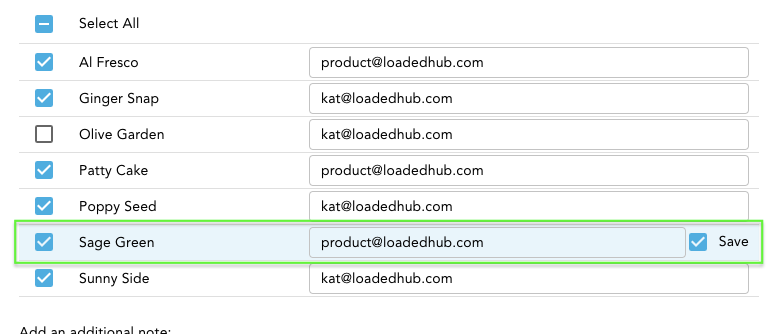
Note: Ensure that the email addresses of all staff members are correct. You can update email addresses directly when adding them to the roster by selecting the 'Save' checkbox.
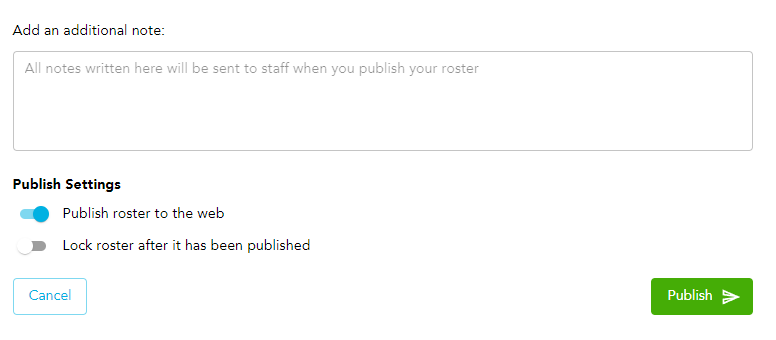
Finally, you can add any additional notes, choose if the roster is accessible online via a URL, and if the roster should be locked after publishing (no further changes can be made):
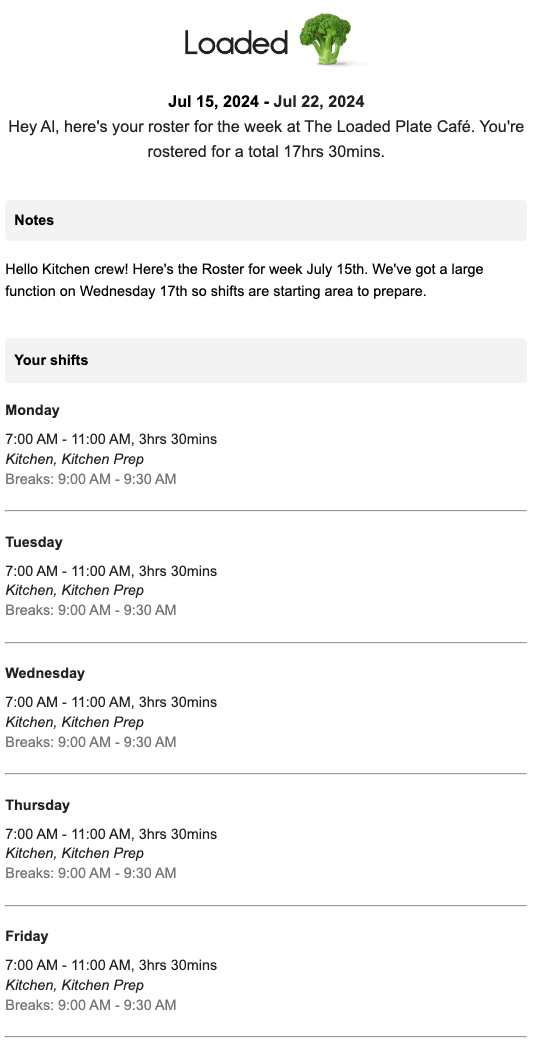
Finally, click the Publish button. Once your roster has been published, all staff members with a saved email address will receive their roster in an email:
Changing a Published Roster:
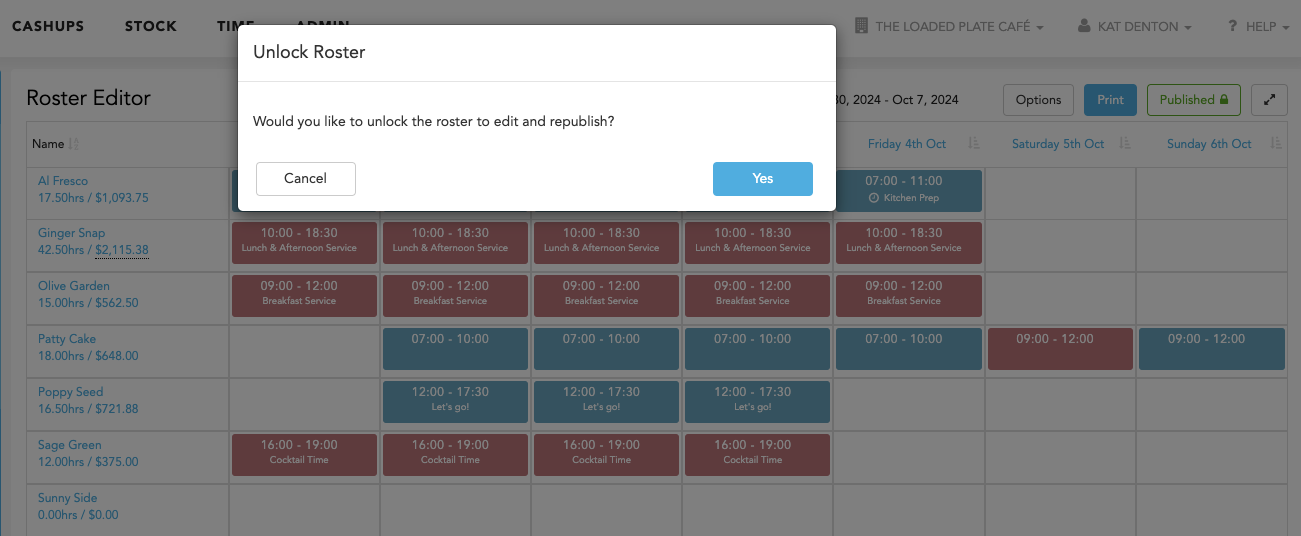
Head back to your roster and click the Published button. You'll be asked to confirm if you wish to republish your roster and/or unlock:
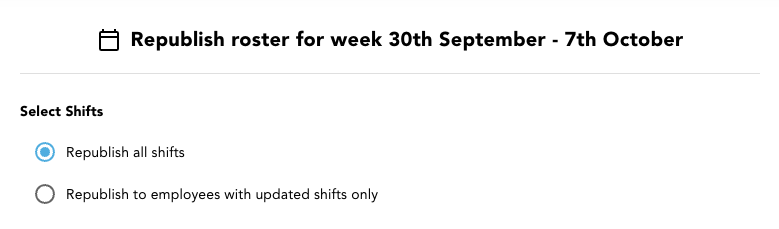
Once you're happy with your changes, simply press the Published button again, and just follow the same process as above to republish your roster. You'll have a new option to choose whether all employees should receive updated rosters, or only the employees who have had shifts changed: