
You need Reports, Timeclock, Payroll & Salary permission to view Labour reporting in Loaded. If you don't have access to this module, ask someone with Manager's permission to update your user permissions.
You'll need to make sure you've correctly created staff roles for this information to be accurate. You'll also need to be using the timeclock feature and have created a roster.
If you'd like to customise the time frame of any of these reports, follow the steps for setting a custom date range.
To access, head to Reports, Labour, then Roles.
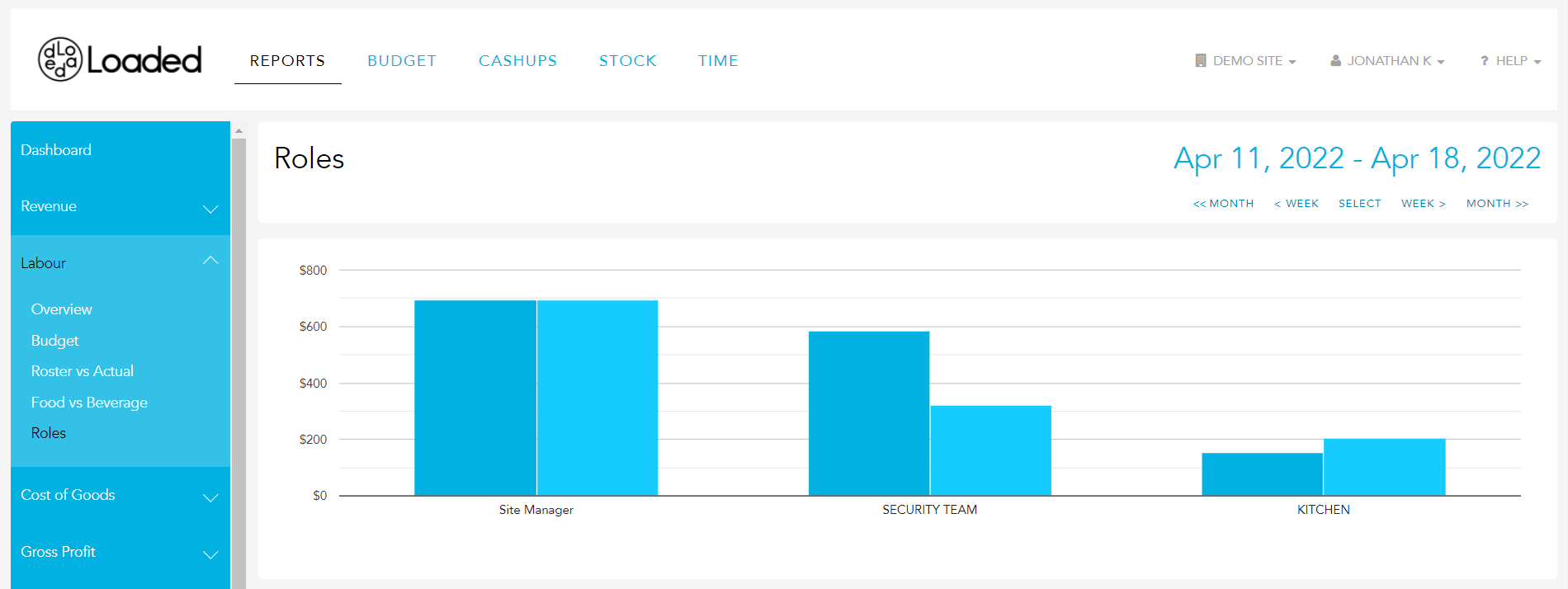
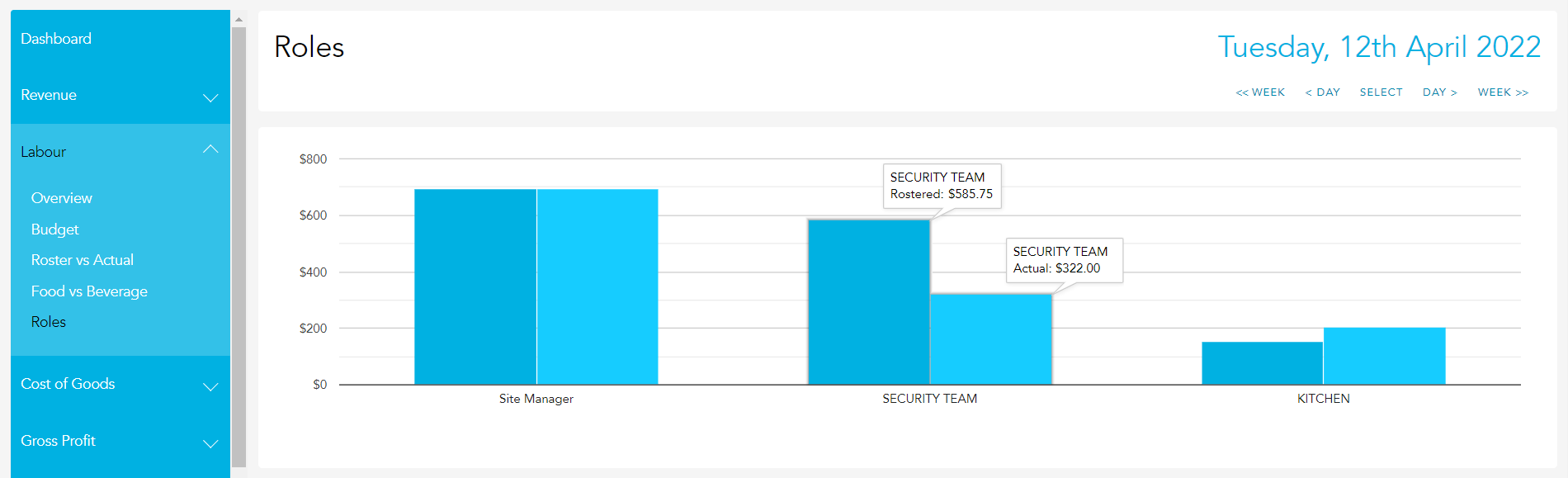
The graph at the top of the page compares your rostered Labour cost (in dollar value) to your actual Labour cost for each role. You can hover over any point on the graph to see the exact value.
The report table below the chart compares your actual labour cost to your rostered labour cost for each role, listing the variance in both dollar value and time (hours). At the very bottom of the report you'll see your totals for the selected period.
