
You need Reports, Timeclock, Payroll & Salary permission to view Labour reporting in Loaded. If you don't have access to this module, ask someone with Manager's permission to update your user permissions.
You'll need to make sure you've correctly assigned Food or Beverage cost groups in the roles you've set up for this information to be accurate. You'll also need to be using the timeclock feature and have created a roster.
If you'd like to customise the time frame of any of these reports, follow the steps for setting a custom date range.
To access, head to Reports, Labour, then Food vs Beverage.
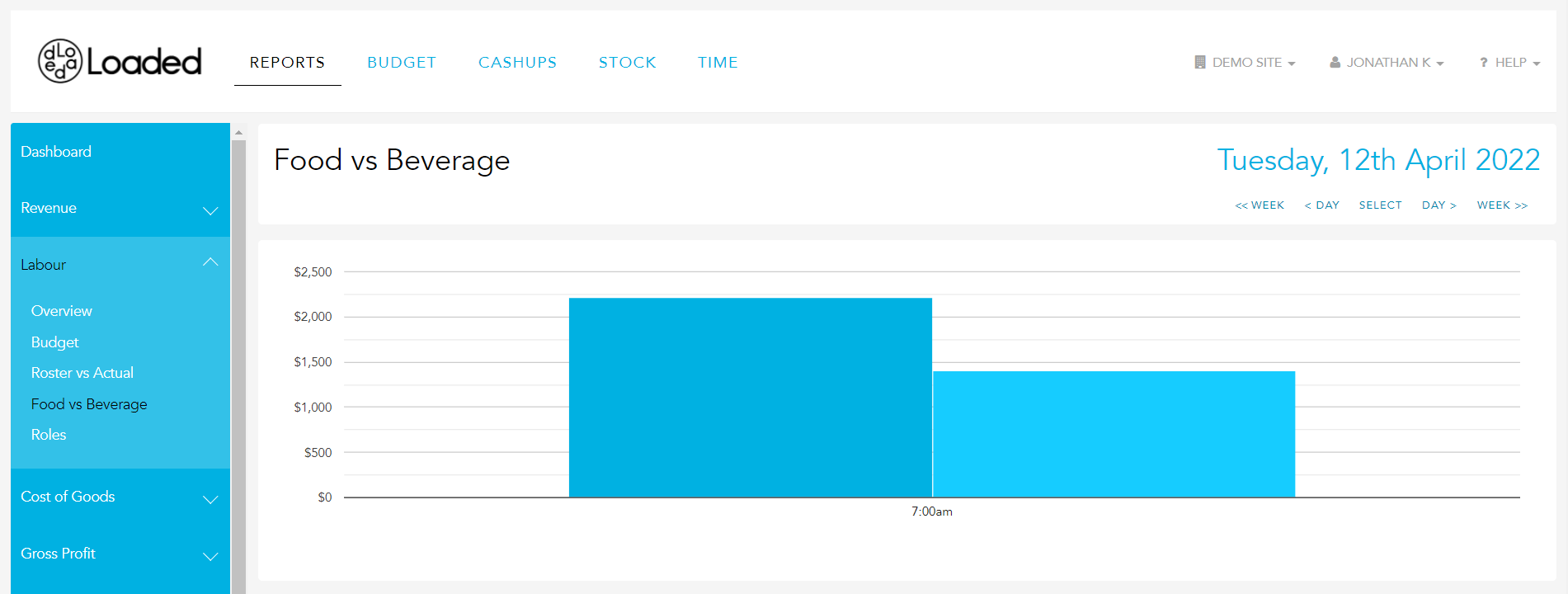
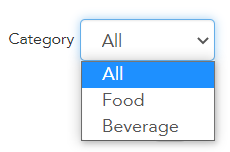
By default, this report shows your information using sales from all categories. You can adjust this by clicking the dropdown and selecting a specific sales category.
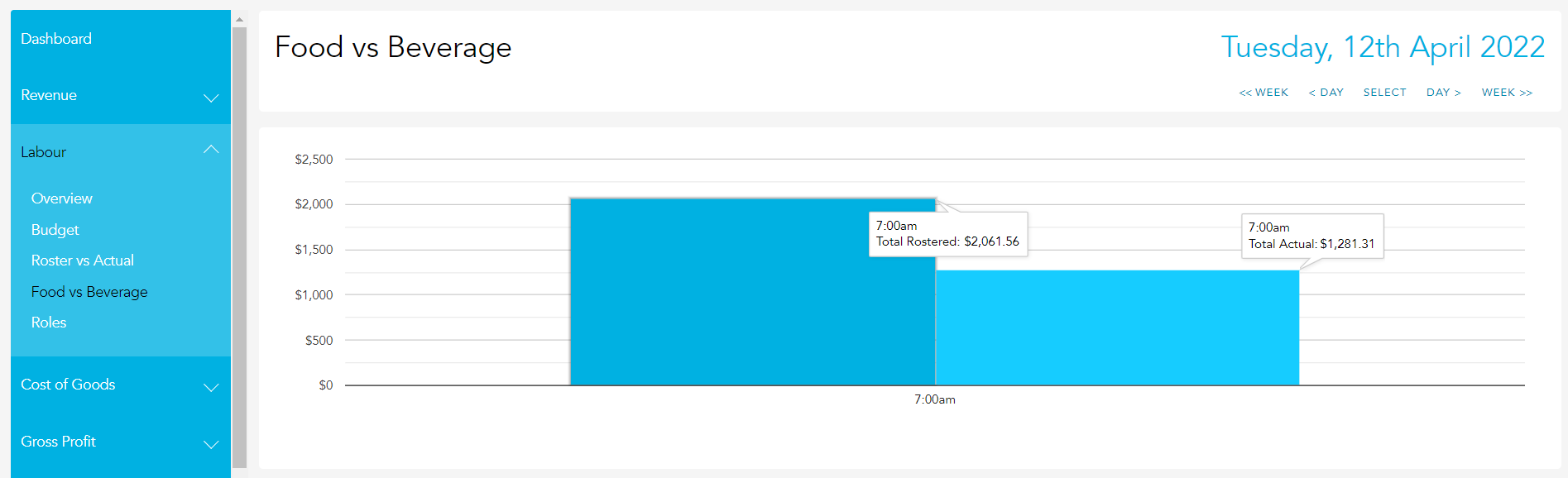
The graph at the top of the page compares your rostered Labour cost (in dollar value) to your actual Labour cost for the selected category. You can hover over any point on the graph to see the exact value.
The report table compares your actual labour cost to your rostered labour cost for each Labour cost centre — Food, Beverage, and All. At the bottom of the report you'll see your totals for the selected period.
