
You need Reports and Stock permission to view Cost of Goods reporting in Loaded. If you don't have access to this module, ask someone with the Manager's permission to update your user permissions.
Your data sync will need to be running and connected to the internet on your server computer in order for information to show in this report.
You will need to make sure you have completed all POS Item Links for this report to be accurate. Only sales and Cost of Goods from POS item linked products will show in this report.
If you'd like to customize the time frame of any of these reports, follow the steps here.
Please note, that the pricing for stock used in these reports uses the stock price from the Purchase orders received closest to the end date of the report you are running.
To access head to Reports, Cost of Goods then Products
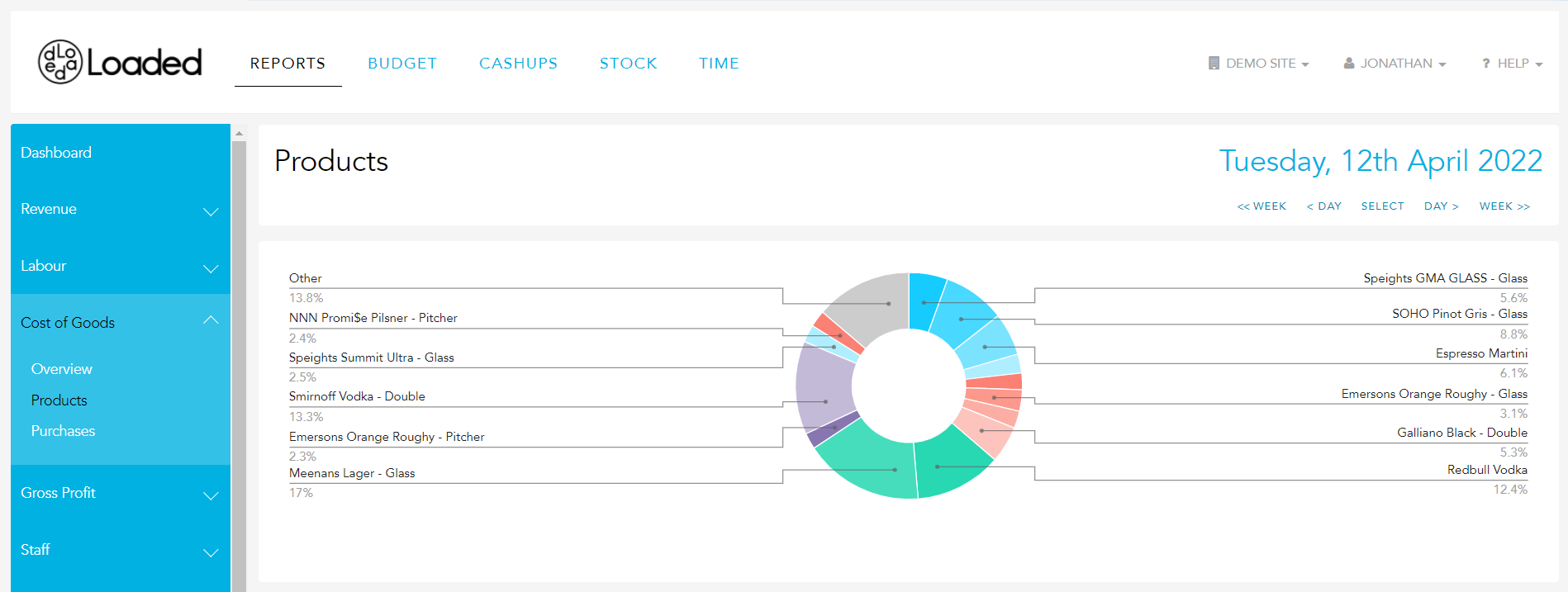
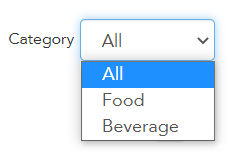
By default, this report will show you information using sales from all categories
You can adjust this by clicking on the dropbox and selecting a specific sales category.
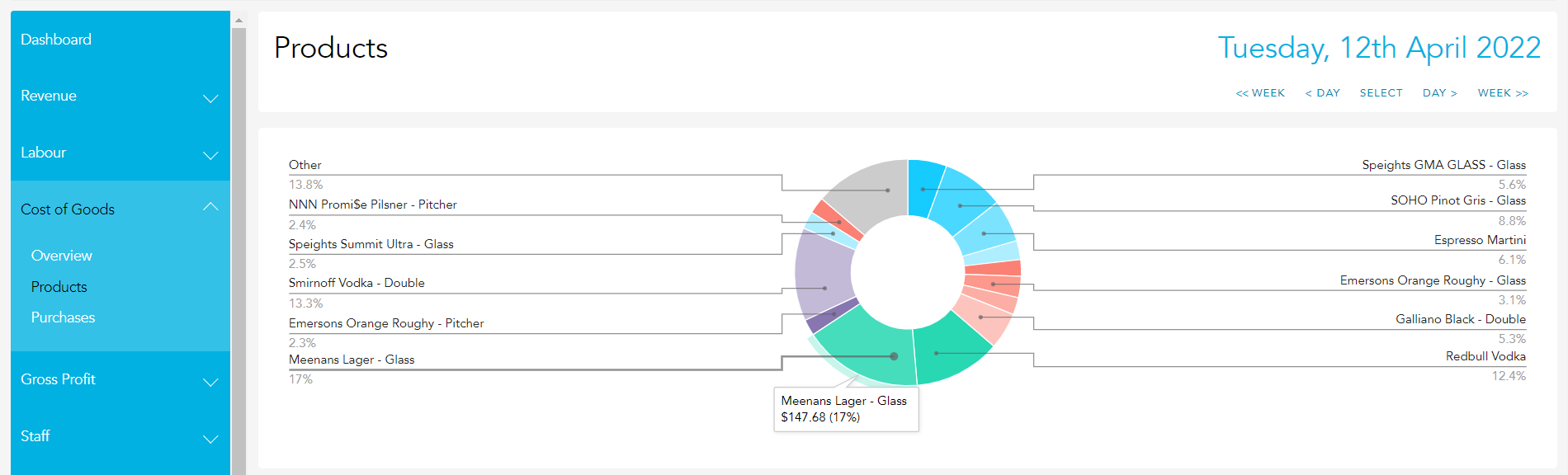
The graph along the top of the page shows a breakdown of the Gross Margin of your POS Item Linked stock items. You can hover over any point on the graph to see the exact value associated.
The report itself shows the quantity of each Product Sold, the Sale & Discount value, the Cost of Goods in both dollars and as a percentage of sales, and the Gross Margin on each product
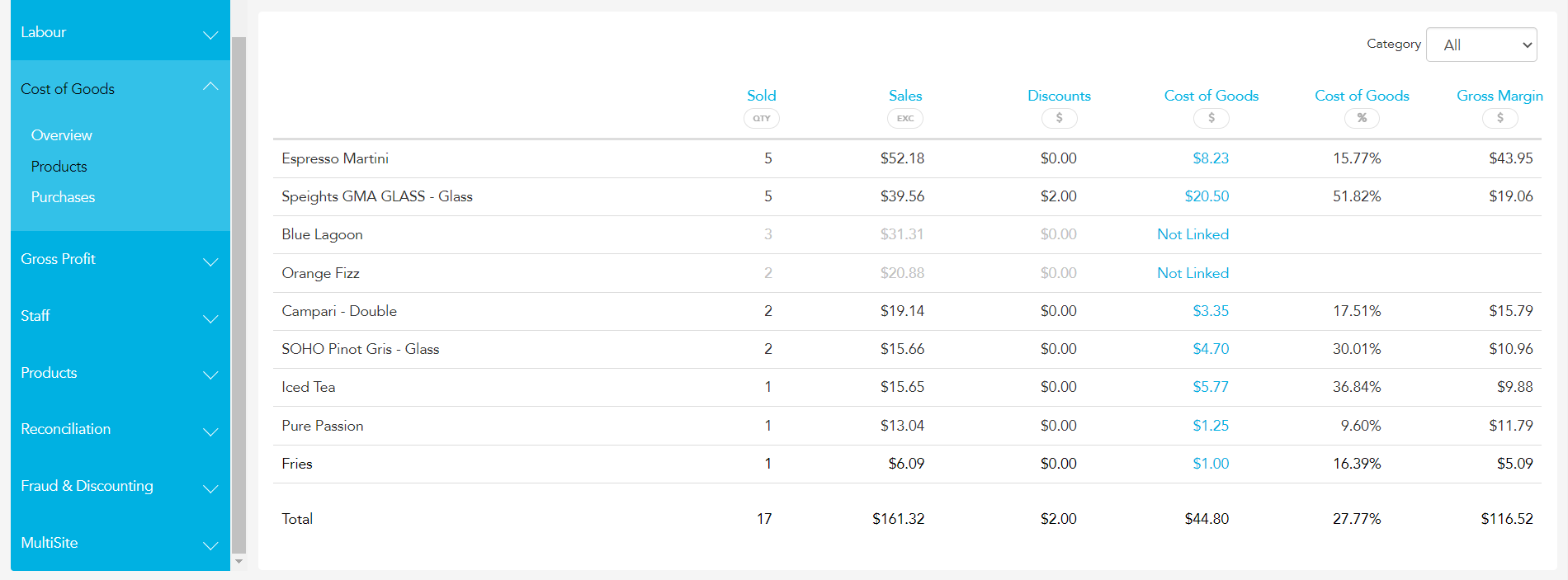
The Cost of Goods as a percentage of sales figure is calculated by dividing your Cost of Goods by the Sales for the period. We calculate your Gross Margin by subtracting your Cost of Goods from your Sales for the period.
You can click on the blue Cost of Goods percentage value for any product to view the current POS Item Link for the product.
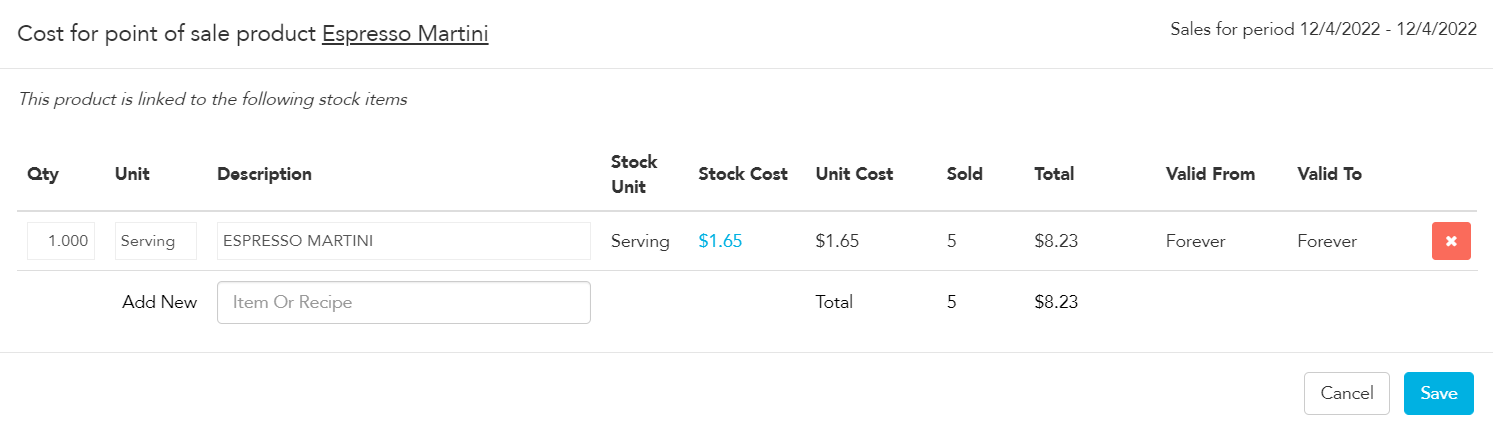
If the information looks inaccurate you can update or change your POS Item links.
You can then click on the Stock Cost for this Product, and if it is linked to a Recipe, you'll be taken through to the Recipe itself
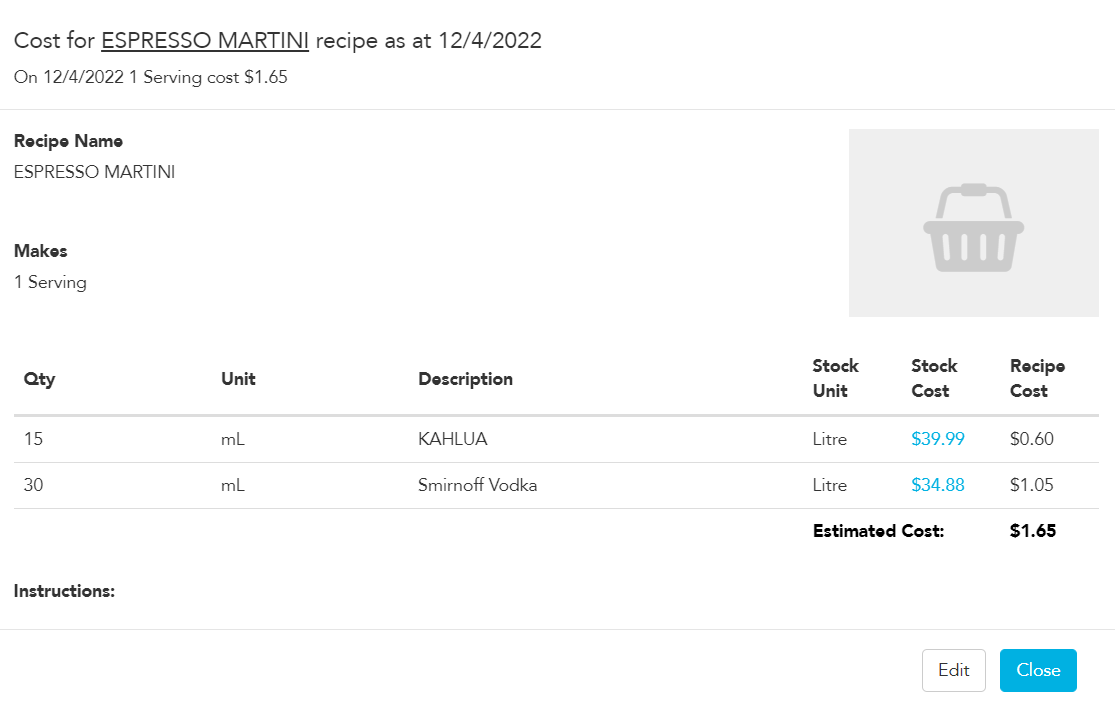
If you are looking at an item linked to a Stock Item rather than a Recipe, you will be taken to the Purchase Order received closest to the end date of the reporting period and then all other Purchase Orders received during the reporting period. You can adjust the Start and End Date to look at a wider range of Purchase Order history than the current report is showing.
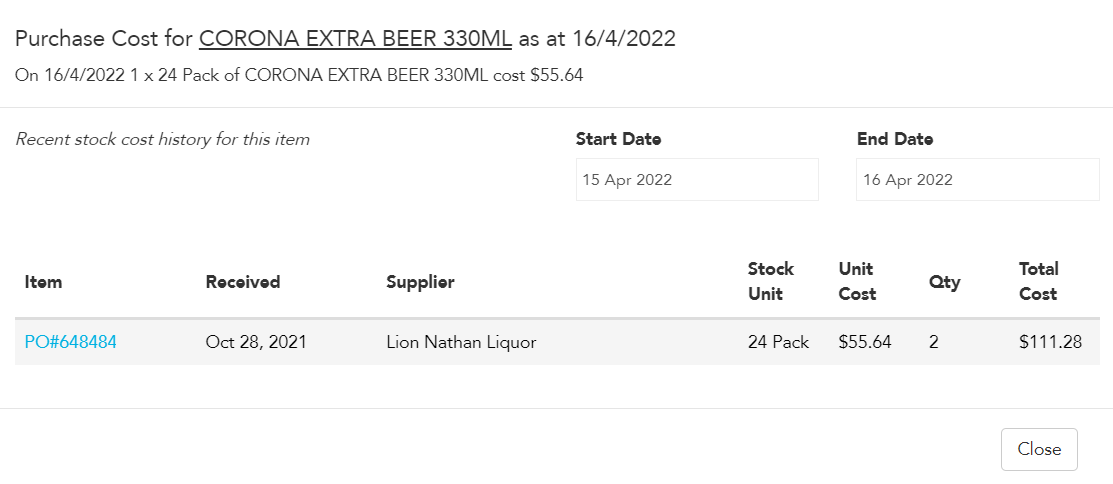
You can open and correct the Purchase order from this window if needed by clicking on the blue Purchase Order number.
The Cost of Goods values are shown only where a POS item is POS Linked to a Stock Item or a recipe in Loaded. If you have items on your POS that have been sold, but these are not linked to anything in Loaded these will not be shown in the report. We recommend ensuring all items sold have POS links to ensure accurate Cost of Goods.
To do this, Click on the blue Not Linked field and add a link to a recipe or stock item for the product.

You can then re-run the report and any changes you have made will update.
Note: You can toggle back and forth between Live & Forecast prices in this report.