← Back to category
You need Time permission to view and edit the timeclock and Payroll permission to be able to view pay rates. If you don't have access to this module, ask someone with Managers permission to update your user permissions.
Editing
Click on Time then Timeclock then Staff Clocks.
Click on the start/finish time you are wanting to edit under the When In/When Out sections.
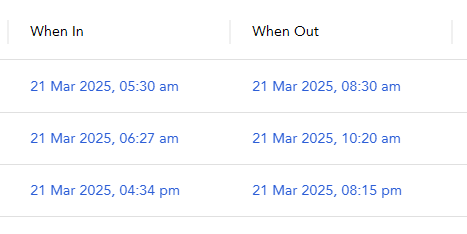
Edit the date & time to your desired start/finish time.
Then click the OK button.
Deleting
To delete clocks altogether, click on the Trash Can icon beside the clock you want to delete.
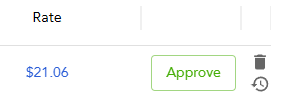
If you accidentally delete a clock, you can restore it by clicking the Show Deleted Clocks tick box, then click on the Trash Can Restore icon beside the clock you want to restore.