You need Time permission to view and edit roster templates. If you don't have access to this module, ask someone with Managers permission to update your user permissions.
You should have your staff members and staff roles set up before you start using Roster Templates.
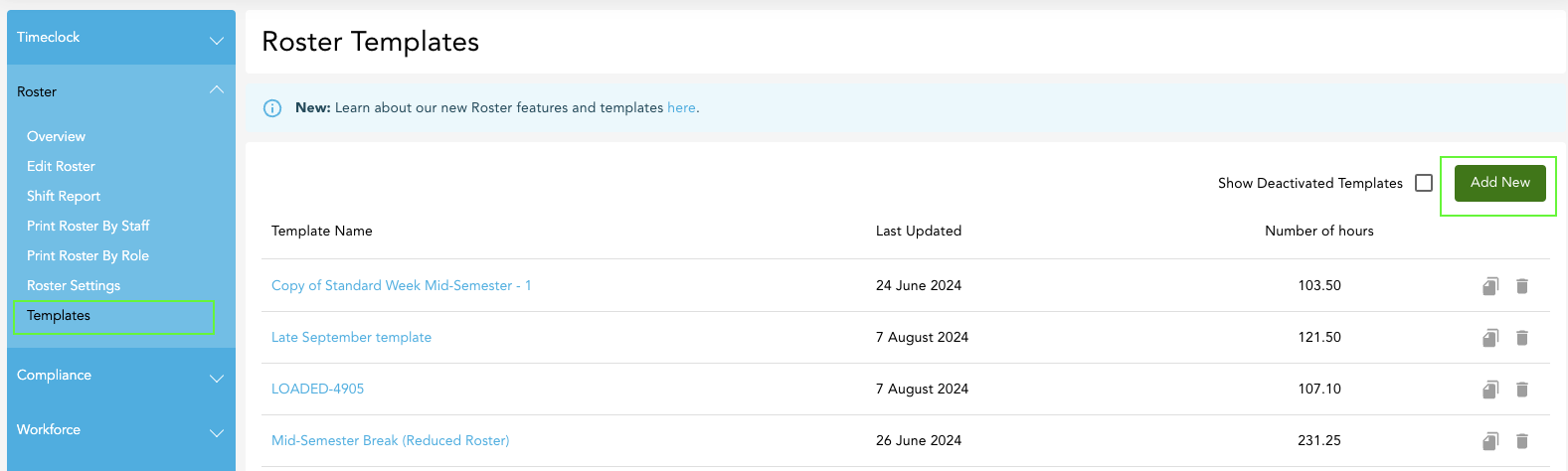
To access, go to Time, Roster, then Templates:
Creating a Roster Template:
You can create Roster Templates from scratch, or you can create a template from an existing roster.
1. To create a Roster Template from scratch, simply click the green 'Add New' button in the top right corner:
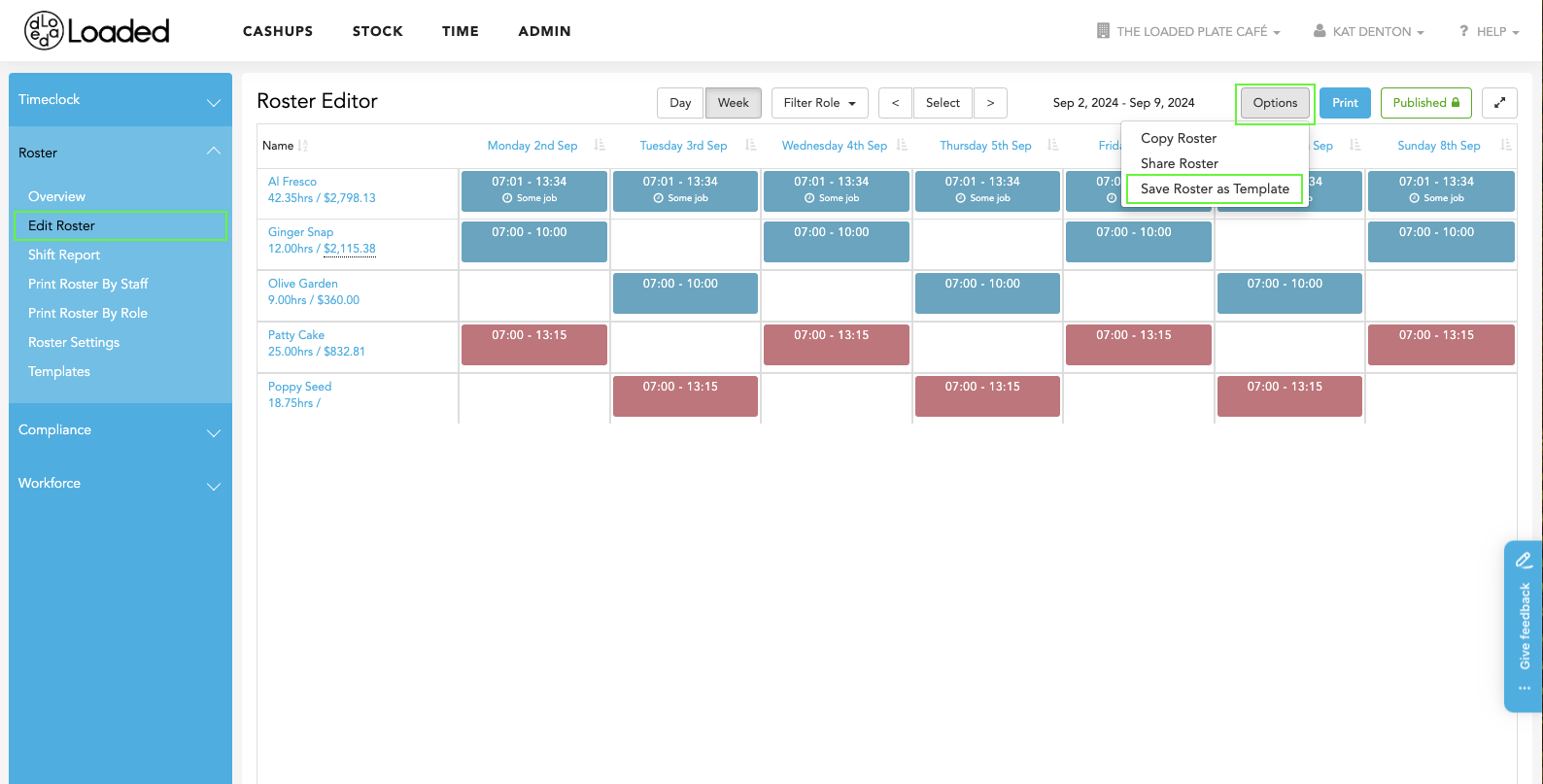
2. To create a roster from an existing roster, head to the 'Edit Roster' page, find the week you want to save, then hit 'Options' -> 'Save Roster as Template' in the top right corner:
Applying a Roster Template to your Roster:
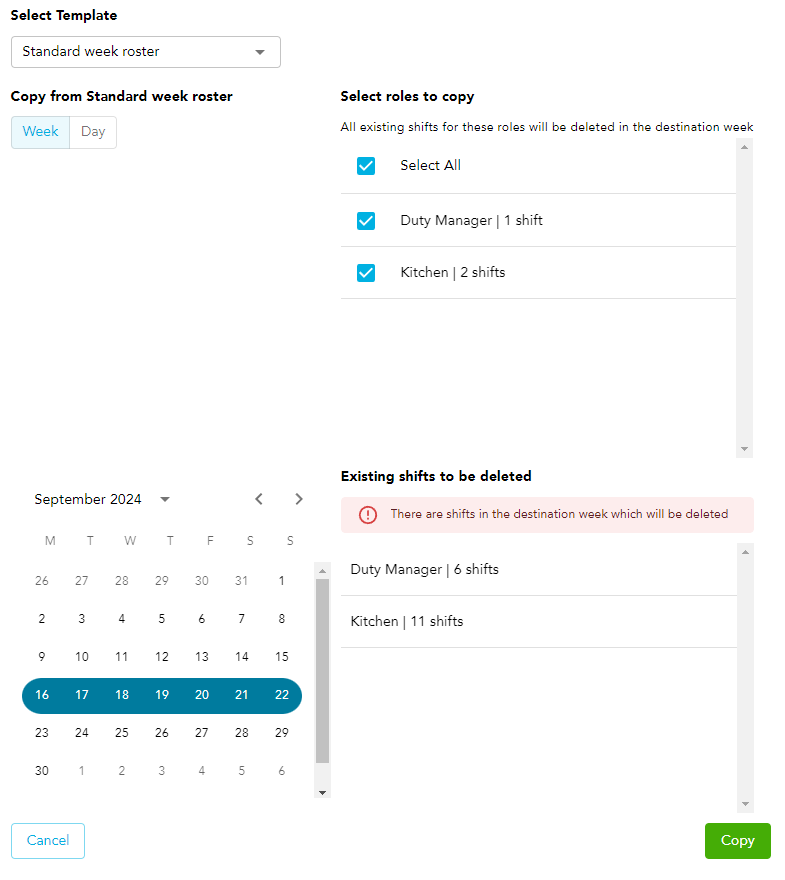
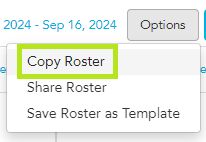
To copy a Roster from a Roster Template, head to 'Edit Roster' > 'Options' > 'Copy Roster'.
Select to copy from either 'A roster template'
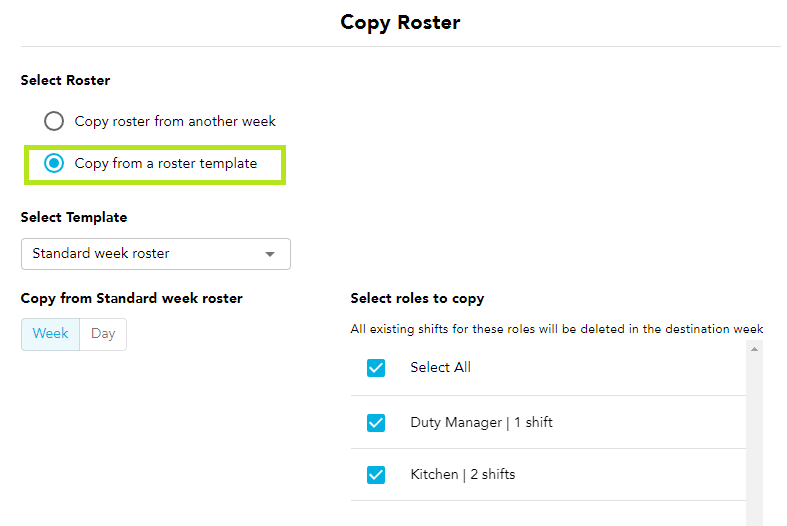
Select which week you want to paste into and which roles you want to copy over. You will see a warning if you are going to override (delete) shifts in the destination Roster, and hit Copy in the bottom right corner once you're happy with the results.