
You need cashups permission to complete a cashup. If you don't have access to this module, ask someone with Managers permission to update your user permissions.
A cashup is the total of each tender type that Loaded calculates you should have received over the period (Generally over the course of a days trade.)
A cashup does not necessarily equal the total sales amount for the day, a common reason for this is sales that have been put on account on your POS system. This means a sale will have been recorded, however Loaded will not be expecting the cash for this sale in the cashup.
The cashup in Loaded does not require you to complete a cashup or Z report at the end of the shift or days trade on your POS.
When you complete a cashup for the first time, Loaded will take the previous 24 hours sales to generate your first calculated cashup figures.
Completing a cashup
Click on the Cashups tab along the top of the screen

You will be taken to the Cashup overview page

Click on the blue New Cash Up button, this will generate a blank cash up template and will import all sales data that has been processed since the last time a cash up was completed in Loaded.
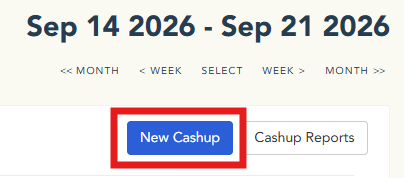
This template will show up under Pending Cashups, click on the blue complete button

This opens up the reconciliation page. Enter the amount of actual cash taken from each till into the respective Actual Cash section.

If there are additional tills you want to include a cash count for that don’t automatically show up, click on the blue Add Till button and select the till name from the drop box

If there are any large variances between the calculated cash amount and the actual cash amount, you can add any comments in the comment box below.

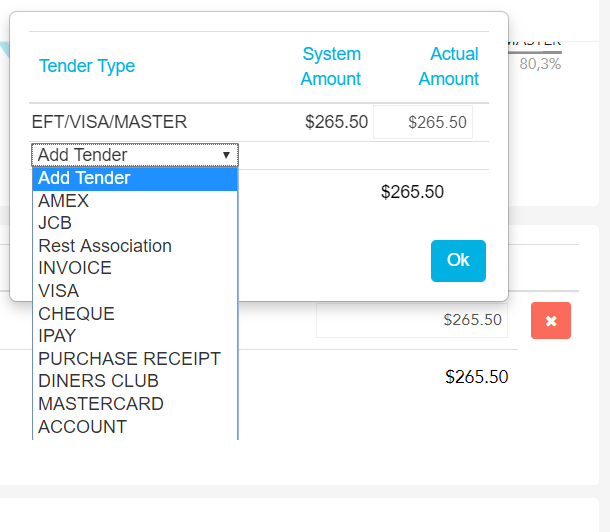
Once you have entered your cash amount, you need to ensure all other tender types are correct. If you have integrated Eftpos this should always be correct, however if you are using non-integrated (not linked to your POS) you may have some variances. If you use integrated Eftpos you may not have to edit the Actual Other, however you may some times need to add or edit certain tender types that were not put through the POS correctly. Click on Add and select the tender type missing and enter the amount.
When you are finished click the ‘commit cash up’ button in the bottom left-hand corner of the screen.
