You need Time permission to approve timeclocks, and you need Payroll permission to un-approve timeclocks. If you don't have these, ask someone on your team with manager permission to grant them.
Shift approvals allow you to approve your team's shifts to help you manage which timeclock entries have been checked, and ensure they reflect what was actually worked by each team member.
Approving a timeclock entry means the start time and finish time cannot be inadvertently edited.
It's not necessary for a shift to be approved in the staff clocks page for it to show in the punches by staff report, or for it to be exported to payroll.
When your shift managers for front of house and kitchen approve your team's shifts each day, you can be confident that both your labour cost in Loaded and the shift data that's exported for your payroll team are accurate.
While you don't have to use the approval process to manage your staff timeclocks, it's a huge time saver to have shifts checked and approved every day rather than your payroll team chasing managers to confirm details from days ago.
Getting on top of this will see your labour costs (and payroll headaches!) drop.
To access this feature, head to Time, Staff Clocks.
Approving & Unapproving Timeclock Entries
Note: you can only approve and unapprove timeclock entries on the Staff Clocks page.
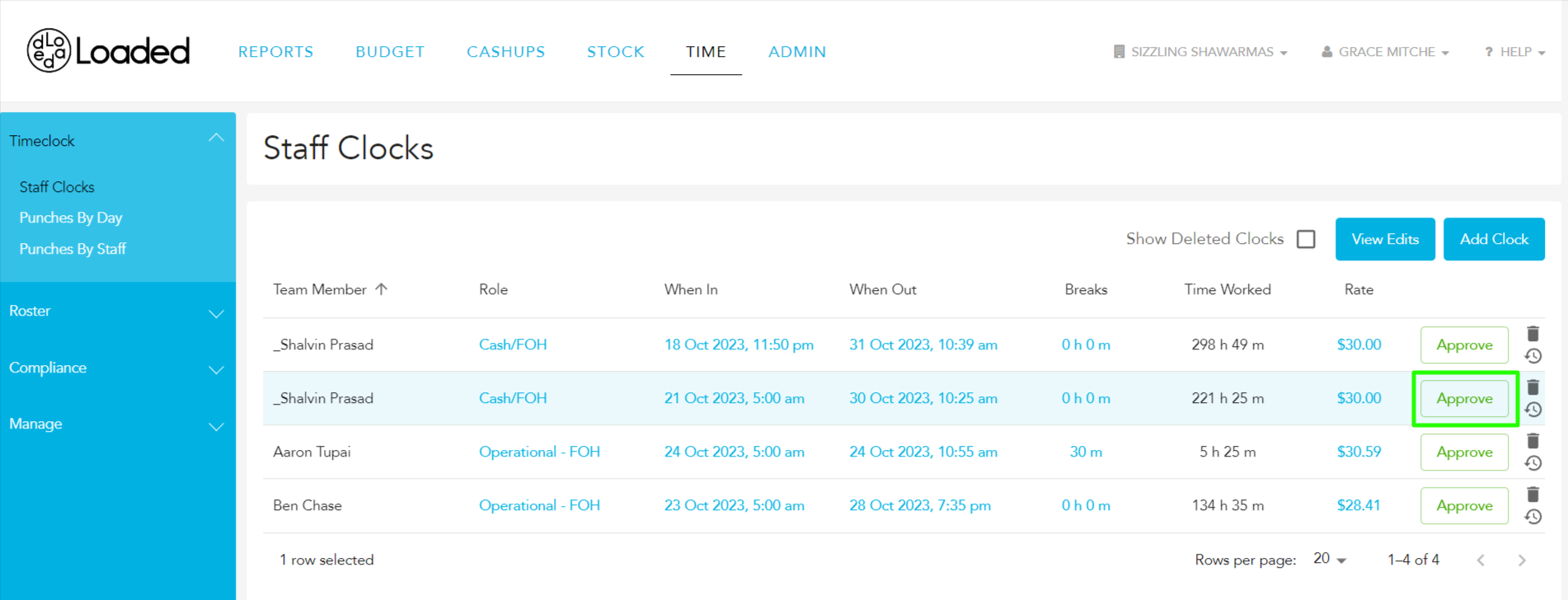
Click the 'Approve' button of the timeclock entry you want to approve.
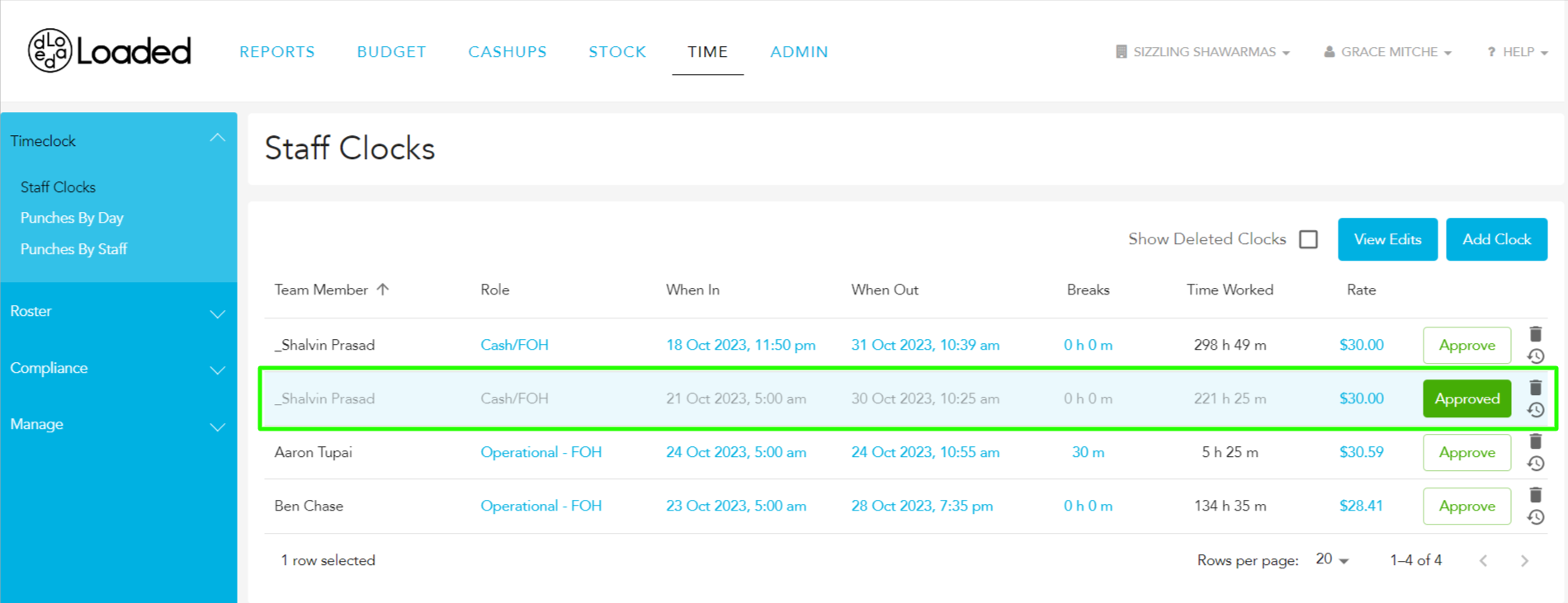
The button will then change to a green 'Approved', and no one will be able to make any further edits to that timeclock entry.
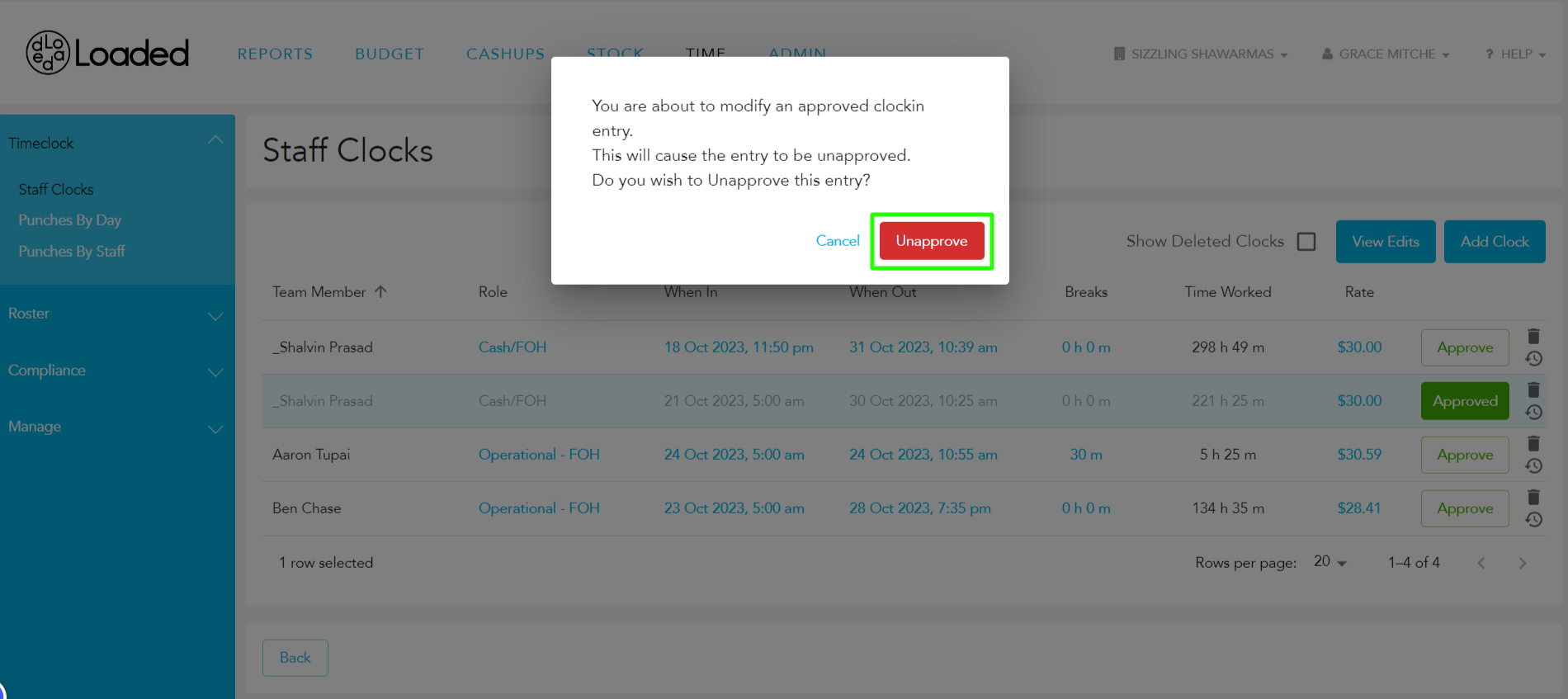
To edit or unapprove an approved timeclock entry, click the green "Approved" button. In the pop-up dialog you can click "Unapprove", reverting the timeclock entry back to being unapproved and editable.
Timeclock Entries: View History
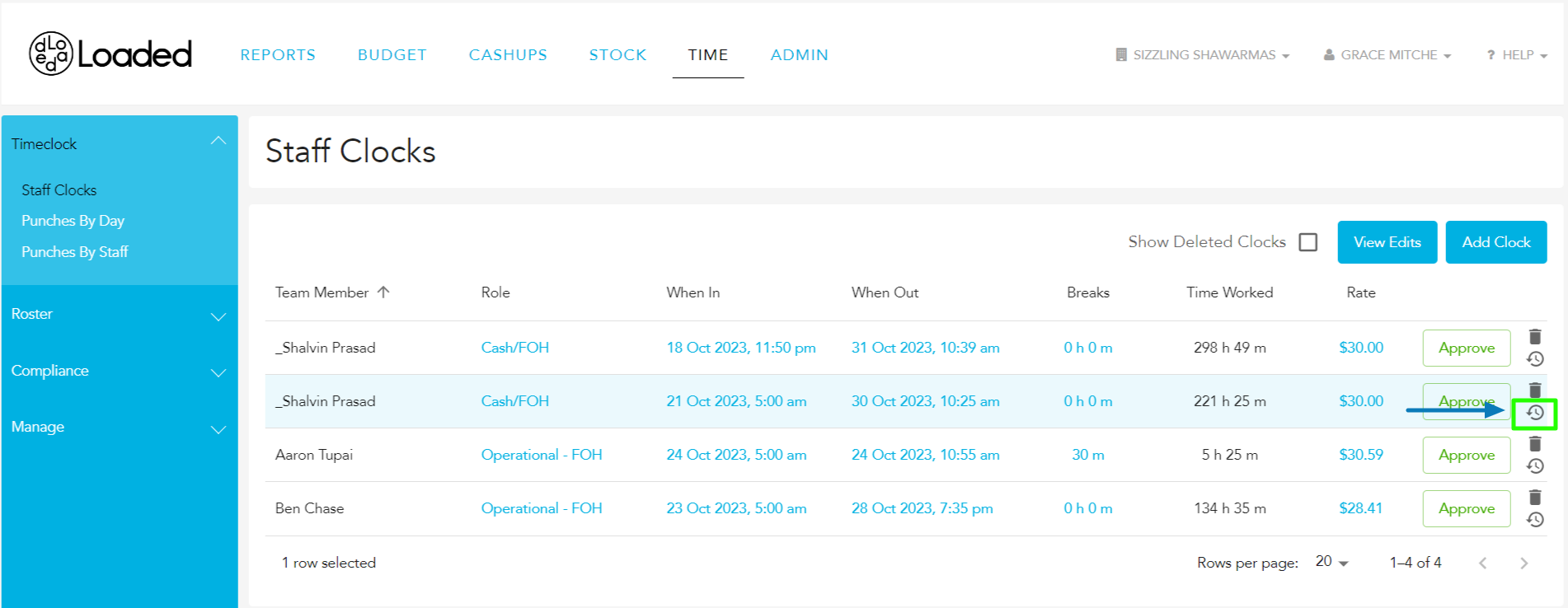
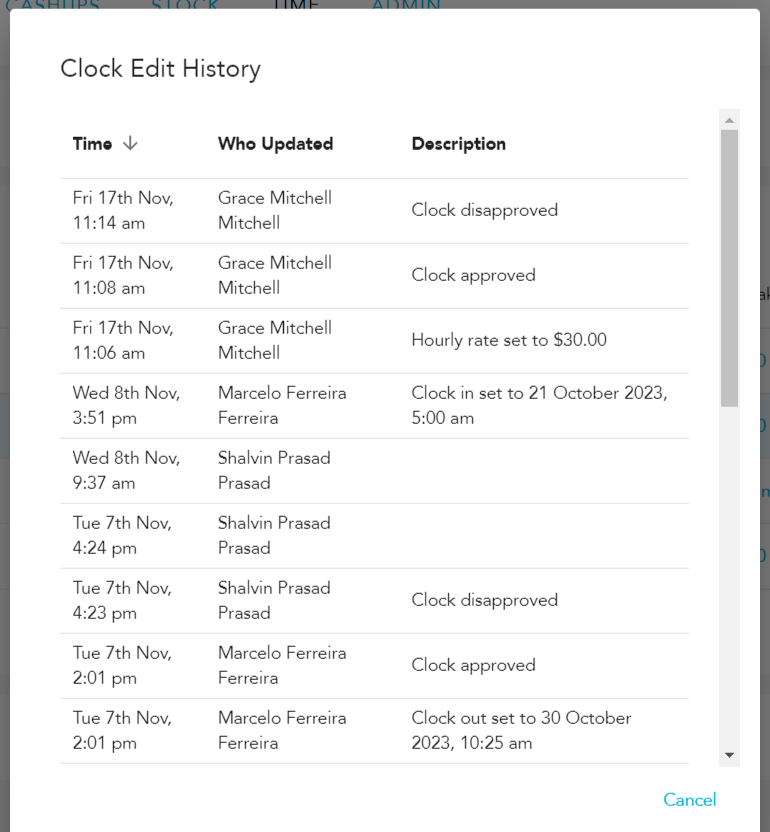
Click the clock icon on the far right of the timeclock entry to see the Edit History, including the time the update was made, who made it, and what happened.
View Approved Shifts in Punches by Staff
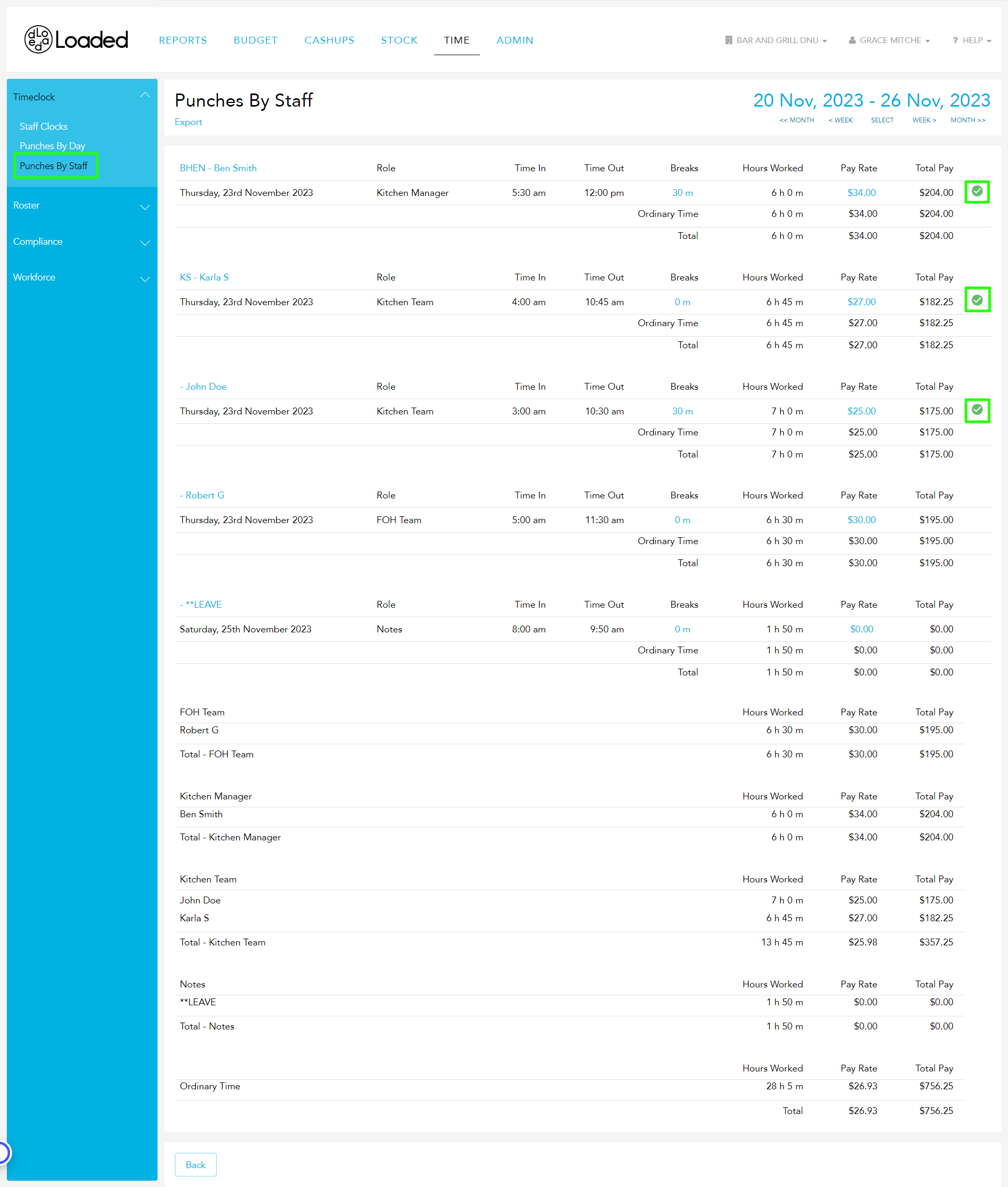
The Punches by Staff report will show which timeclock entries have been approved with a green tick icon. If there is no green tick, the timeclock entry has not been approved.
You cannot approve or unapprove timeclock entries on the Punches by Staff page, only the Staff Clocks page.