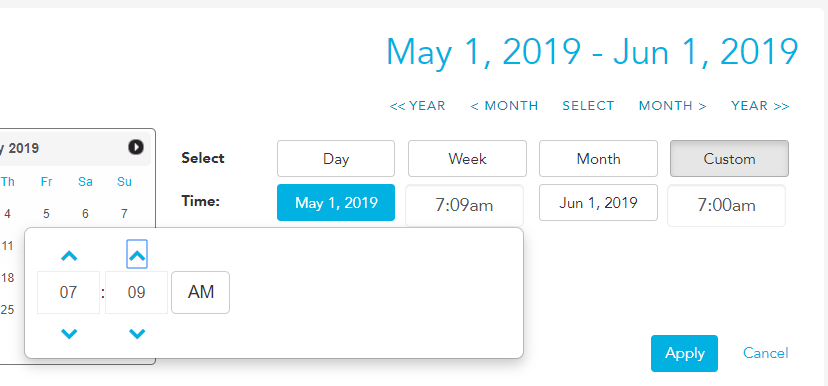
You can view any report by Day, Week, Month or a customised time frame of your choice.
Some reports also have the option available to compare to prior time periods.
Ok, so let's get started;
To access head to Reports
The default time frame for a report is the current day. In order to view prior/future days/weeks you can use the <<Week, <Day / Day>, Week>> navigation toggles.
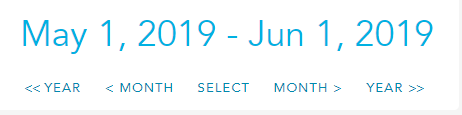
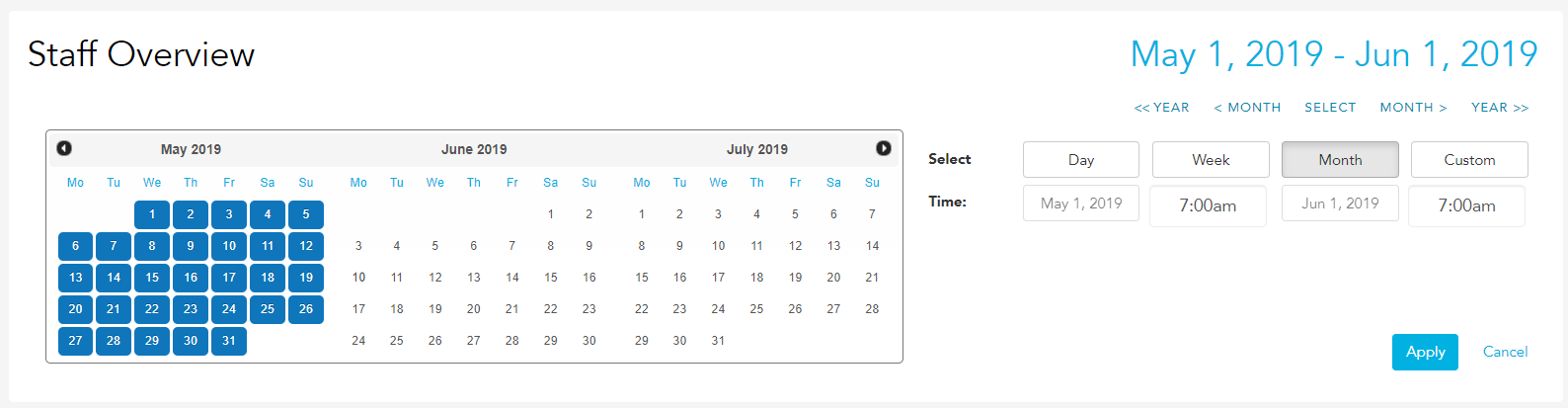
Alternatively, click on Select, from here you can select the desired Day, Week or Month, then click Apply.
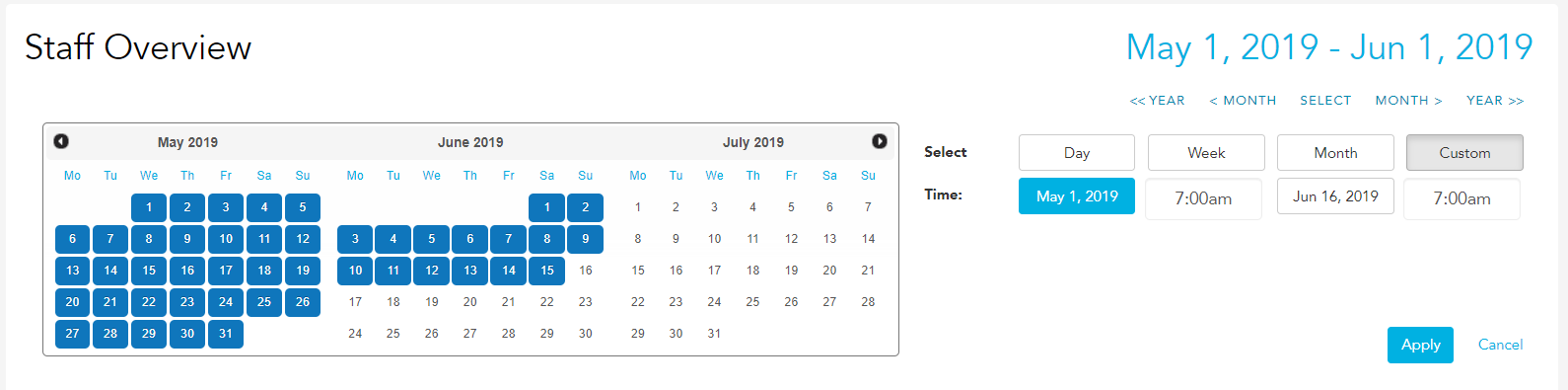
If you are wanting to customise the reports further, click Custom and select your desired time frame (e.g. the last two weeks, 6 months, a year etc.) you will need to select the start and end dates from the calendars, then click Apply.
The custom option also allows you to view the reports by time of day (e.g. 5pm-7pm) you can click on this tab and type in your desired time, then click on the am/pm button to change and click Apply.