Adding breaks to a timeclock allows you to record and monitor the breaks your team took through the actual shift that they worked in your business. These are added directly to the staff clock page in Loaded, not via the timeclock or via your POS.
Breaks can be added in the staff clocks page of Loaded by anyone with Manager and Time permission.
Breaks can be set to be unpaid or paid so that your labour cost is accurate to the pay you actually expect to pay each team member.
Having accurately recorded breaks for your team helps you stay compliant with labour legislation, and ensures the labour cost you record in Loaded accurately matches what you're paying your team via payroll.
To access, head to Time, Staff Clocks.
Adding a break to a timeclock
To add a break, click on the time in the Breaks column.
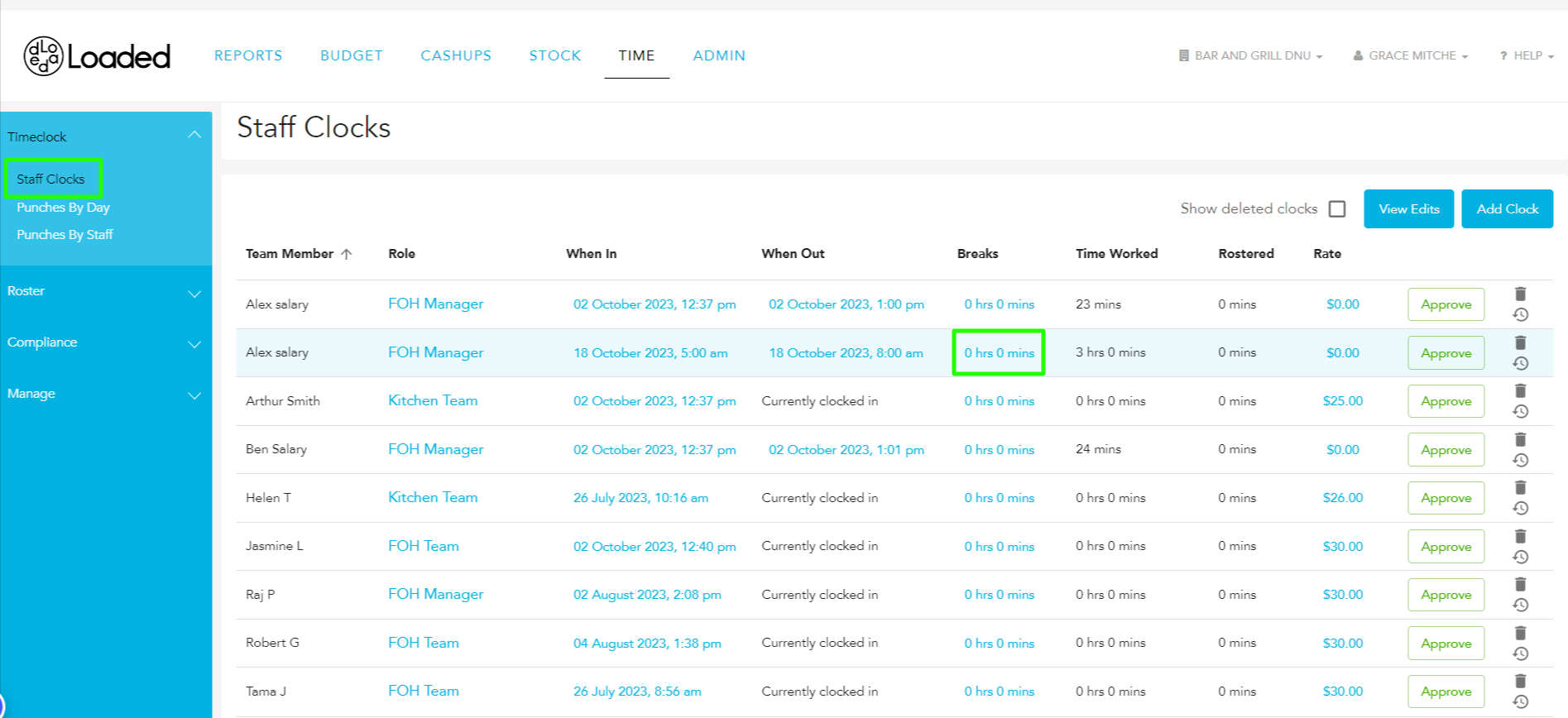
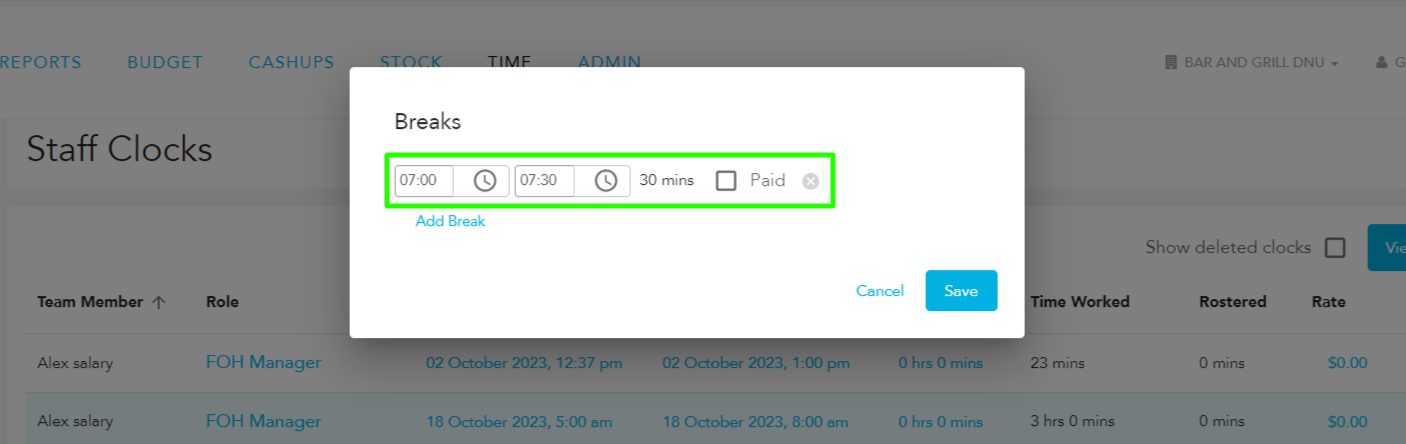
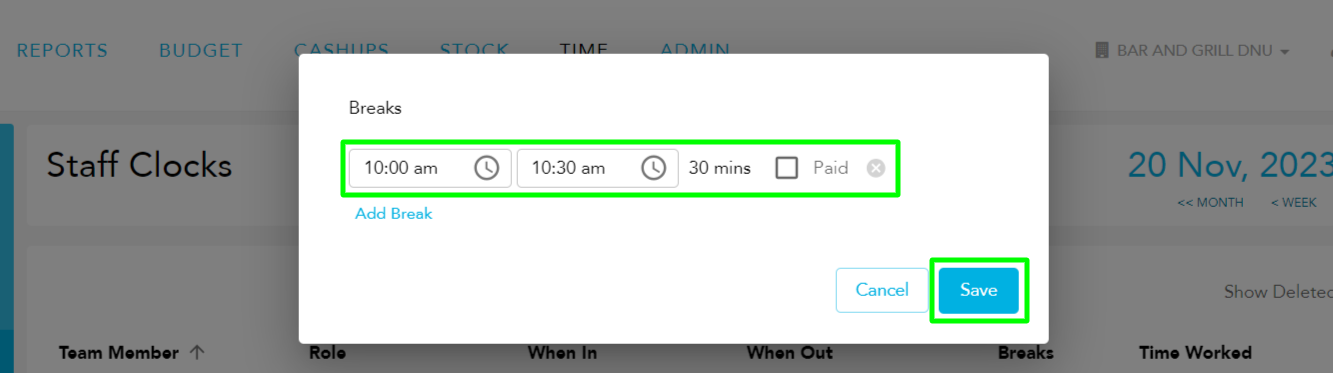
Click 'Add Break' in the pop out and enter the break start time, finish time and whether or not it is paid. Then click 'Add Break' to add a second break, or 'Save' to save the break on the Timeclock entry.
Edit or delete a break
Click on the break you want to edit.
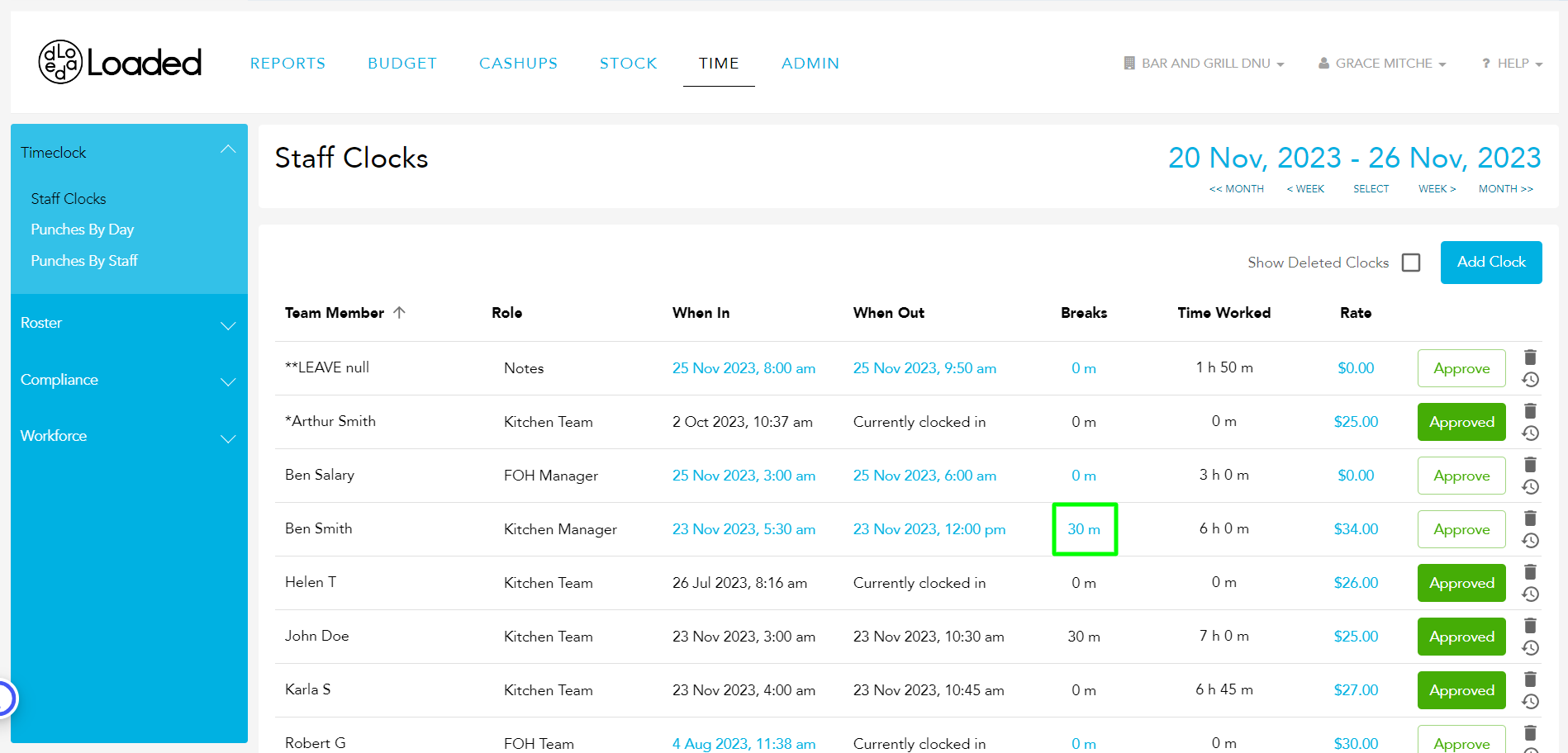
Edit the fields you want to change — start time, finish time, or whether it is paid or unpaid — or click the 'x' icon to delete, and click 'Save':
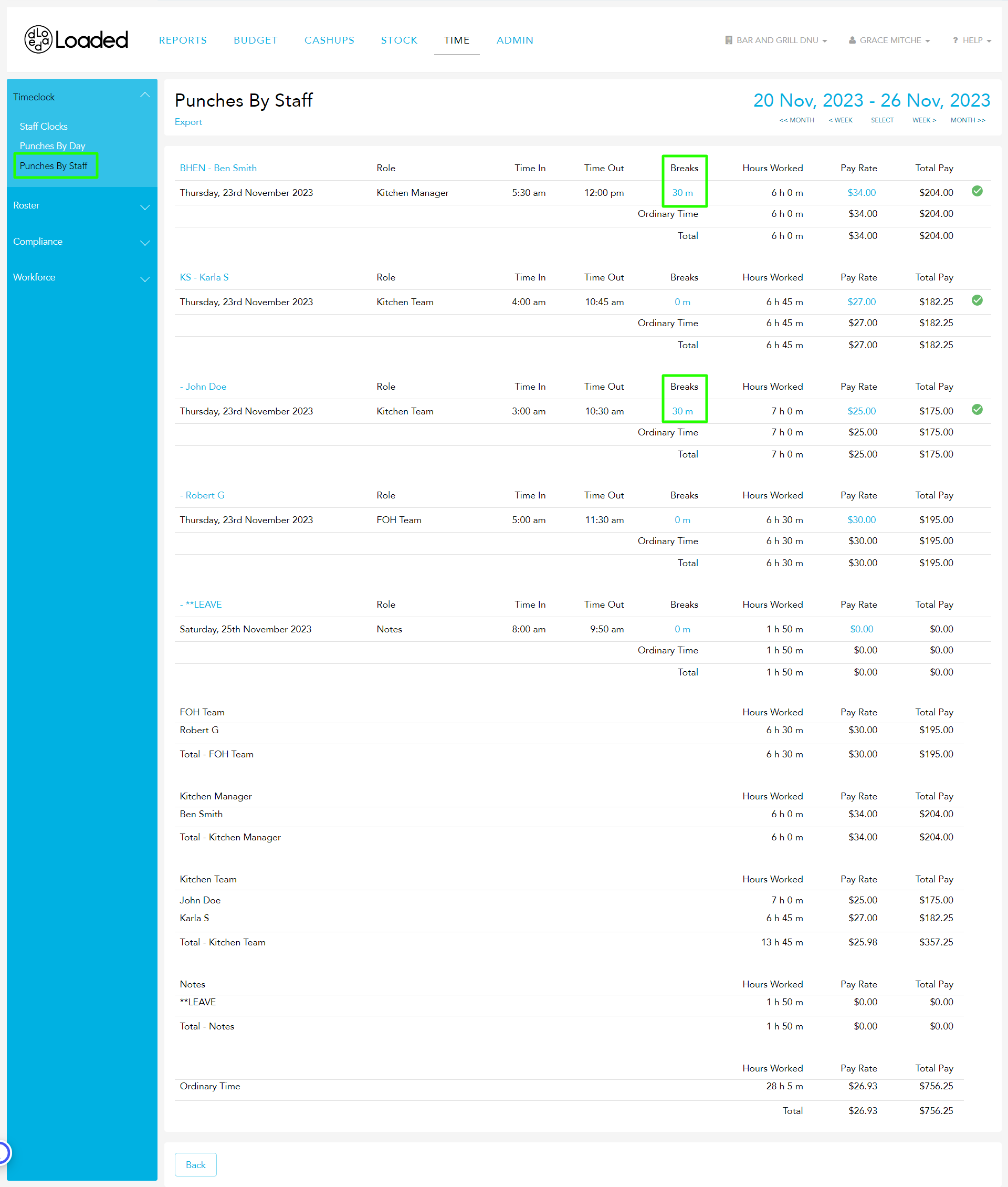
Punches by Staff Report
The Punches by Staff report will display the breaks that have been entered on the staff clock page.