
You need Time permission to view and edit the roster and Salary permission to be able to view payrates. If you don't have access to this module, ask someone with Managers permission to update your user permissions.
You need to setup your staff roles and staff before you are able to roster in Loaded.
Breaks can be set to be unpaid or paid so that your labour cost is accurate to the pay you actually expect to pay each team member.
Rostering your breaks helps you stay compliant with labour legislation, ensures you're rostering an accurate labour cost, and gives your shift managers a clear indication of when they should be aiming to send their team on both paid and unpaid breaks.
To access head to Time, Roster, Edit Roster — Adding a break to the Roster
Click on the shift that you want to add the break to (either from the day view or week view):
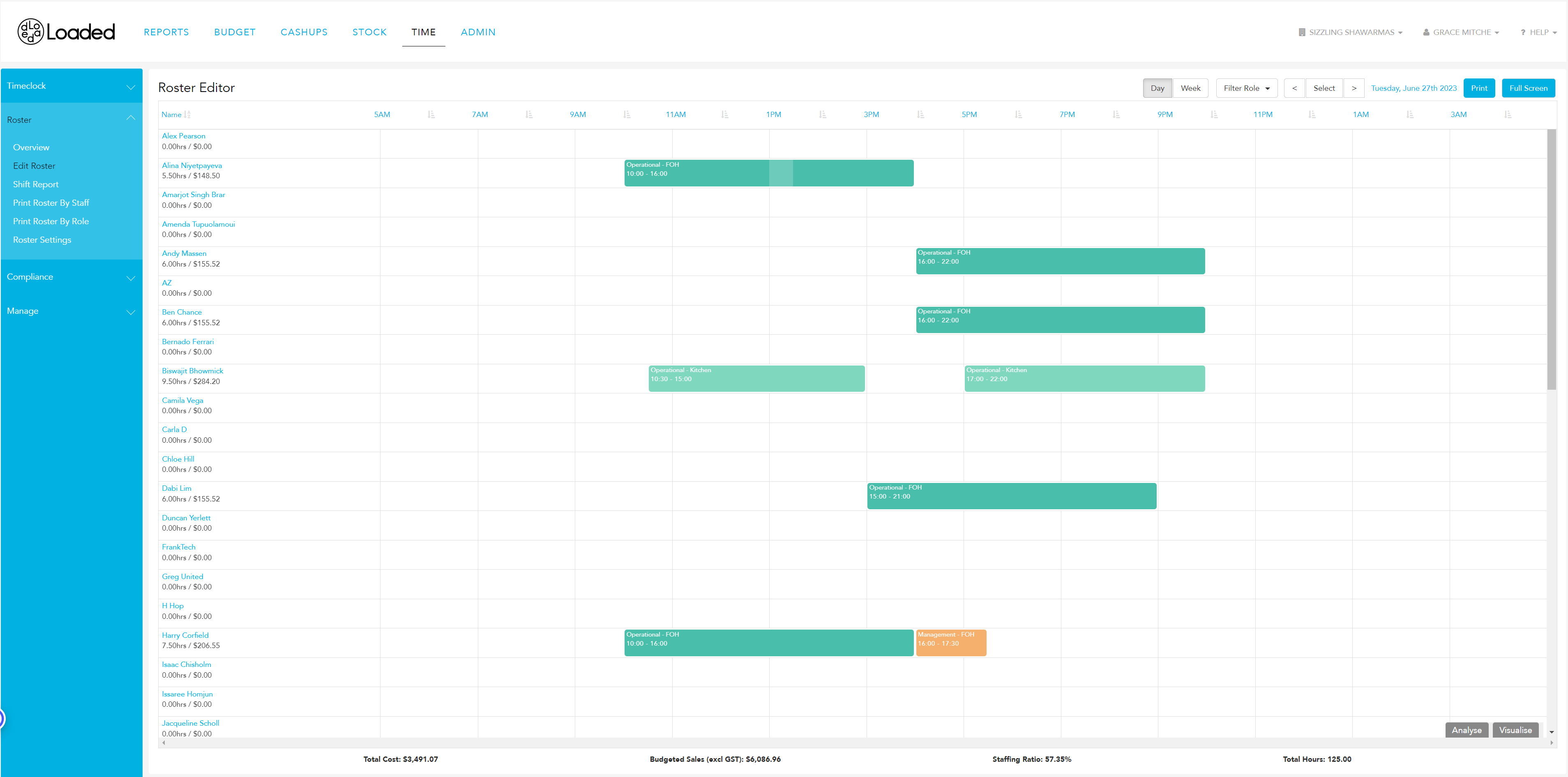
In the Edit Shift pop out, click 'Add Break'
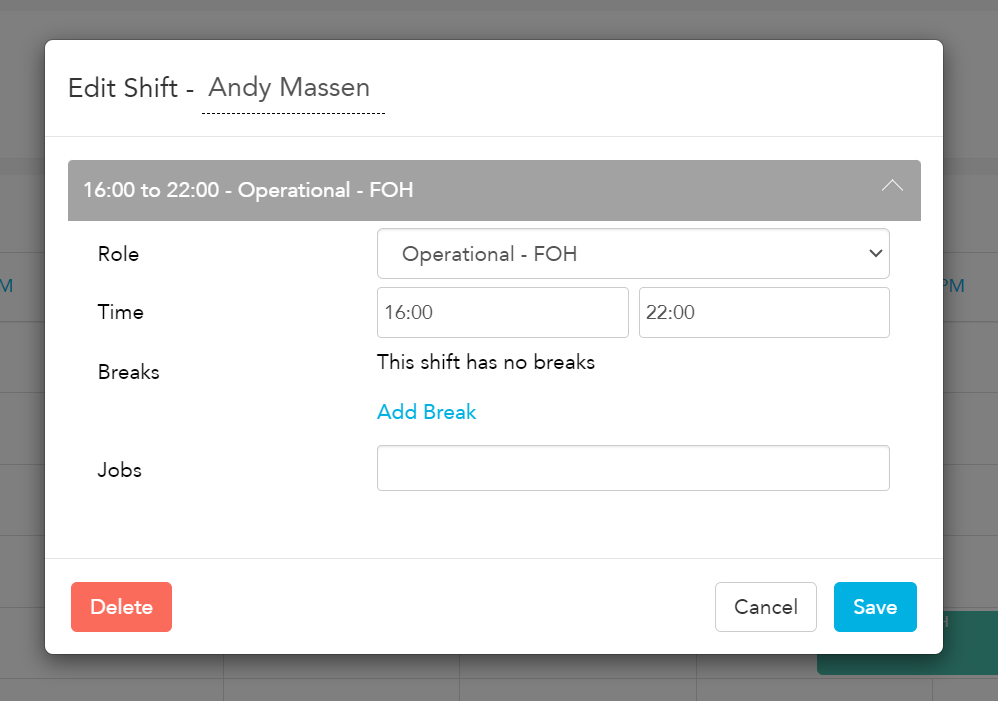
Enter the break start time, end time, and whether or not it is paid, then click Save
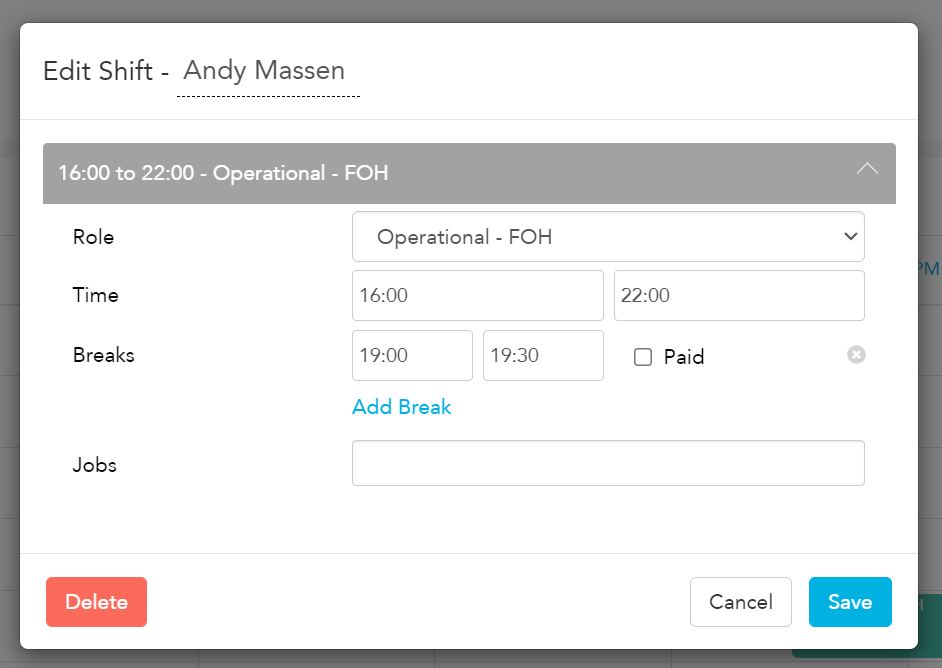
The break will now show in the shift
Day view

Week view
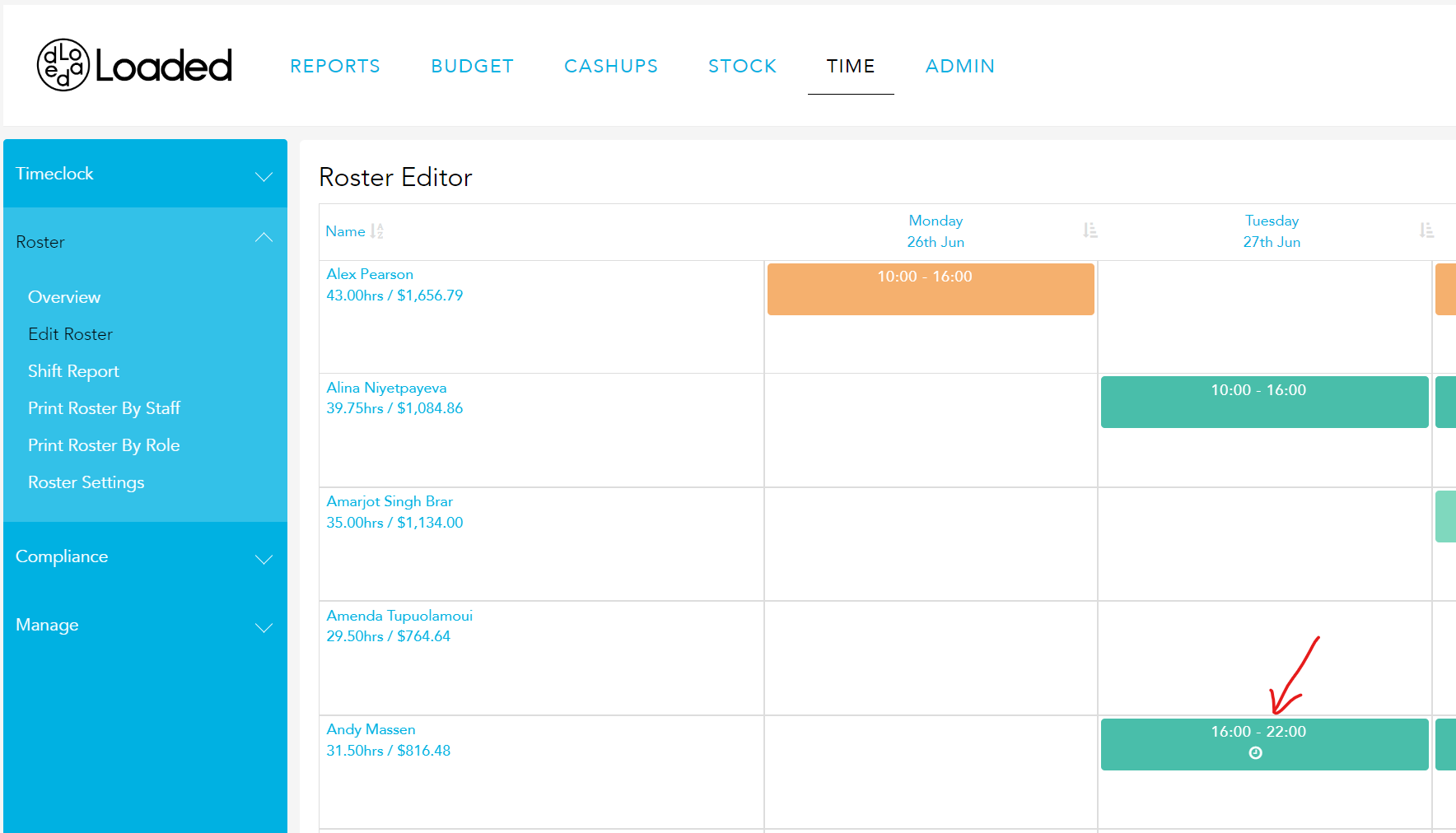
Editing a Break on the roster:
Edit Shift pop out (day view or week view)
Click on a shift
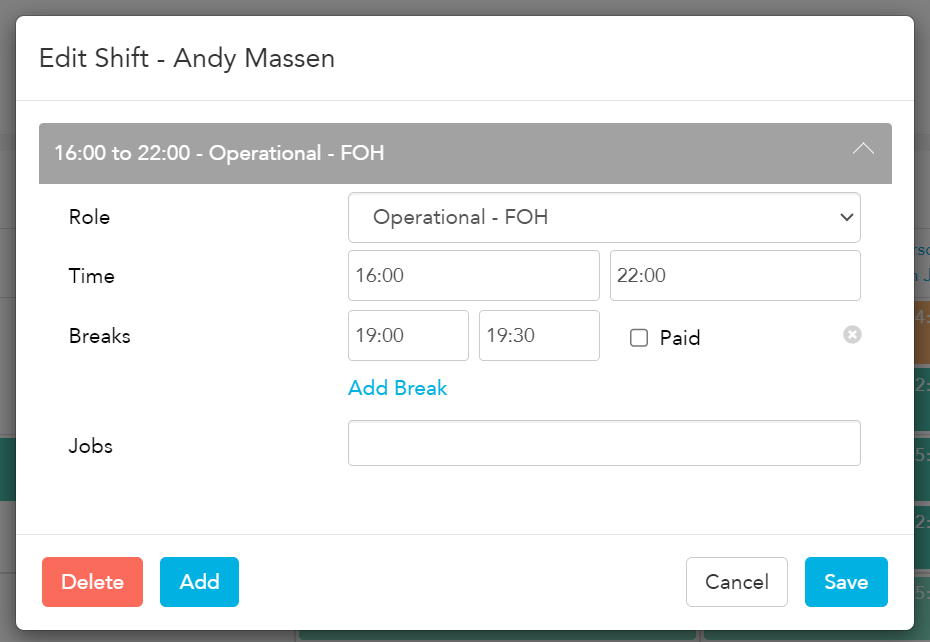
In the Edit Shift pop out you can edit the start time, end time, and whether or not the break is paid.
You can also delete the break using the grey 'x' icon, or add another break to the same shift.
Dragging a break within a shift (day view)
To move a break, click it and drag it to where you want it to be in the shift: To edit the length of a break, click on either end of the break and drag it to the desired length
View Breaks in the Shift Overview (week view only):
Click on the hrs/$ of a staff member from the Week view
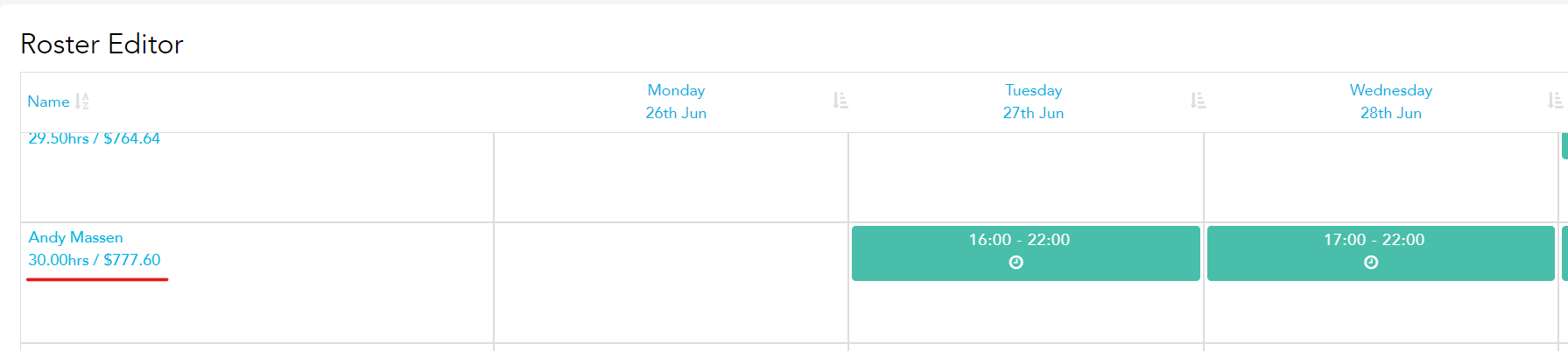
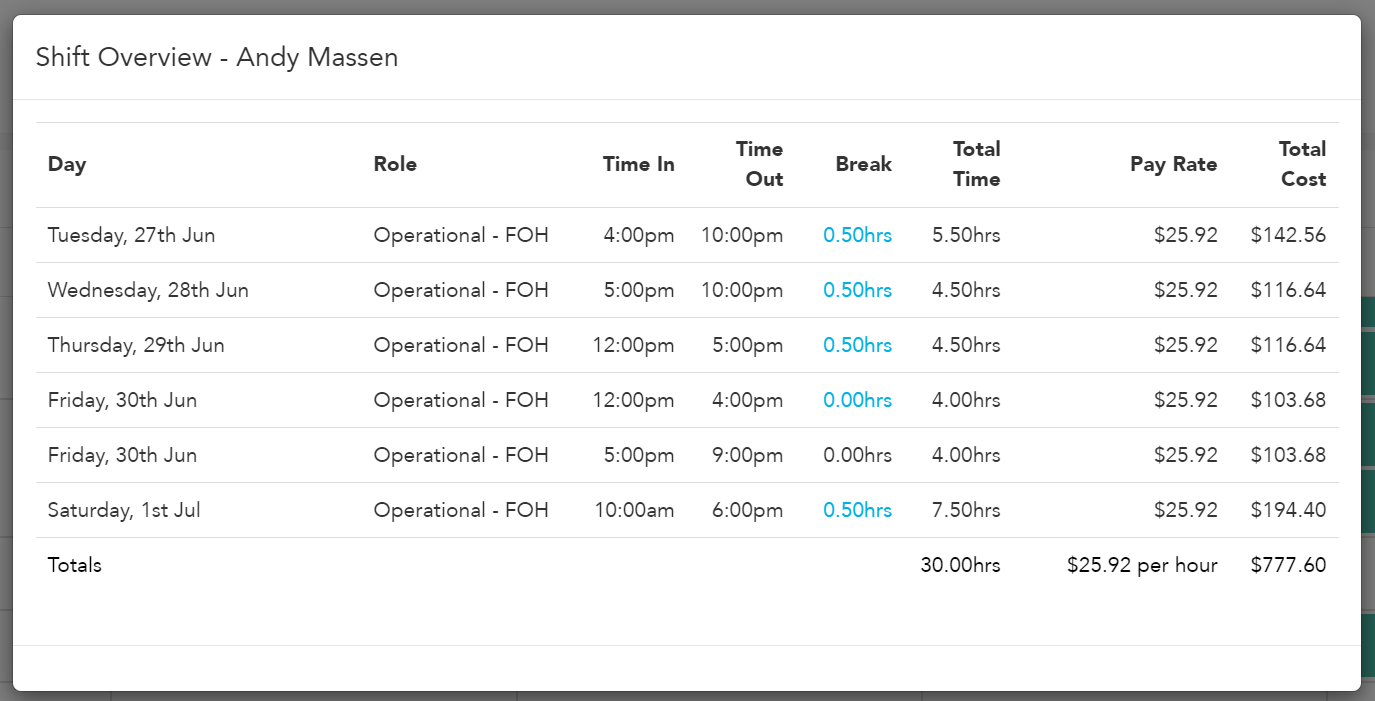
The Shift Overview will show all breaks rostered for that staff member
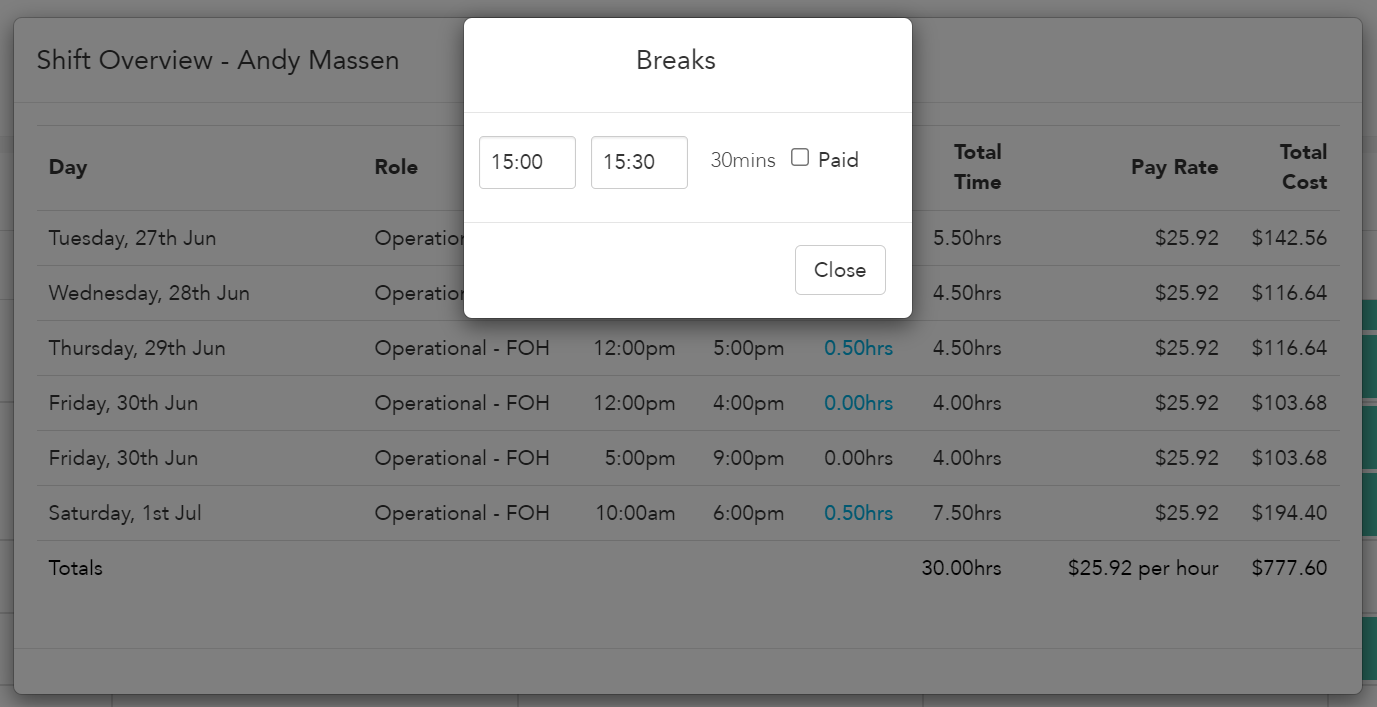
Click on a break to see the details (view only)
How do breaks calculate in your labour costs
The cost and time of paid breaks are included in Labour reports in both the dollar value calculations and the hours worked.
The cost and time of unpaid breaks are not included in Labour report totals, both for dollar value calculations and hours worked.
E.g. a staff member completes an 8 hour shift with a 30-min unpaid break, and 15-min paid break, with a base rate of $25/hour. That will be reported as a 7.5 hour shift, costing $187.50 - it includes the time and cost of the 15min paid break, but not the time and cost of the 30-min unpaid break.