
You need Time permission to export time clocks and Payroll permission to be able to view pay rates. If you don't have access to this module, ask someone with Manager's permission to update your user permissions.
You will need to have set up your Staff Roles and Staff details correctly, and reviewed your Time Clocks in order to export accurately to your payroll system.
If this is the first time you have completed an import to your payroll system, please read the Exporting timeclock from Loaded article first.
Set up
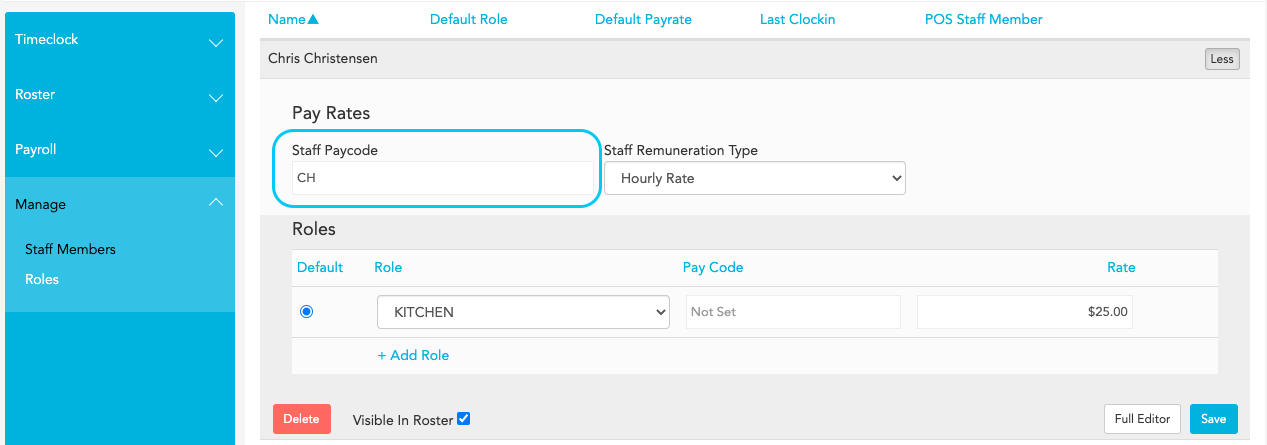
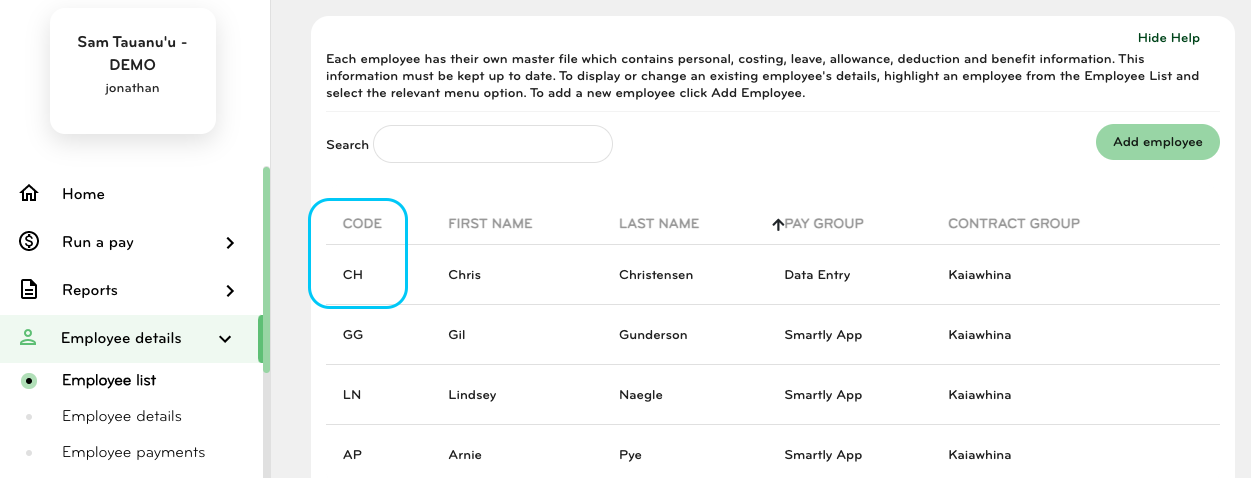
When setting up staff members in Loaded, ensure that the Staff Paycode in Loaded matches the Code of the Staff member in Smartly under the Employee Details > Employee List
Loaded Staff editor
Smartly Employee details page
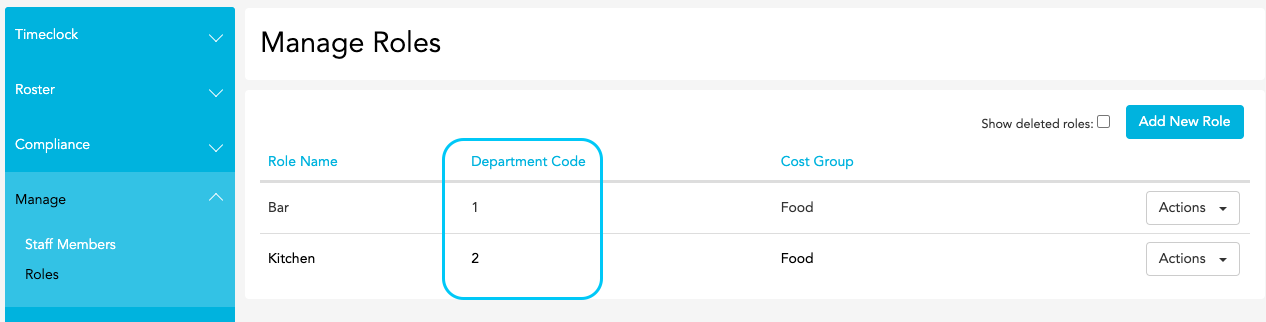
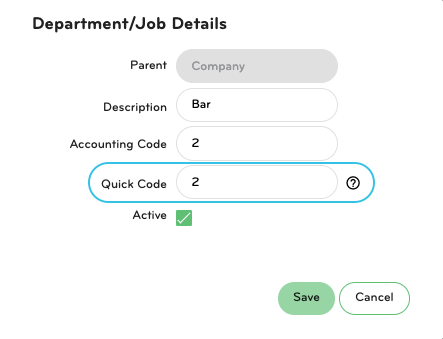
Ensure that the Department Code of Roles in your Loaded account (Time > Manage > Roles) matches the Quick Code of a Department/Job in Smartly under Company Details > Departments/Jobs.
Loaded Roles Editor
Smartly Department/Job Editor. In order to access this part of Smartly, hover over a title of a Department/Job and click the Pencil sign to see additional information
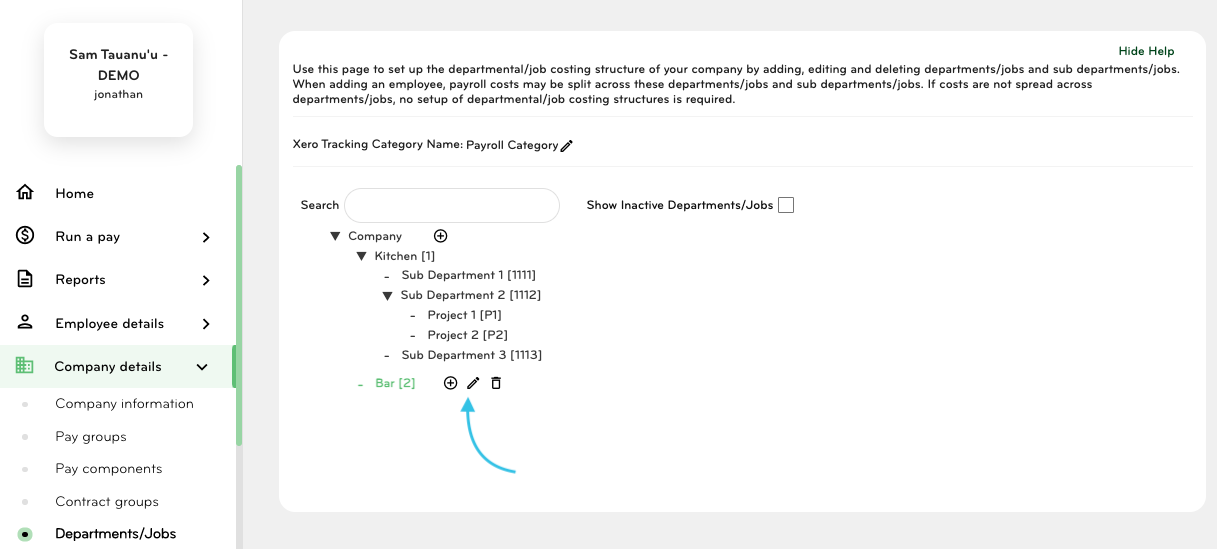
Quick Code in Smartly
Importing to Smartly
Ensure you have successfully exported your timesheets from Loaded.
Go to Run a Pay > Timesheet import in Smartly
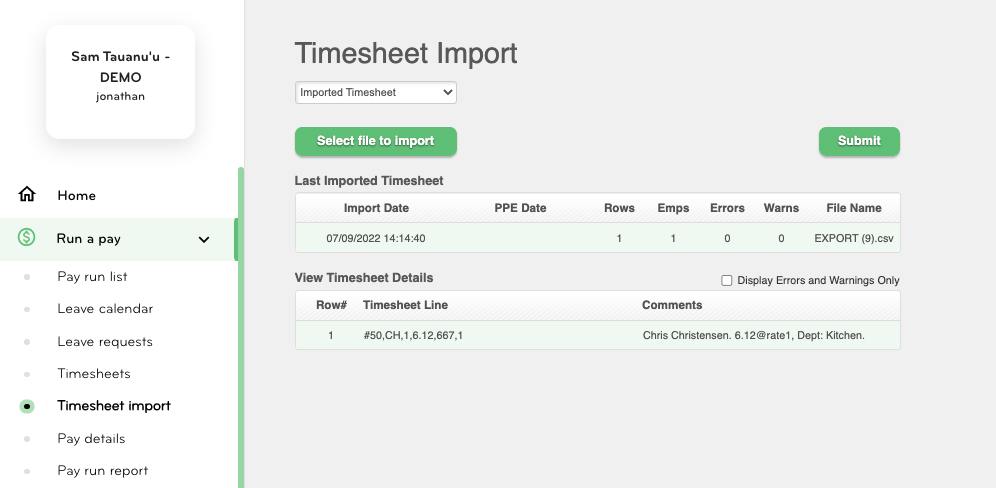
Click select the Pay Group in the drop down list under the "Timesheet Import" header.
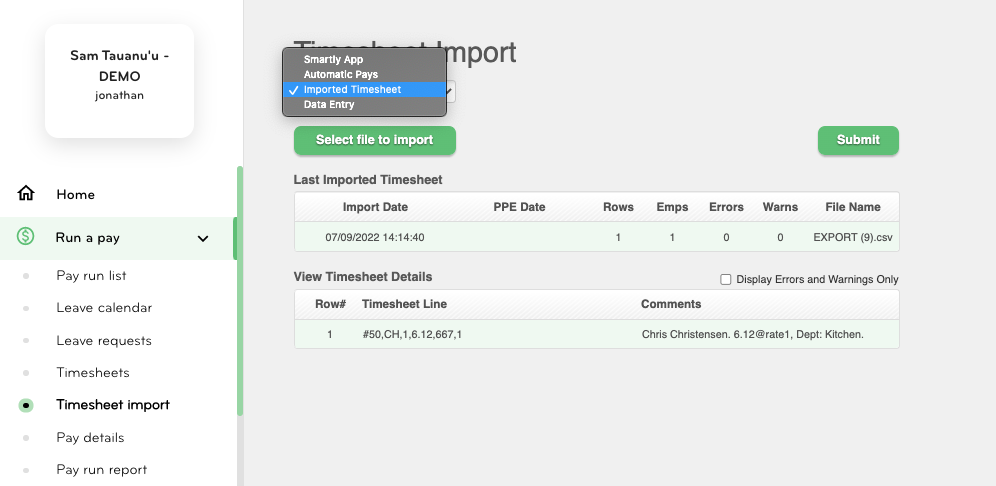
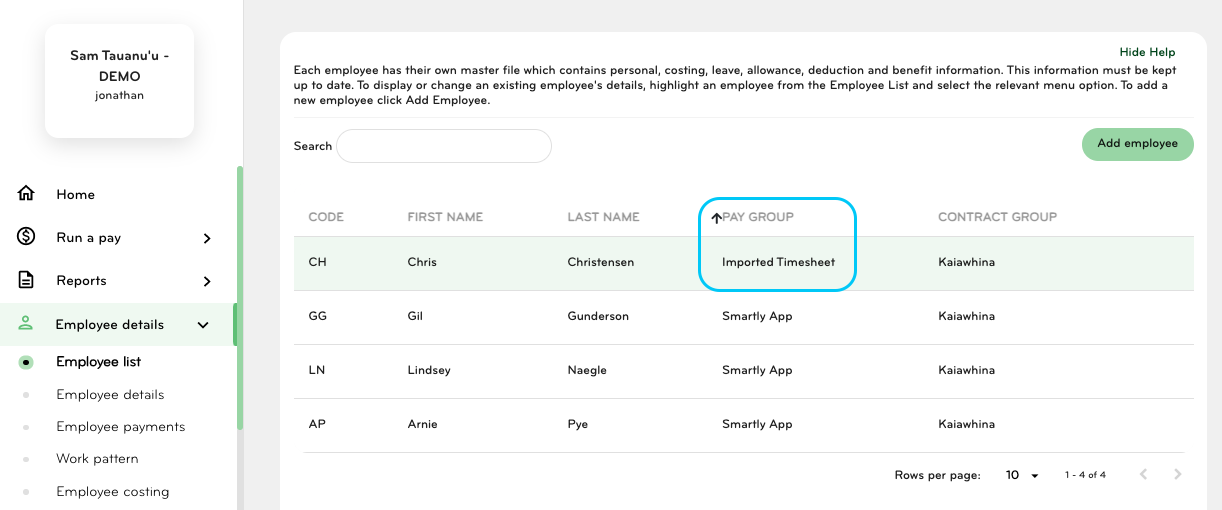
In our example we are going to import timesheet with Chris Christensen's data, therefore we select Imported Timesheets as this is the Pay Group that Chris belongs to. You can check which group staff member(s) belong to on the Employee List page.
Click the Select file to Import button and find the CSV file that you had exported from Loaded, by default it's called EXPORT.CSV.
If the import succeeds, you will see the following page where you can click Submit.
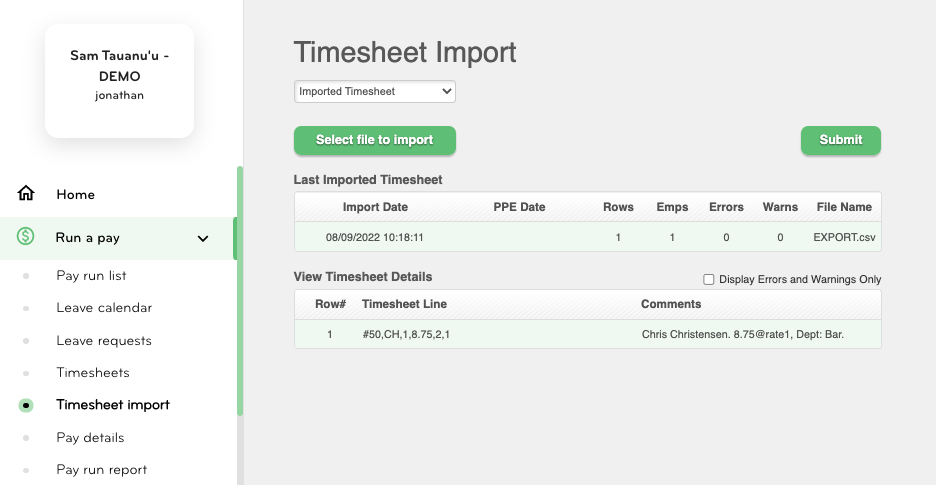
Your staff member(s) should then have the correct work hours imported. You can then follow the Running a pay guide provided by Smartly.
Errors
If the import doesn't succeed, you will get one of the following errors.
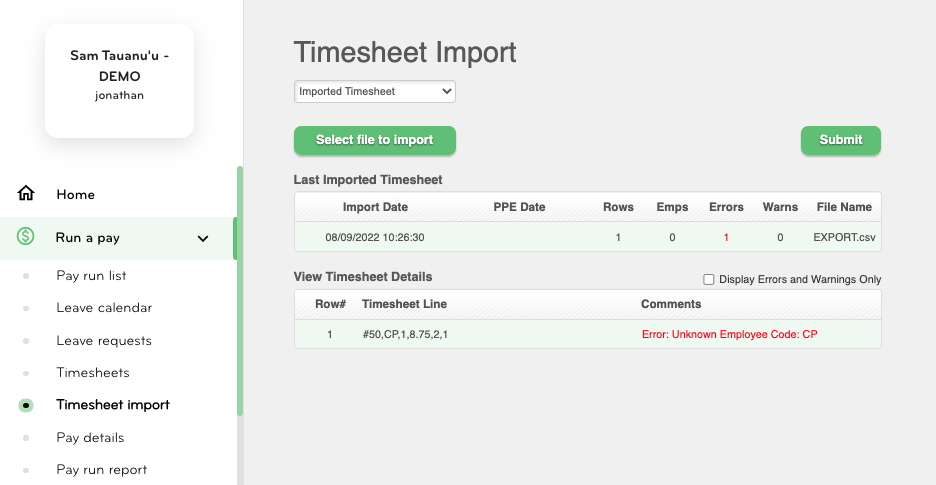
This suggests that there is something wrong with the Pay Code assigned to a staff member, either it doesn't match to anything in your Smartly staff list or it's not entered at all (please refer to Set up, step 1).
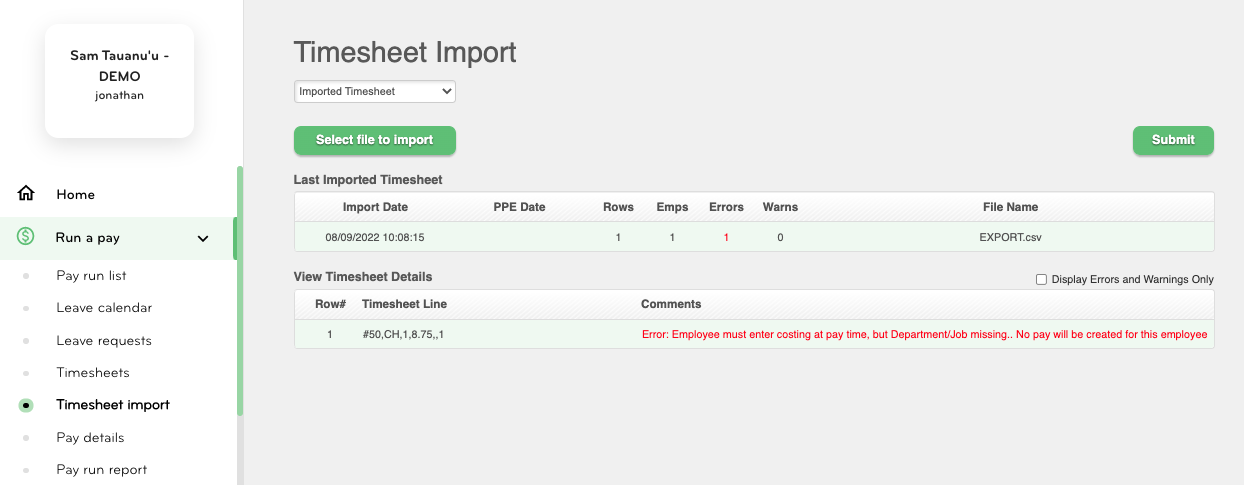
This error suggests that there is something wrong with the Department code of one of the roles being imported, i.e. it does not match the Quick code of a Department/Job in Smartly or is not entered at all (please refer to the Set up paragraph, step 2).
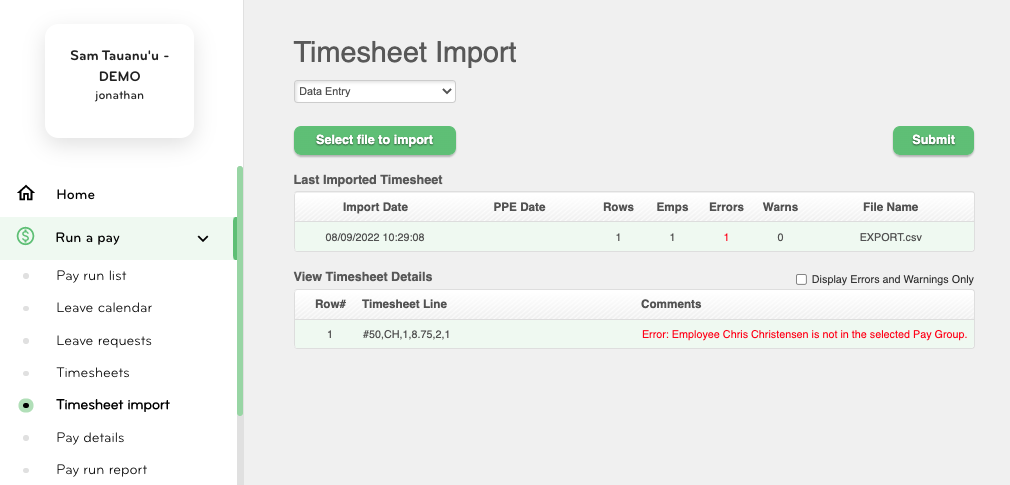
This error suggests that the staff member(s) in the export file are not assigned the same Pay Group as the one selected under the Timesheet Import header (please refer to the Importing to Smartly paragraph, step 3).
If you have a different error notification or need further information, please visit the Smartly Help Centre to find more information.