
You need Time permission to export time clocks and Payroll permission to be able to view pay rates. If you don't have access to this module, ask someone with Manager's permission to update your user permissions.
You will need to have set up your Staff Roles and Staff details correctly and reviewed your Time Clocks in order to export accurately to your payroll system.
If this is the first time you have completed an import to your payroll system, please read the Exporting timeclock from the Loaded article first.
Set up
First, you will need to create a Timesheet Template and Tagsets in PaySauce.
Timesheet Template
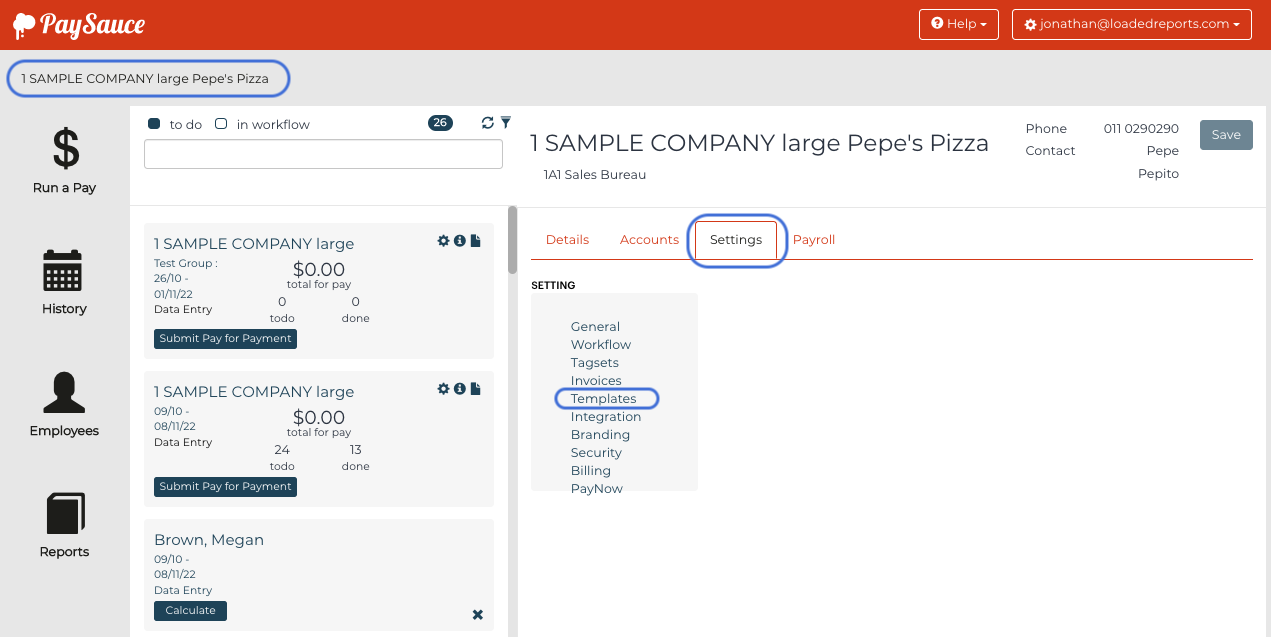
To create the Timesheet Template in PaySauce, click on the company name in top left corner > Settings > Templates
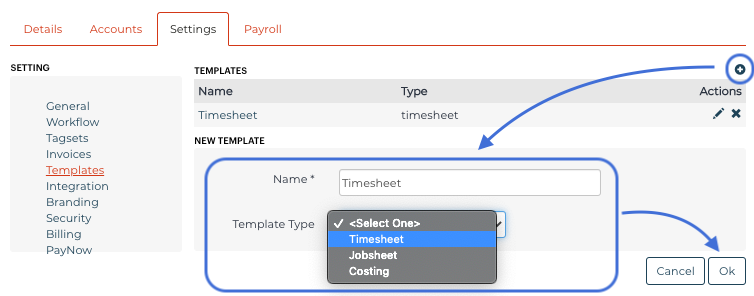
Click the + button and enter the name "Timesheet" into the Name field and select "Timesheet" in the Template Type drop down list. Lastly click OK to save the template.
Tagsets
To create the Tagsets, click on Tagsets > then the + button
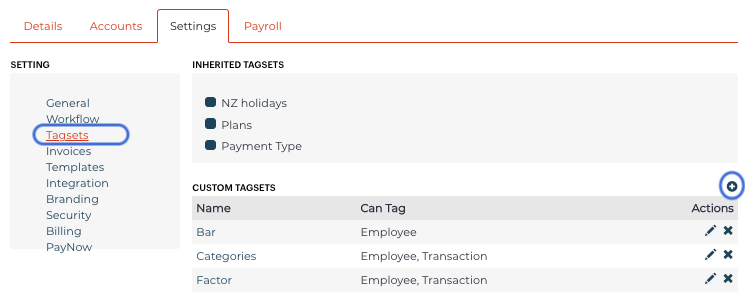
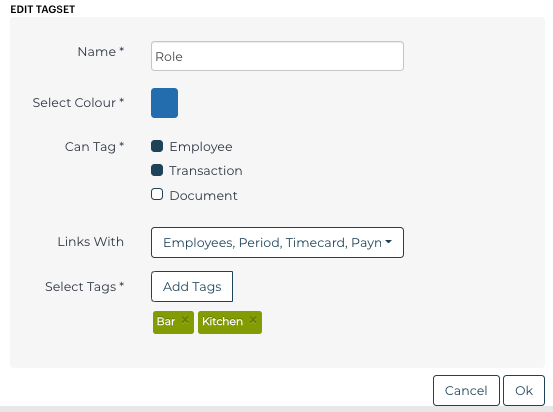
You need to create two tagsets, one called Factor and another called Role (in case they already exist, you can just check & edit them as shown below).
Ensure that the Factor and Role tagsets you are creating & editing look like the samples below.
Sample of the Factor tagset:
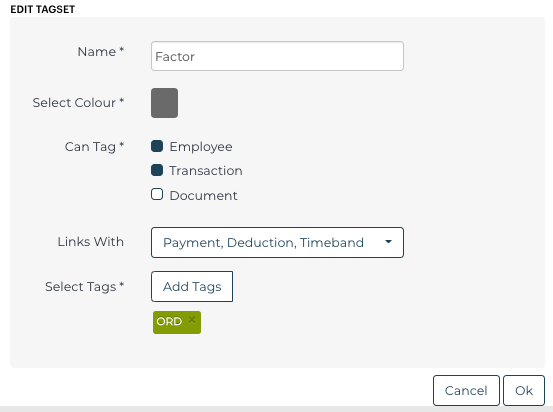
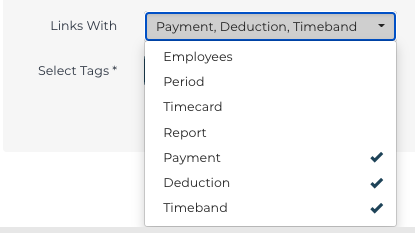
Here is what you need to select in the Links With dropdown list (Payment, Deduction, Timeband):
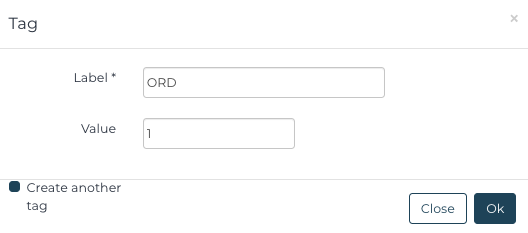
You also need to click Add Tags and add a tag with Label "ORD" and value "1":
Sample of the Role tagset:
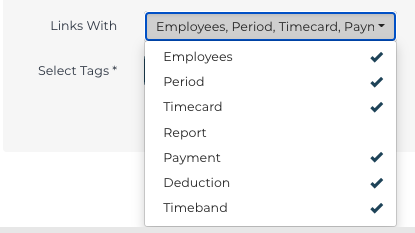
Here is what you need to select in the Links With dropdown list (Employees, Period, Timecard, Payment, Deduction, Timeband):
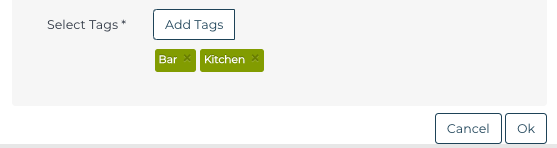
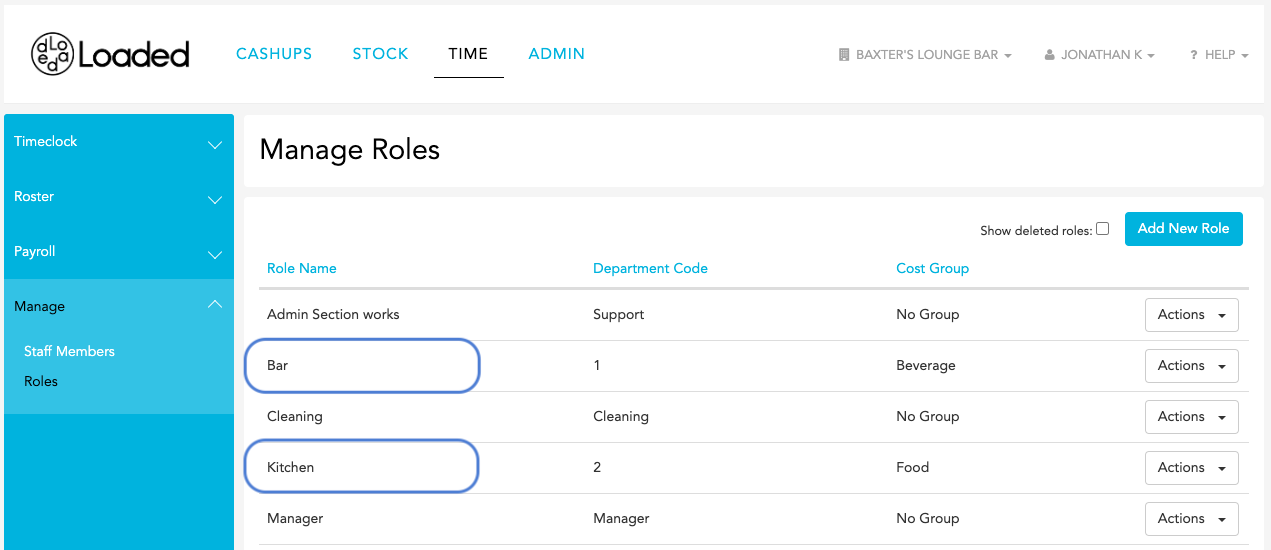
Then you need to click Add Tags and add Tags that would match Roles in your Loaded account. The Label and Value of each tag should match the name of a Role in Loaded. In our sample account, we add two roles, Bar and Kitchen:
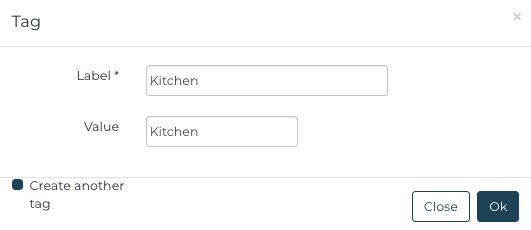
Here is a sample of what the Kitchen tag looks like, both text fields match a title of the "Kitchen" role in Loaded:
Here are the roles in Loaded that we want to match to the two tags we have created for the Role tagset:
Setting up staff members
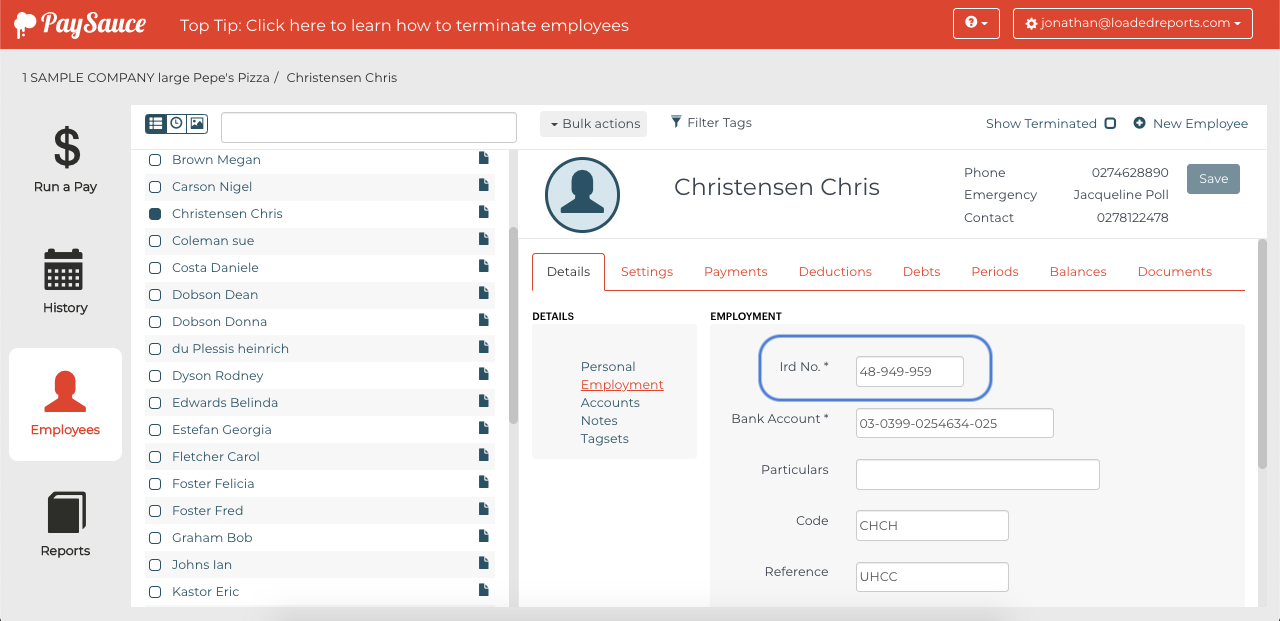
When setting up staff members in Loaded, ensure that the Staff Paycode in Loaded matches the IRD No of the Staff member in PaySauce Payroll.
Loaded Staff Editor
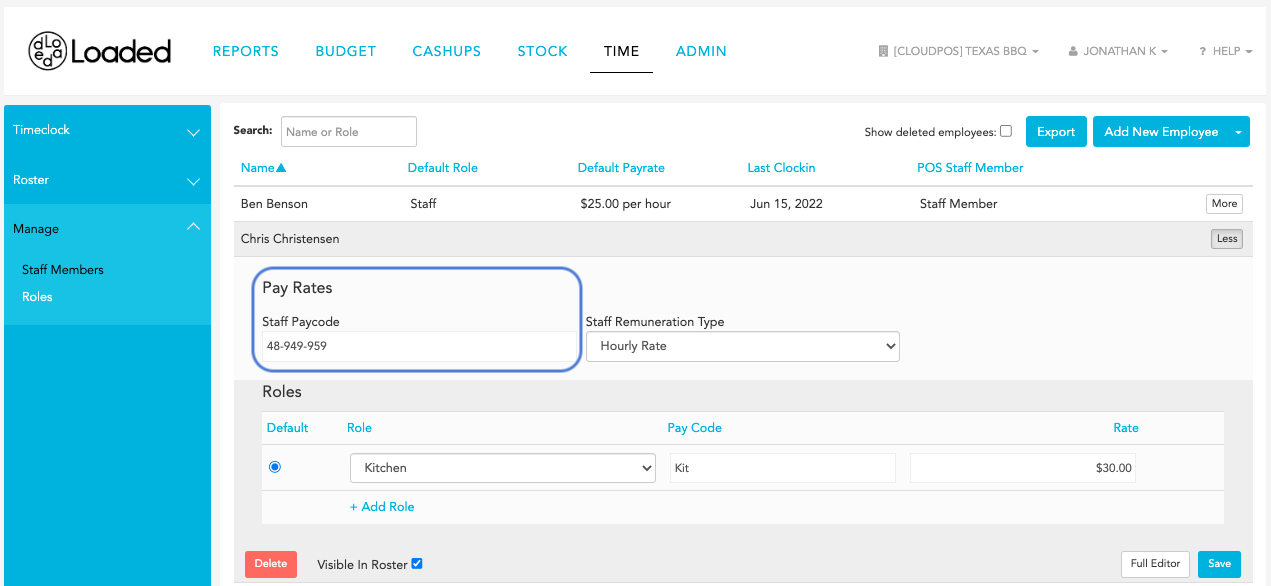
PaySauce Payroll Employee Details Editor. You can access it by clicking Employees > an employee name > Details > Employment.
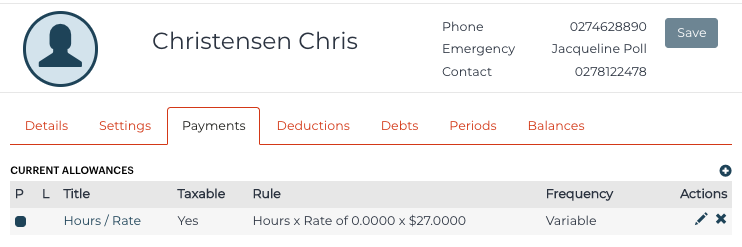
You also need to link the employee's allowance with the Template that you have set earlier. To do it, move to the Payments tab > click the + button to create an allowance or if there is an existing one, click on its title to edit it:
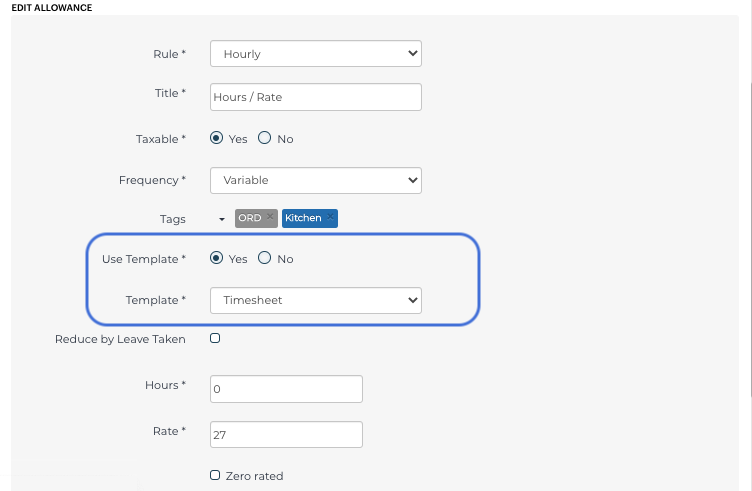
Below is a sample of how you can set up an allowance, you need to ensure that "Yes" is selected for the Use Template option and the Timesheet template is selected for the Template option:
Importing to PaySauce Payroll
Ensure you have successfully exported your timesheets from Loaded.
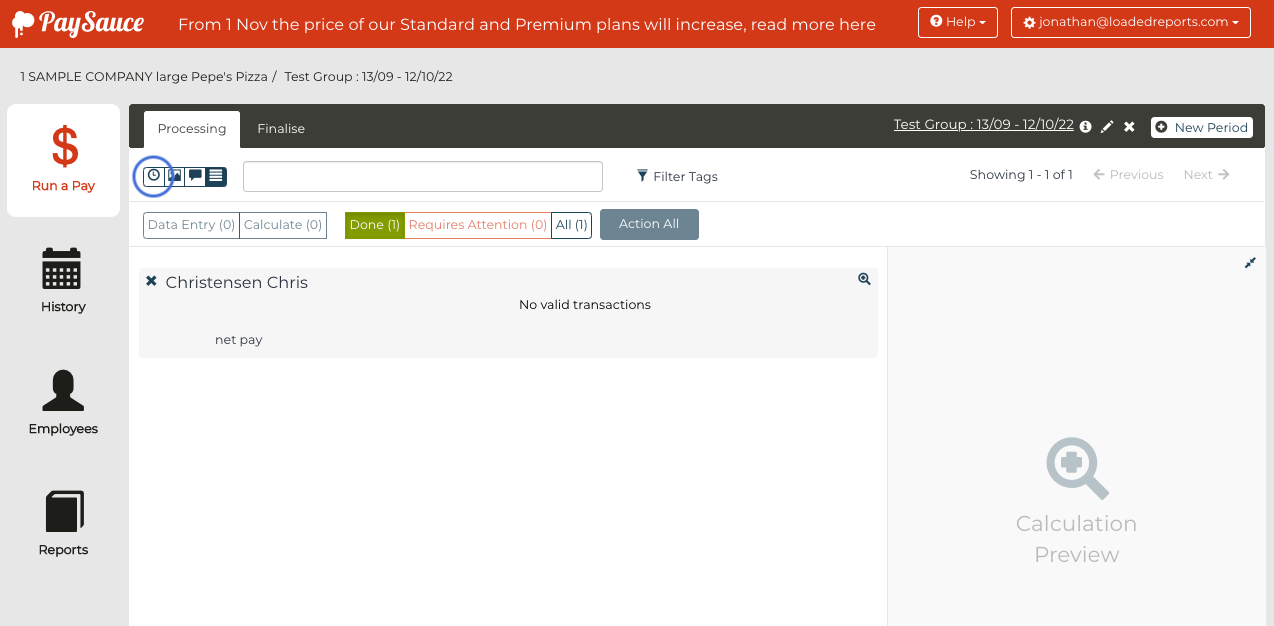
Click Run a Pay > click on the Clock icon > then click the Up arrow in PaySauce and upload the file you have exported from Loaded.
Click the Data Import button on the right-hand side then Choose file, pick a file you have exported from Loaded and click Import.
After this, you can process the pay as per the instructions in the PaySauce knowledge base.
If you get an error notification or need further information, please visit the PaySauce Payroll knowledge base.