
You need Time permission to export time clocks and Payroll permission to be able to view pay rates. If you don't have access to this module, ask someone with Manager's permission to update your user permissions.
You will need to have set up your Staff Roles and Staff details correctly, and reviewed your Time Clocks in order to export accurately to your payroll system.
If this is the first time you have completed an import to your payroll system, please read the Exporting timeclock from Loaded article first.
Set up
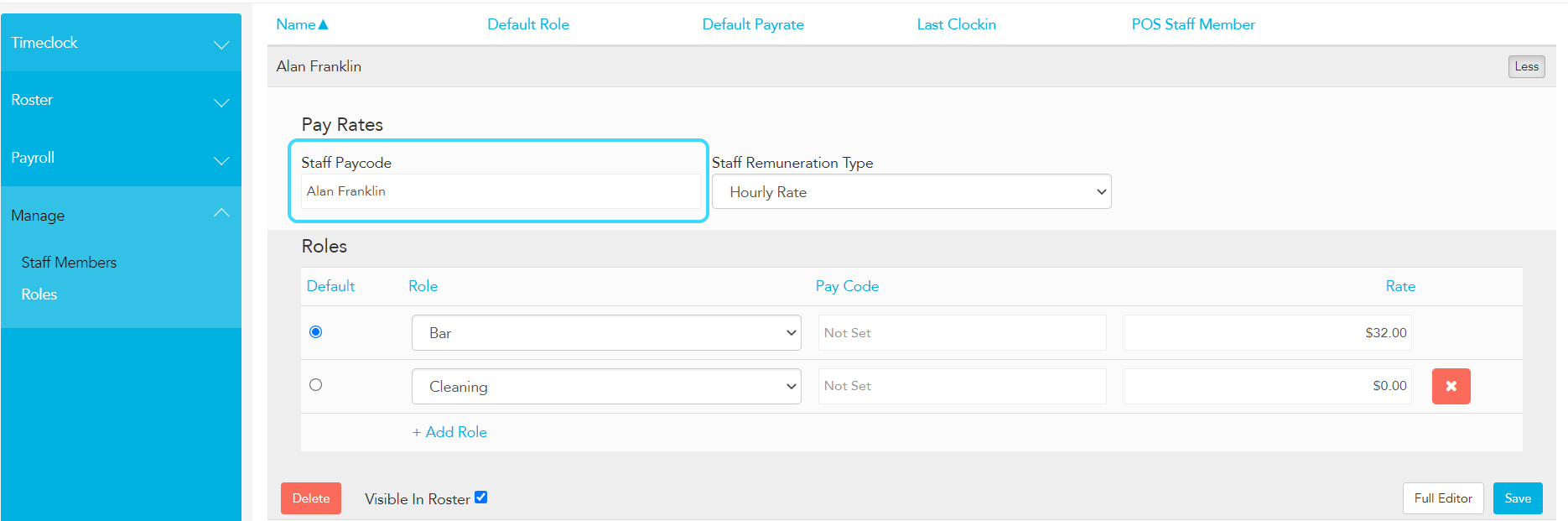
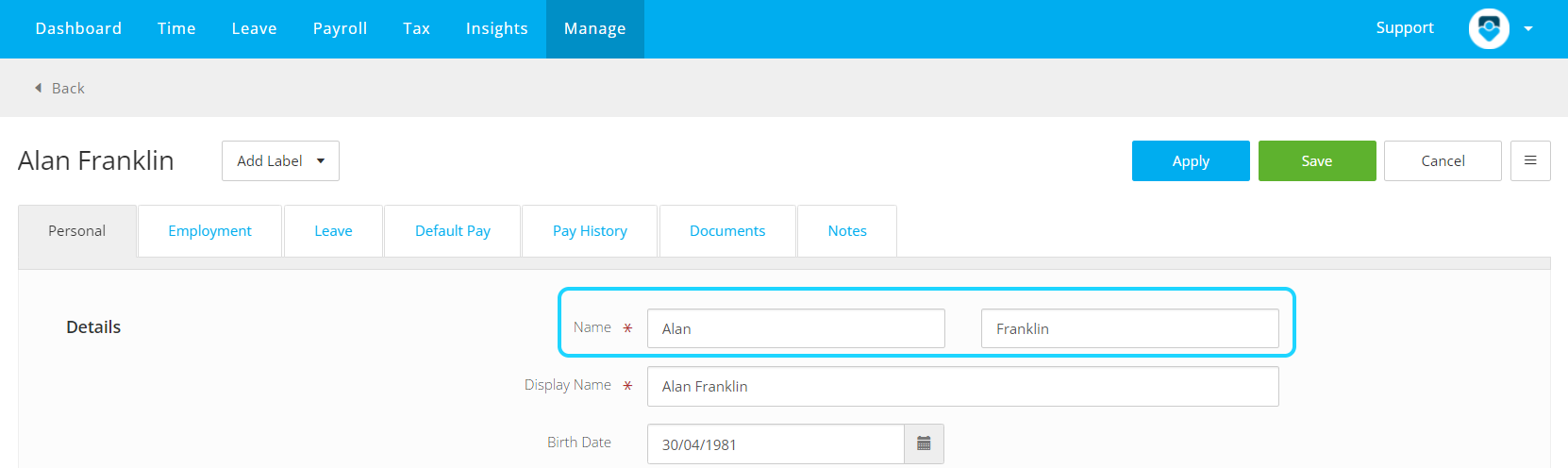
When setting up staff members in Loaded, ensure that the Staff Paycode in Loaded matches the Display Name of the Staff member in PayHero under the Manage tab.
Loaded Staff editor
PayHero Staff Editor
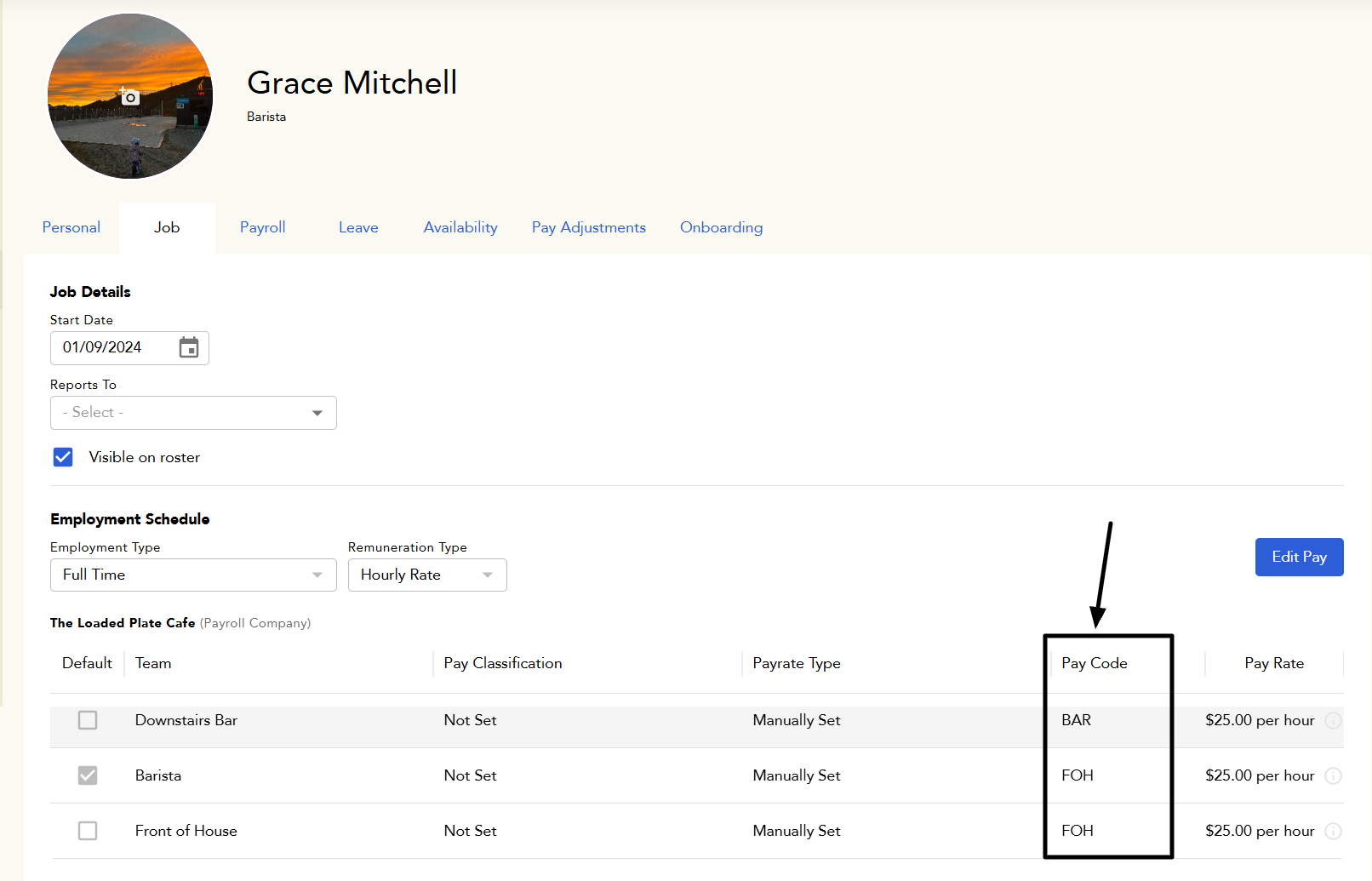
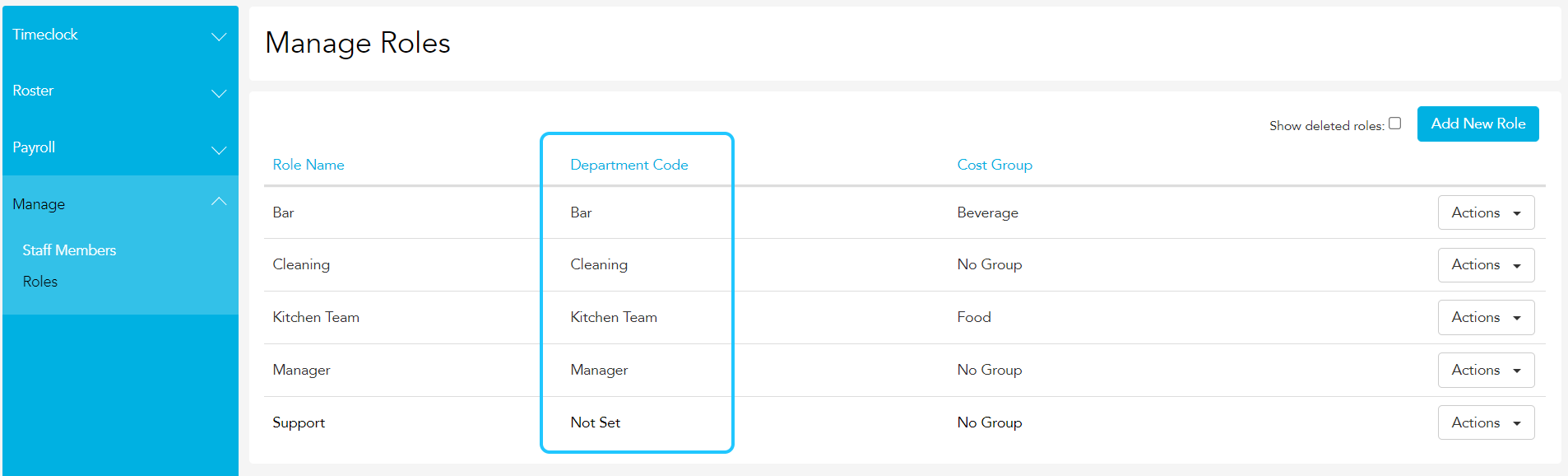
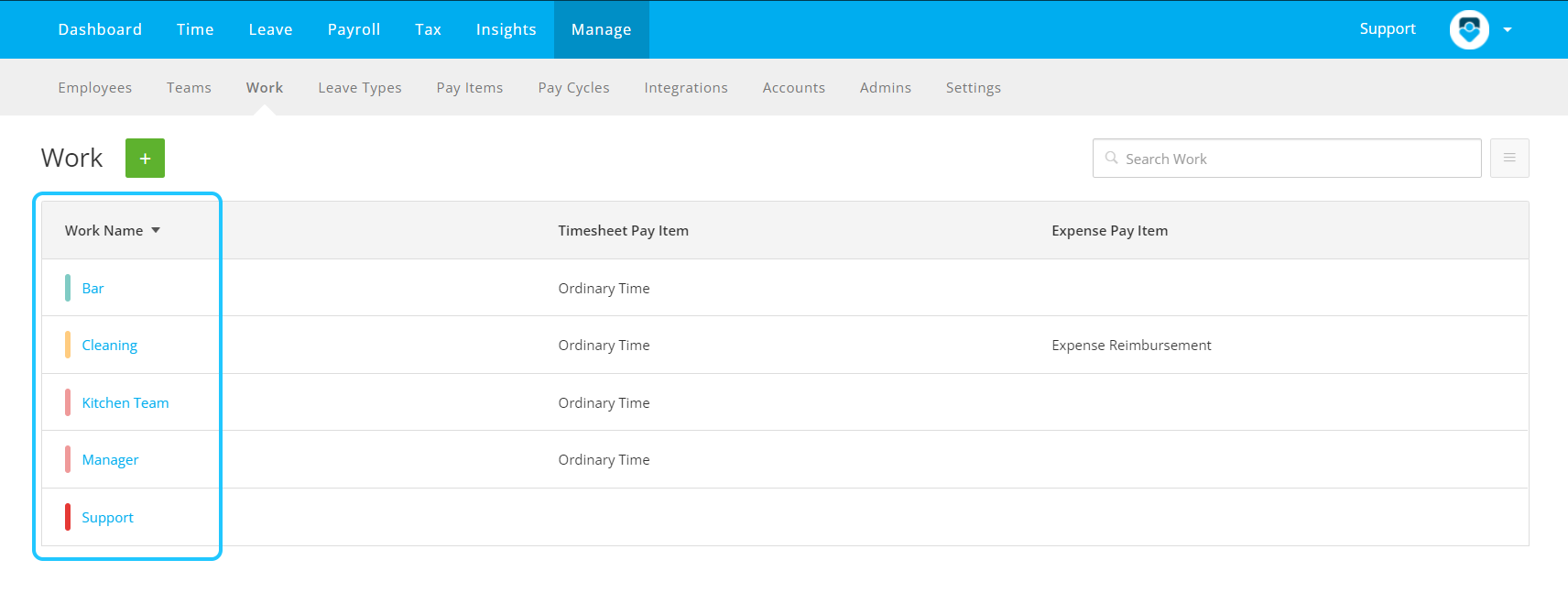
Loaded uses the Staff Member's role pay code (Team > Workforce > Staff Members > Staff Member Name > Job tab), or the Department Code of roles in your Loaded account (Team > Workforce > Roles) in that priority order. Make sure either the Staff Member's role pay code, or the Department Code matches the Work Name of 'Works' in PayHero under Manage > Work.
Staff Member Role Pay Code > click 'Edit Pay' to add a value here:
Loaded Roles Editor
PayHero Roles Editor
Importing to Payhero
Ensure you have successfully exported your timesheets from Loaded.
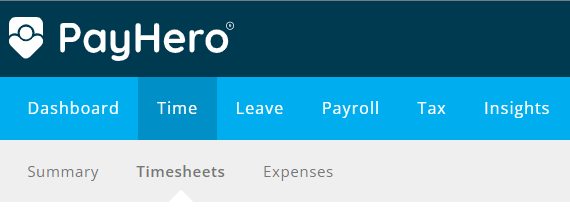
Go to Time > Timesheets in PayHero
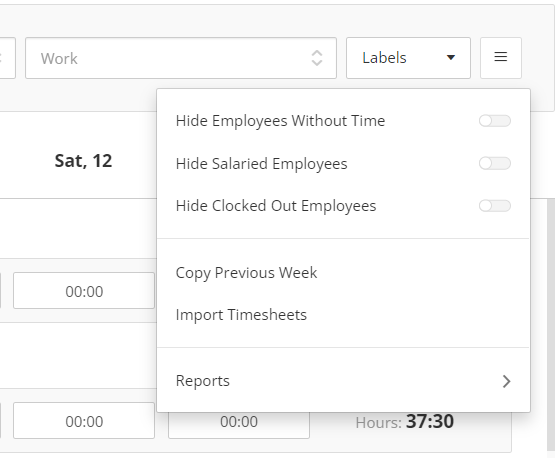
Click the menu button on the right edge and select Import Timesheets
Select the file on your computer and confirm the export.
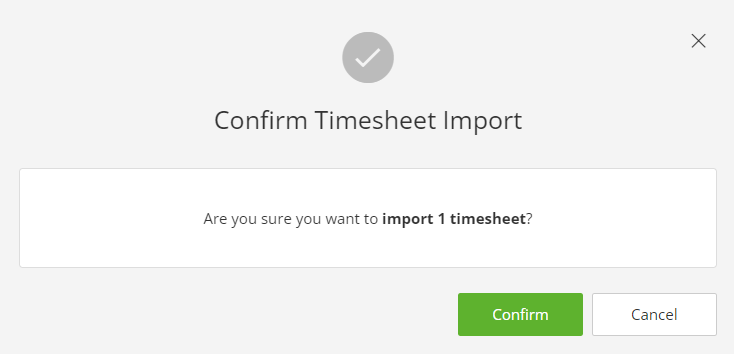
If the import succeeds, you will see the following notification.
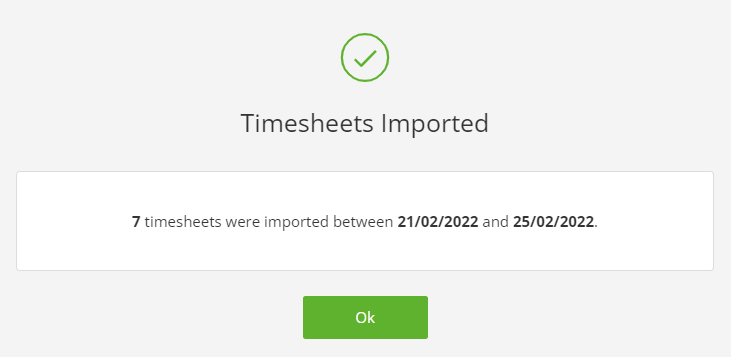
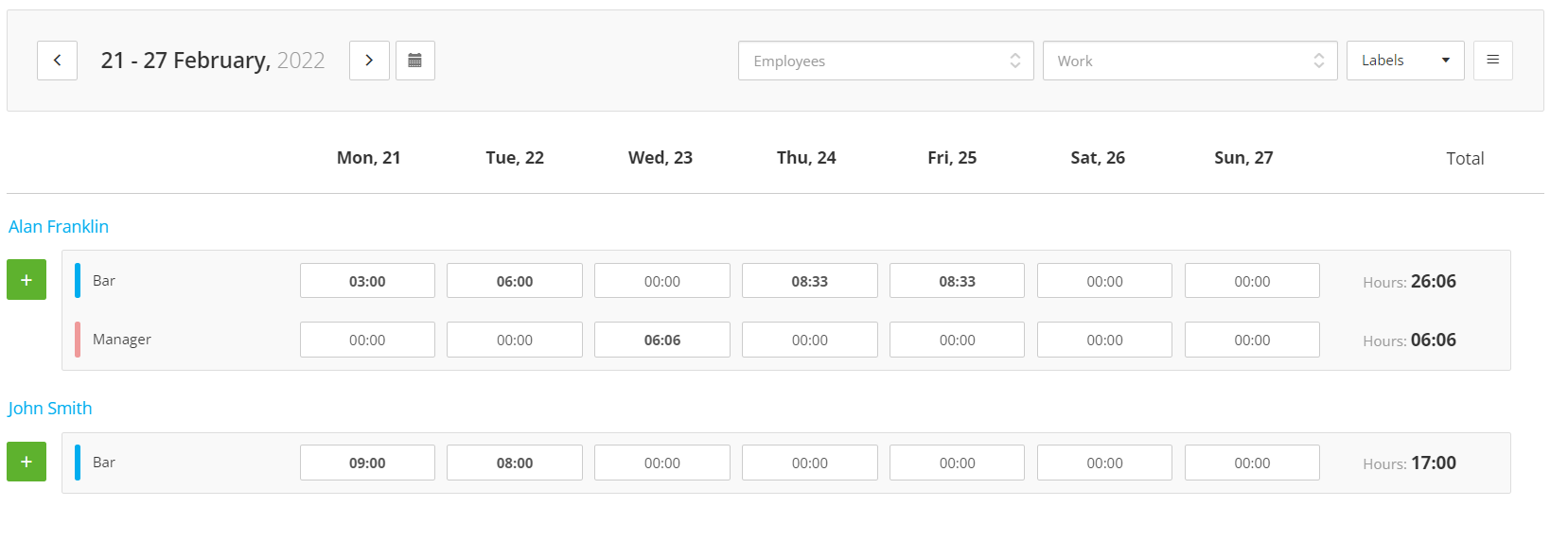
Your staff members should then successfully have their hours imported.
Errors
If the import doesn't succeed, you will get one of the following errors.
This suggests that there is something wrong with the Pay Code assigned to a staff member, either it doesn't match to anything in your PayHero staff list or it's not entered at all (please refer to Set up, Step 1.)
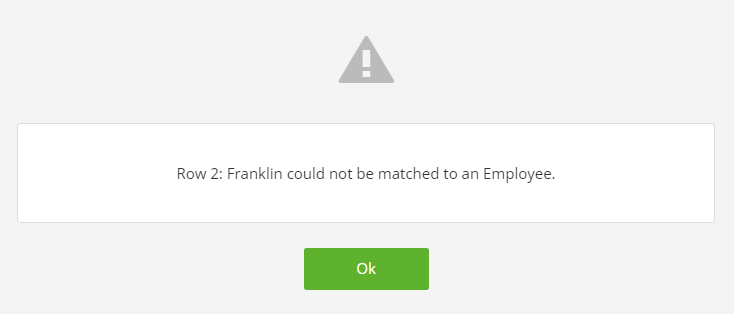
This error suggests that there is something wrong with the Department code of one of the roles being imported, i.e. it does not match the one in PayHero or is not entered at all (please refer to the Setting up paragraph, step 3)
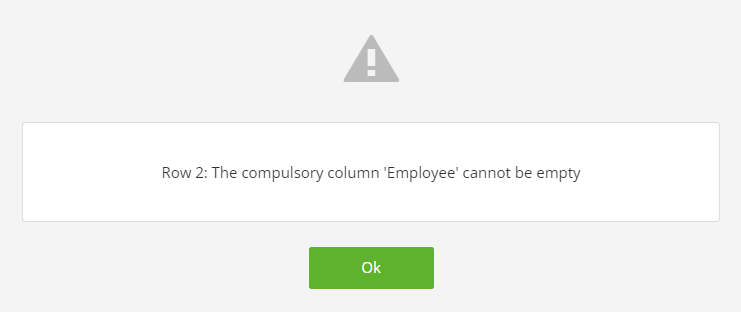
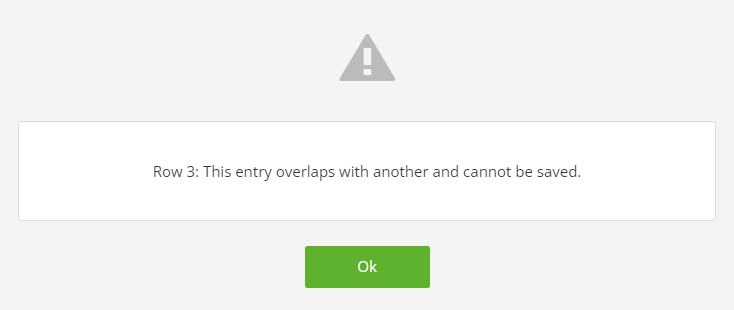
This error suggests that the timesheet you exported might have duplicate clocks in it
If you have a different error notification or need further information, please visit the Timesheet Import article in the PayHero knowledge base.