
You need cashups permission to edit a cashup. If you don't have access to this module, ask someone with Managers permission to update your user permissions.
You will need to be familiar with completing cashups before you can edit them.
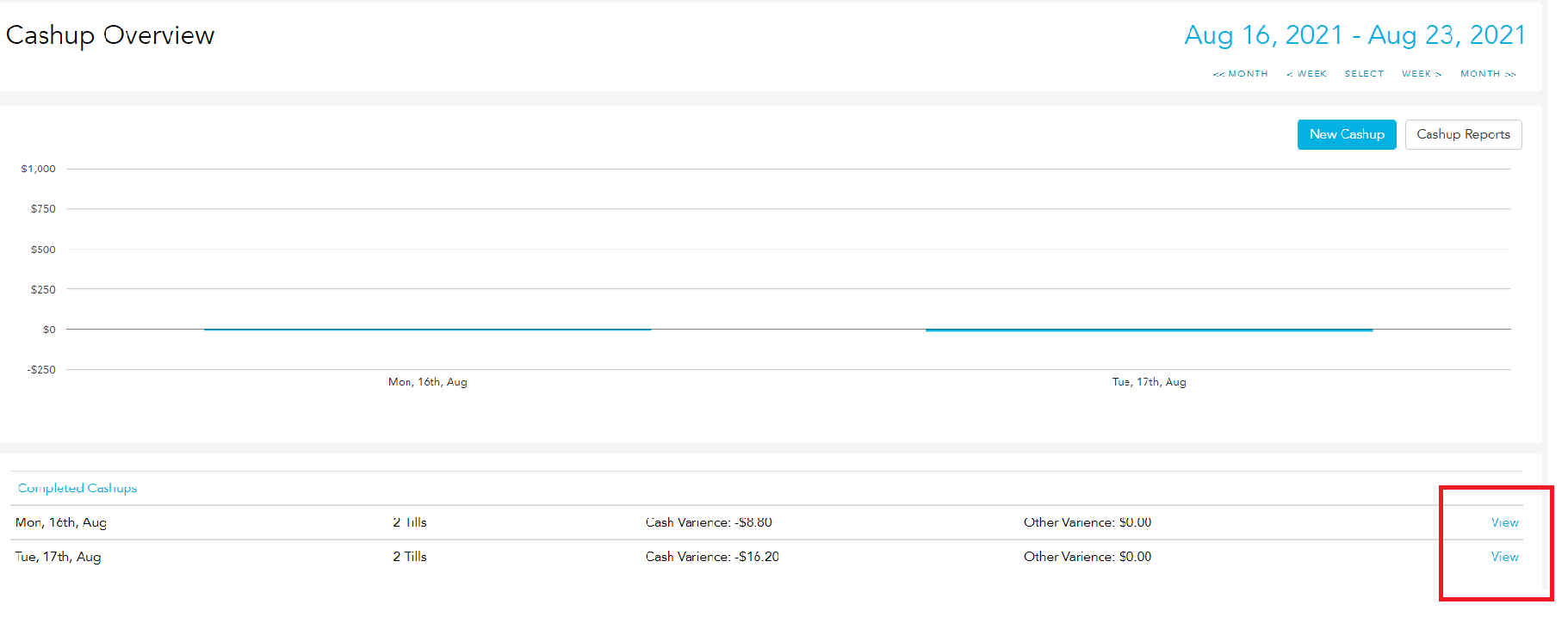
To edit a previously completed cashup, head to Cashups.
Scroll through the completed cashups to find the one you want to edit.
Click View.
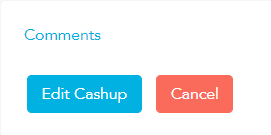
Click Edit Cashup in the bottom left corner.
From here you can make any changes to the totals needed.
Then click Commit Cashup.
To edit the date or time range of a cashup, open the edit page of the cashup and click on the date and time at the top of the page.

Click on the date and time drop box and select your desired date and time from the calendar.
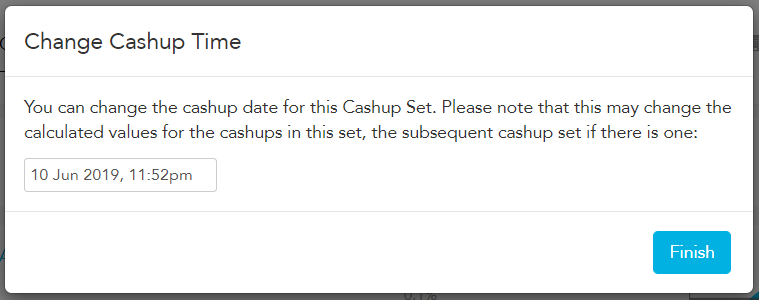
Click Finish.
Enter any figures to reconcile your cashup set.
Click Commit Cashup.