
You need Stock permission to create custom brands. If you don't have access to this module, ask someone with Manager permissions to update your user permissions.
You need to have entered supplier details and stock items before you can add custom brands.
There is a master list of brands already in Loaded, but if the one you need isn't showing, follow the steps below to add a custom brand — you'll need to do this in a blank purchase order template during the ordering process.
To access, head to Stock → Ordering → Outstanding Orders.
Click New Purchase Order.
This takes you to a blank purchase order template.
Click +Add Item and type the name of the stock item you want to add a brand for, then select the appropriate product from the list.
Click the Brand field, then click more.
Click Add Custom Brand.
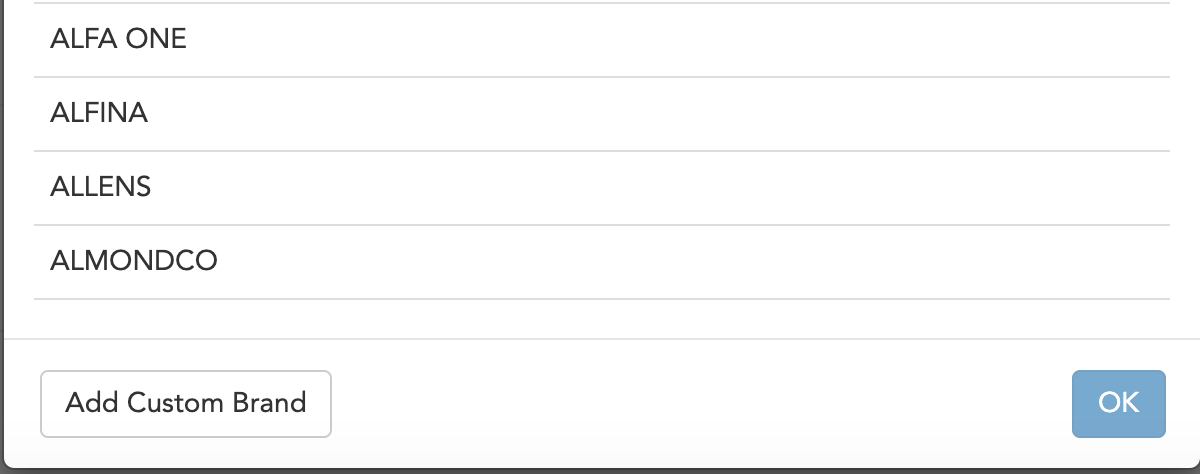
Type in the brand name.
Click Save.
Your new brand is now added and will be available to select next time you add a stock item.
Other Articles and Resources You Might Find Useful
How to add stock items